Use this page when visits processed at a guard handset are recorded against the wrong location, for example walk-ins enrolled at the Training Center showing up under Head Office, or visitors receiving another site’s access.
Symptom
Visits that an officer enrols or verifies at the checkpoint appear under another location in the visit list and in reports, or have no location at all. Visitors may get the access that belongs to that other location.
What it means
Every visit is filed against a location, and that location decides which access control list each visit status gives the visitor (see Status-Based Access per Location). Guard settings themselves are the same for the whole system. The location on a visit is decided in this order:
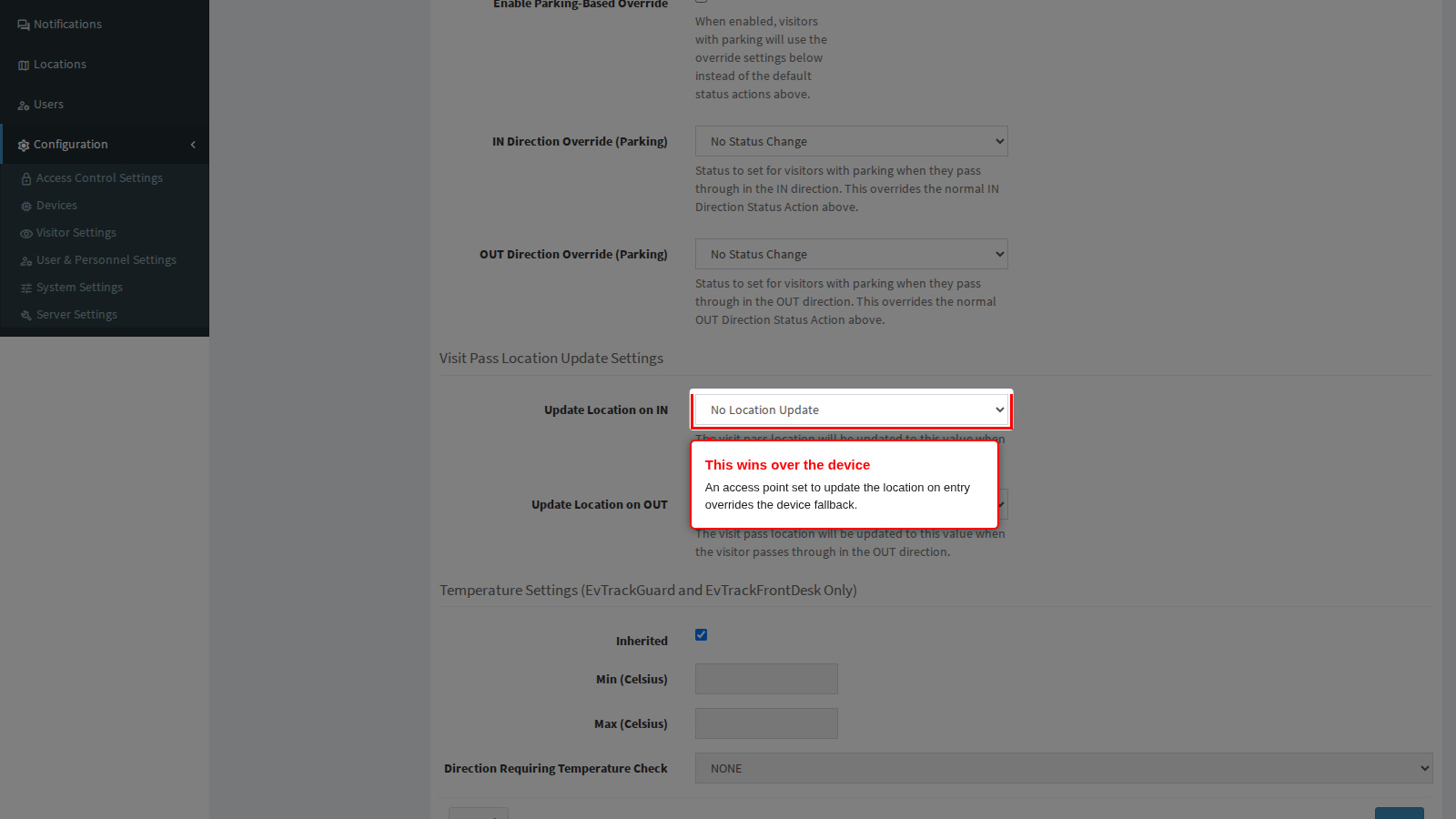
- An access control point set to update the location on entry moves the visit to its own location when the visitor passes it. This wins over everything below, including a location the officer’s enrolment named.
- Otherwise a visit that already has a location keeps it, whether the officer’s enrolment named it or the visit carried it already.
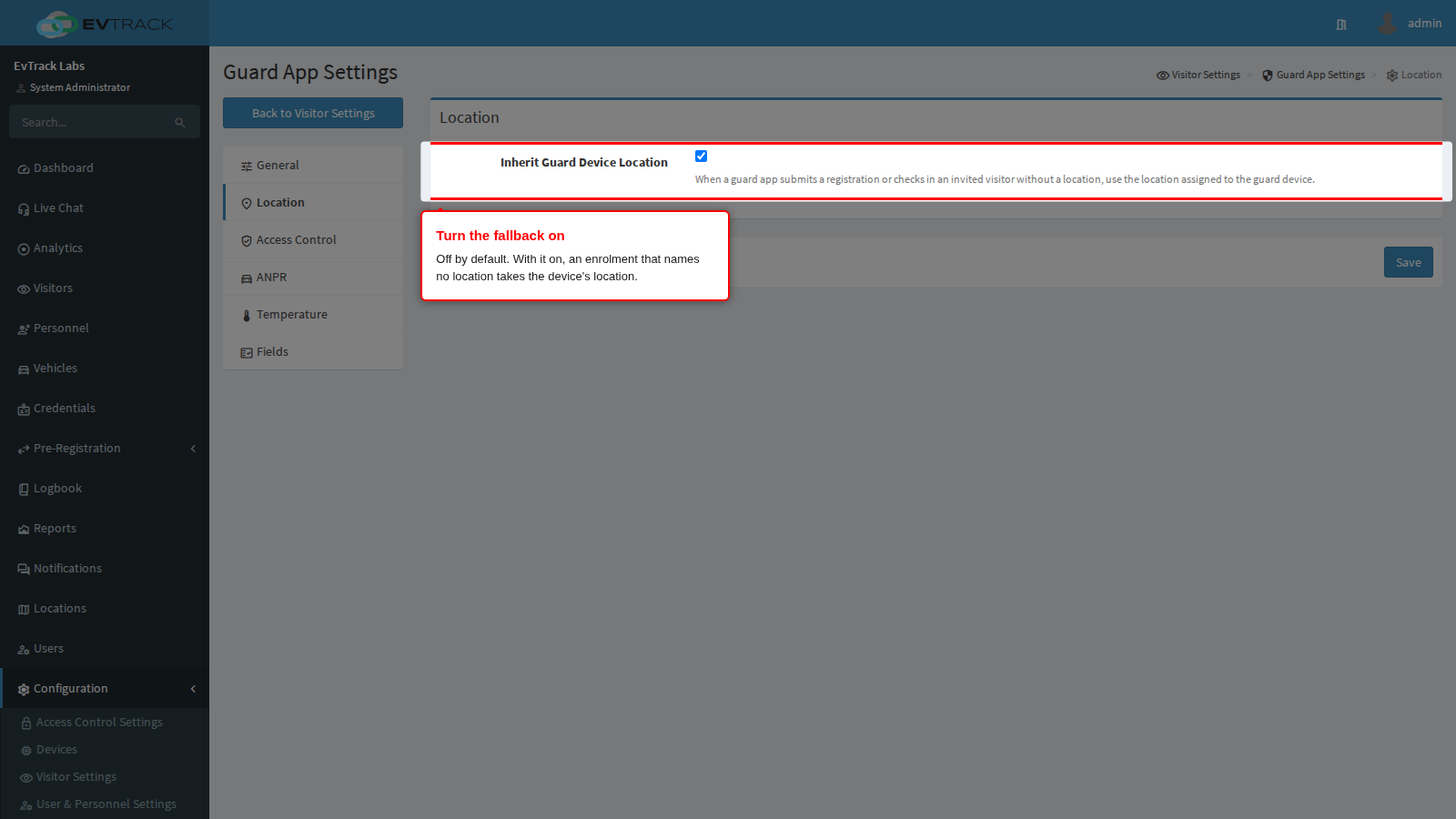
- Otherwise the guard device’s location fills it, but only when Inherit Guard Device Location is turned on under Visitors > Settings > Guard App > Location. It is off by default and applies only on entry, to any visit without a location the officer processes at the handset.
A separate rule, easily confused with this one: when the officer hands out an access card, the card must come from the card pool of the guard device’s own location. That applies whether or not the inherit setting is on.
Why it happens
- The guard device’s Location is wrong: the handset was moved to another site and its record was not updated, or it was created with the wrong location.
- Inherit Guard Device Location is off, so enrolments that name no location are filed without one.
- An access control point the visitor passes is set to update the location on entry, and its location is not the one you expected.
Fix it now
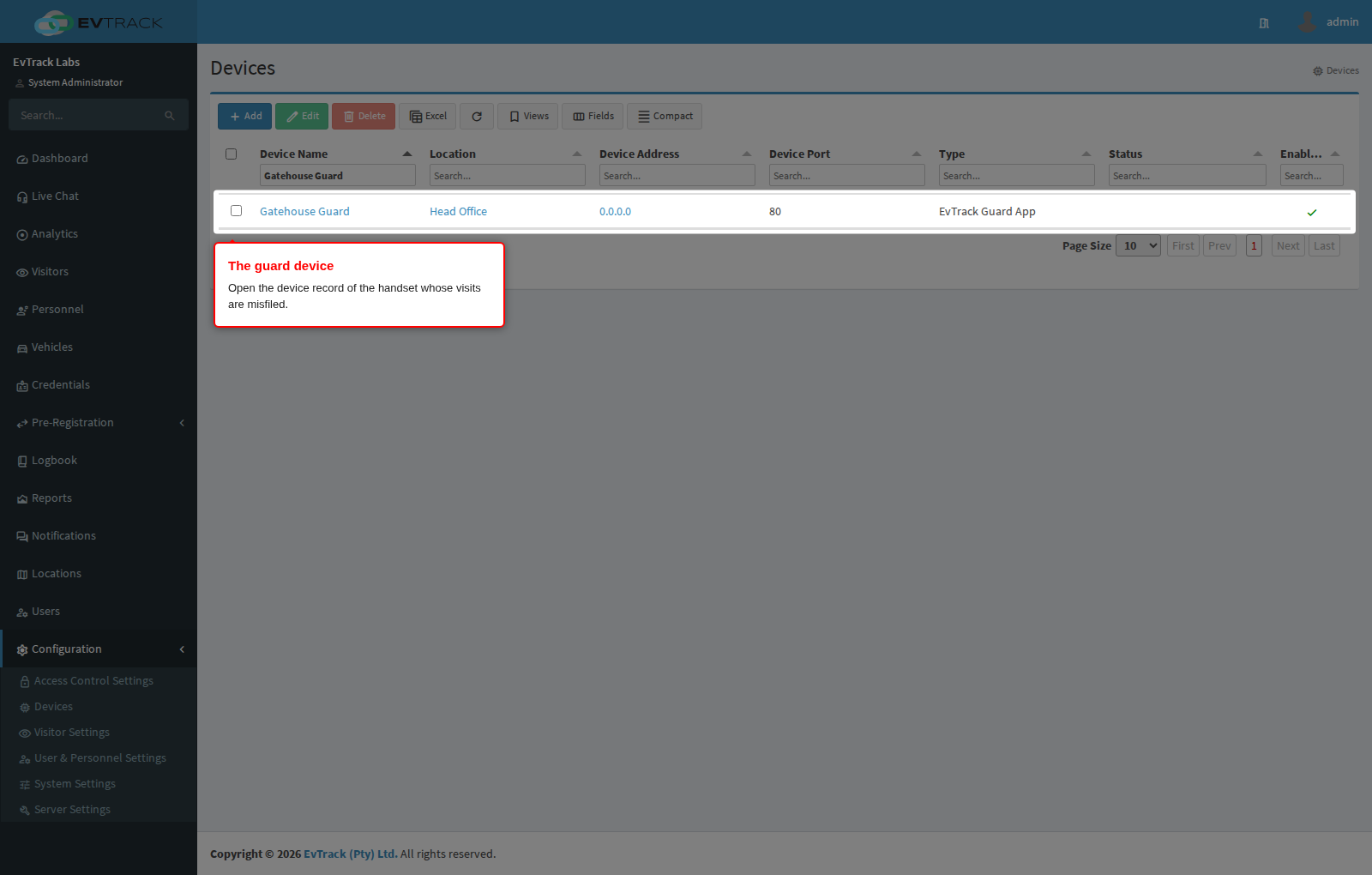
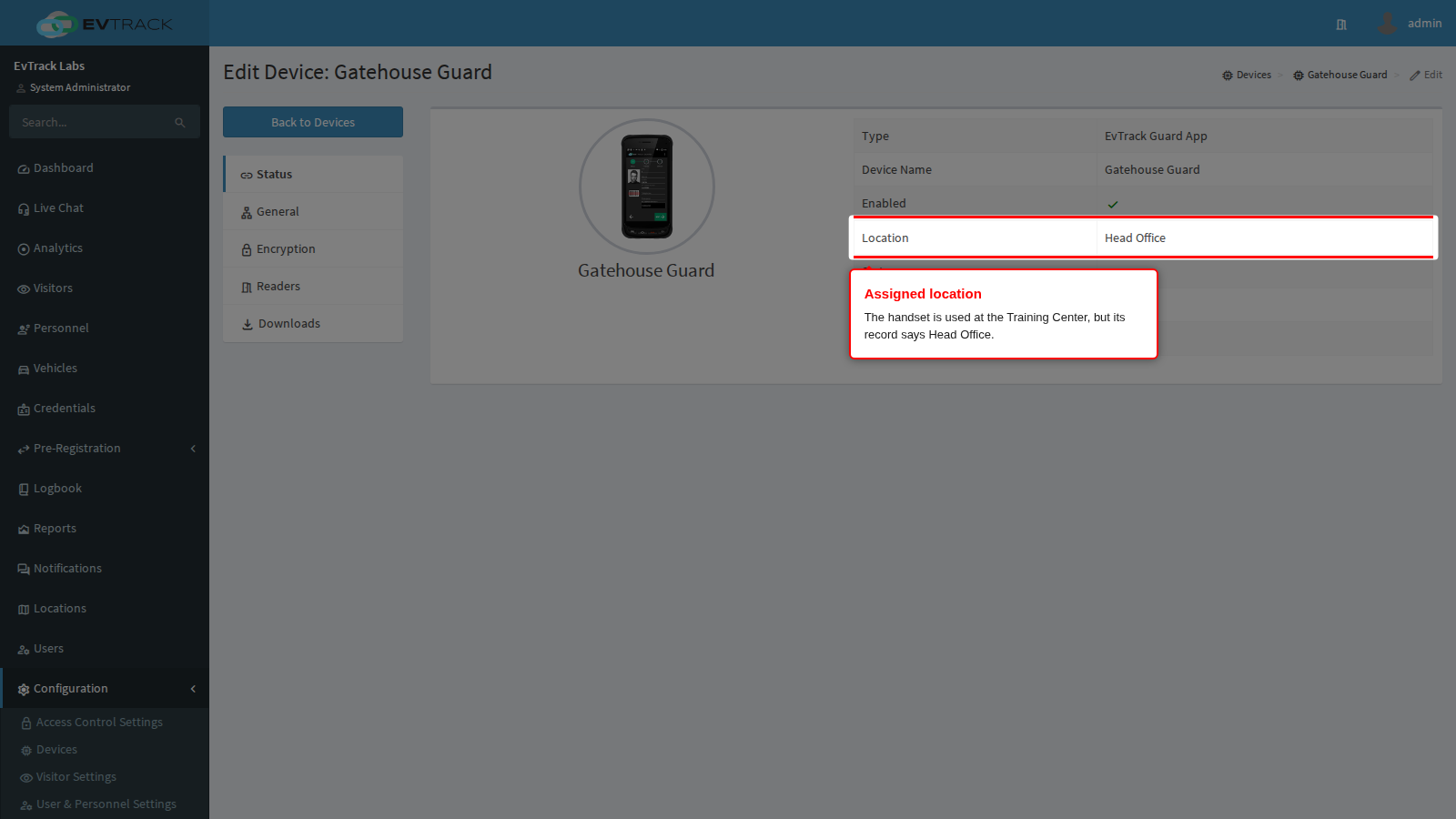
The example below is a handset used at the Training Center whose device record still says Head Office.
Step 1: Find the guard device
Go to Configuration > Access Control Settings > Devices and open the handset’s device record.
Step 2: Check its location
On the Status panel, read the Location row.
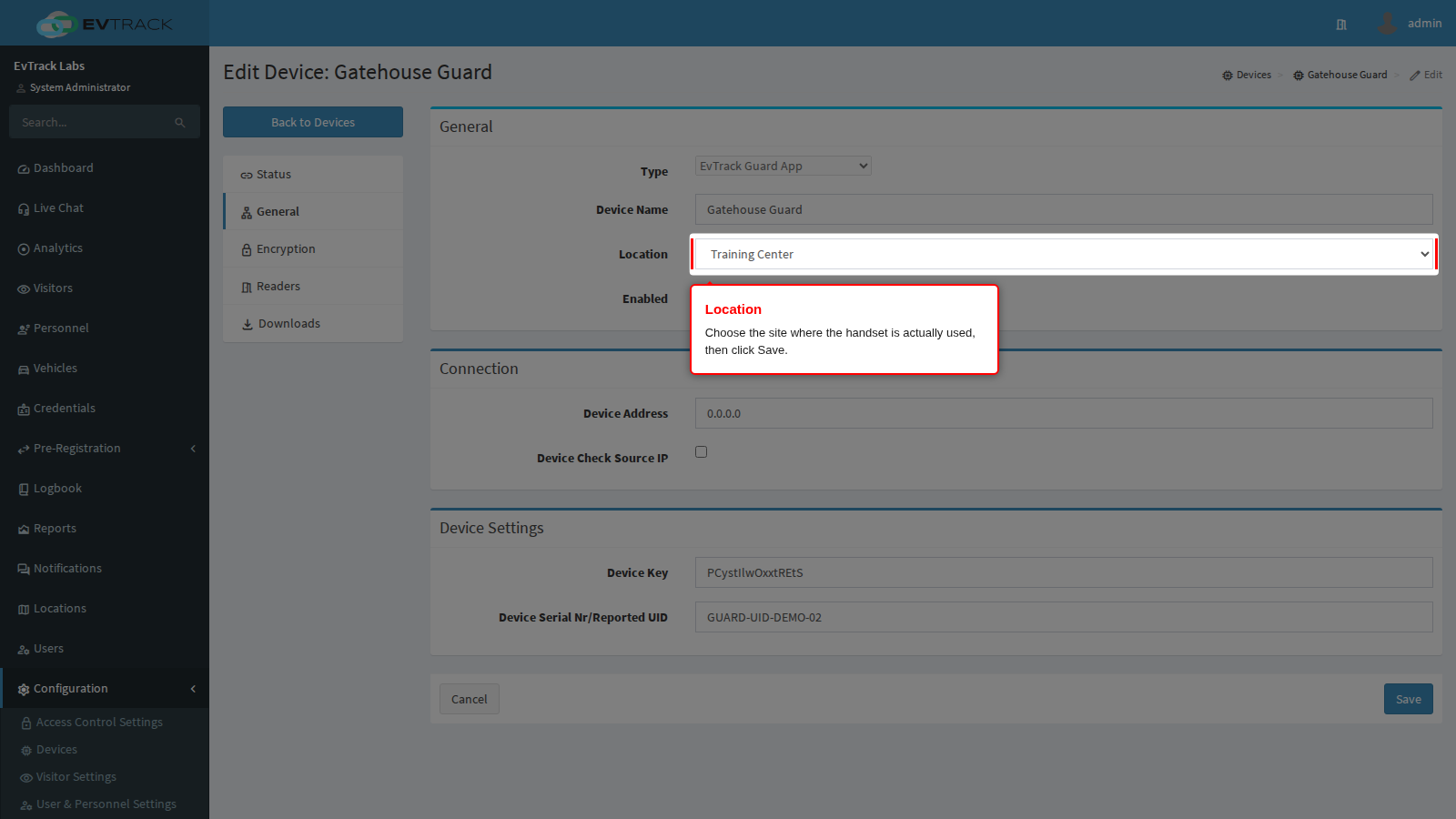
Step 3: Assign the right location
Open the General panel, choose the site where the handset is actually used, here Training Center, and click Save.
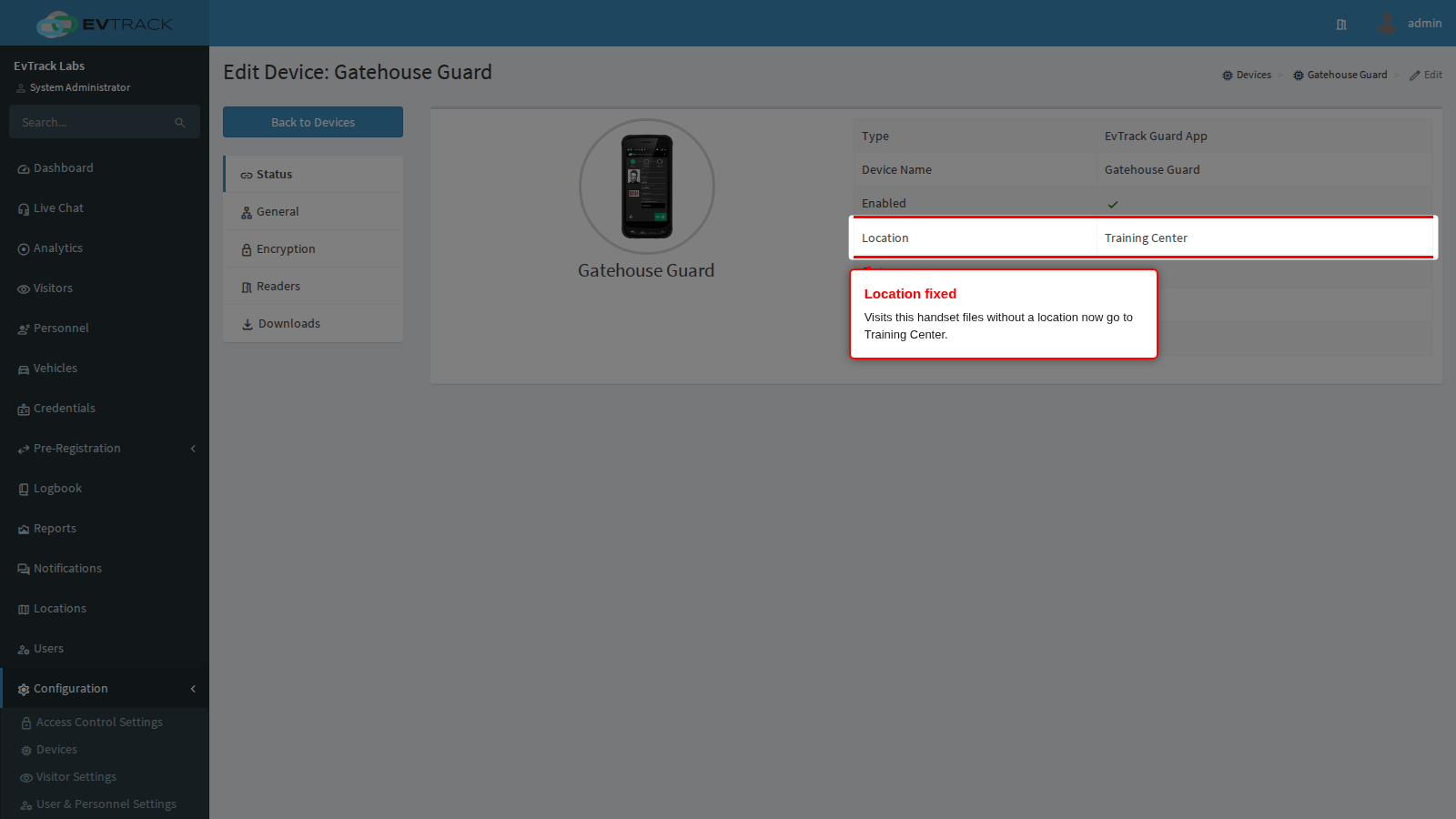
The Status panel now shows the new location.
Step 4: Turn on the device-location fallback
Open Visitors > Settings > Guard App, click Location, tick Inherit Guard Device Location and click Save. This setting applies to every guard handset in the system. See Location.
Step 5: Check the access control points
Open Configuration > Access Control Settings > Access Control Points, open each point the visitor passes, and on its Advanced panel check Update Location on IN. If it names a location, visits that pass the point are moved there on entry, whatever the guard device says.
Officers do not need to log in again for these changes: the location is decided on the server when each visit is filed. Visits filed before the fix keep their location.
Make it stick
- When a handset moves to another site, update its device record’s Location the same day.
- Keep Inherit Guard Device Location on at any site with more than one location.
- Decide per access control point whether it should move visits to its own location, and record why.
If it comes back
Check whether the officer is choosing a location on the enrolment screen: a location the enrolment names is kept (unless an access control point updates it on entry), so the device fallback never applies to those visits.