These settings decide how an officer logs in to the Guard app and when the app logs them out. They are on the General panel of the Guard App settings and apply to every guard handset in the system.
Step 1: Open the Guard App settings
Open Visitors in the sidebar, click Settings, and click the Guard App tile.
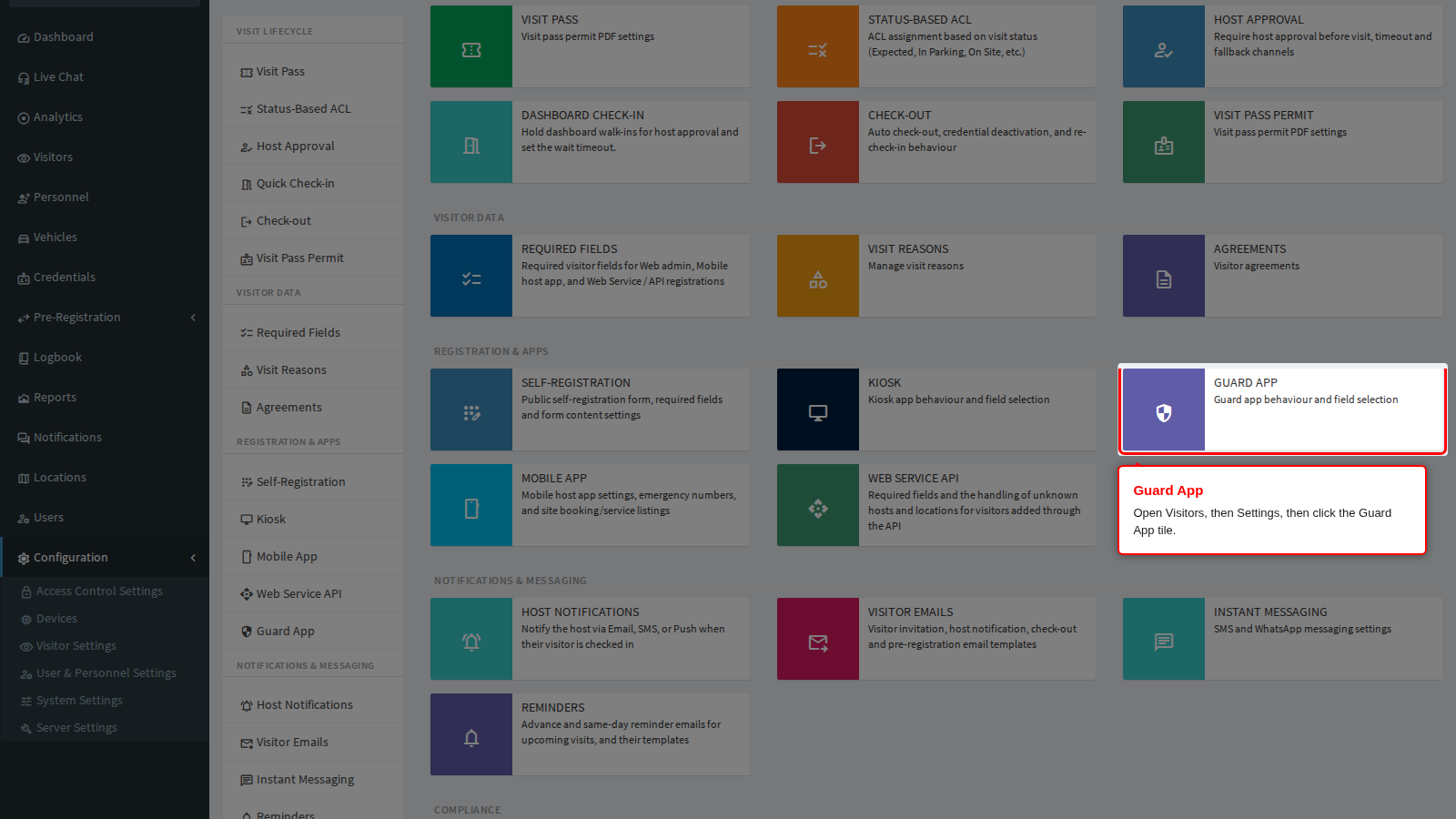
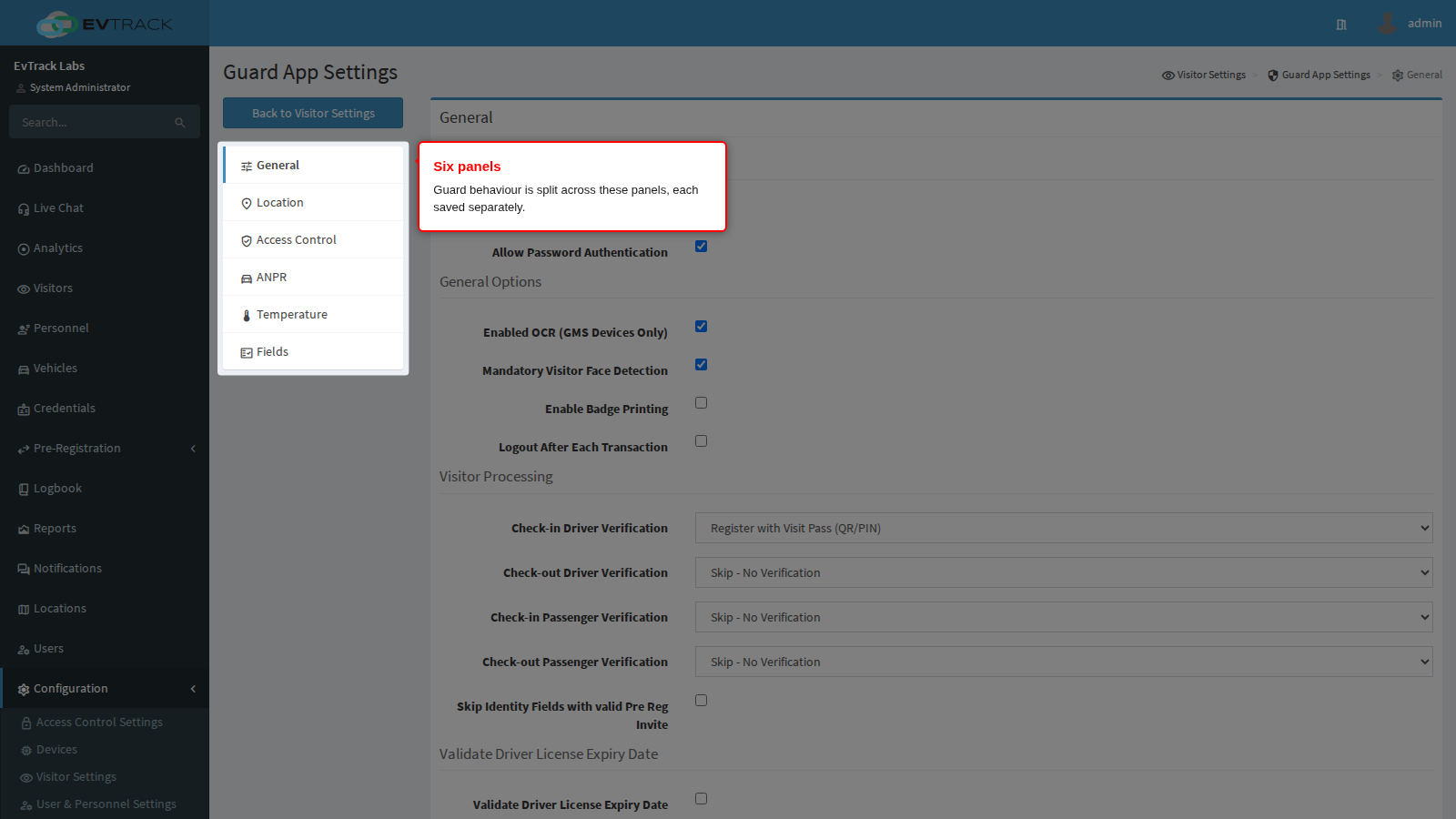
End state: the General panel opens with the guard menu on the left. The menu is the same on every guard panel.
Save is at the bottom of every panel and each panel saves on its own.
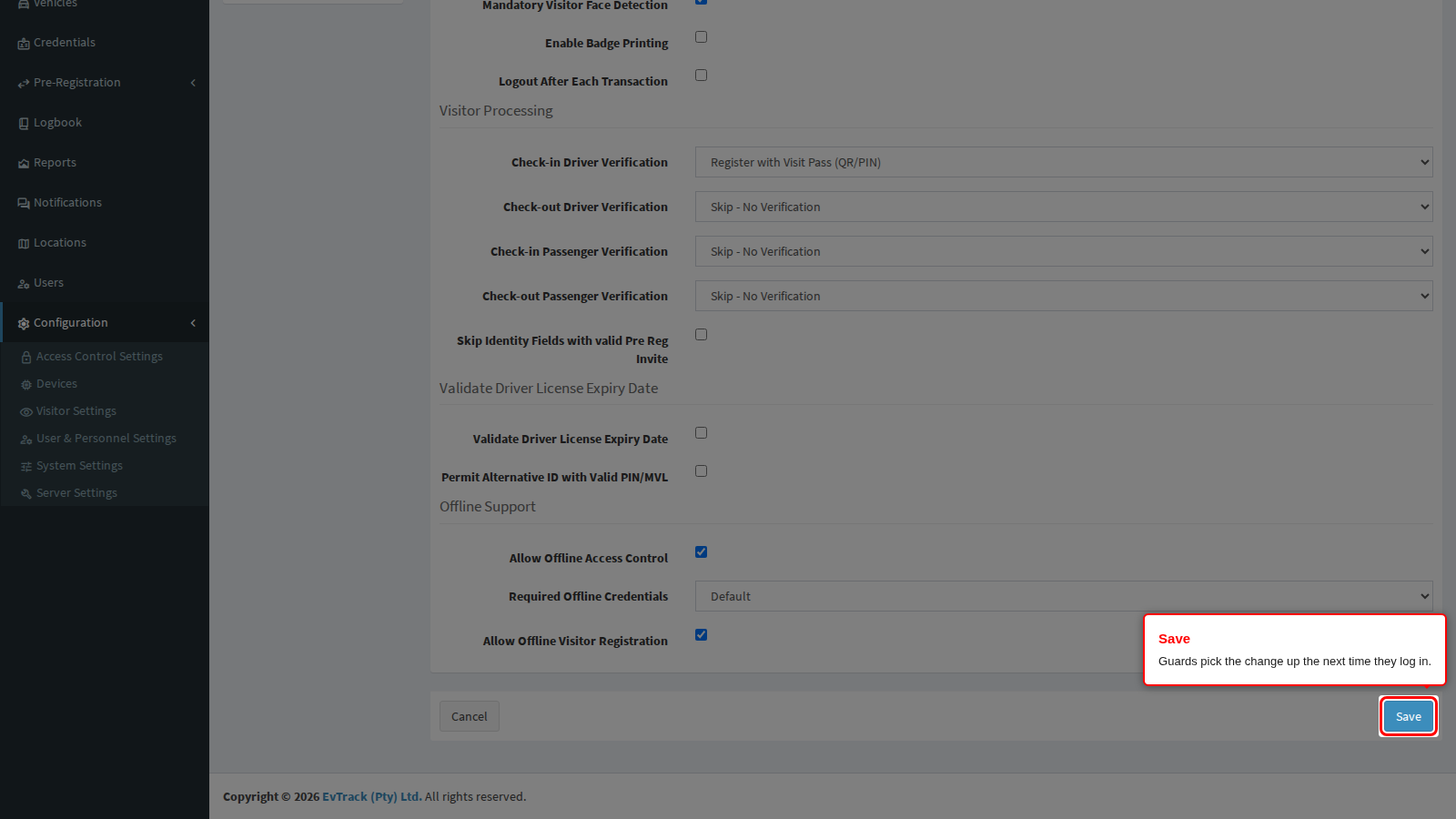
End state: a green confirmation appears at the top of the panel, and the setting applies to the officer at their next login.
How officers log in
The two settings under the Authentication Options heading at the top of the General panel decide which login method the app opens on. Read the next two entries together before you change either: only one of them actually changes anything, and neither of them can lock an officer out.
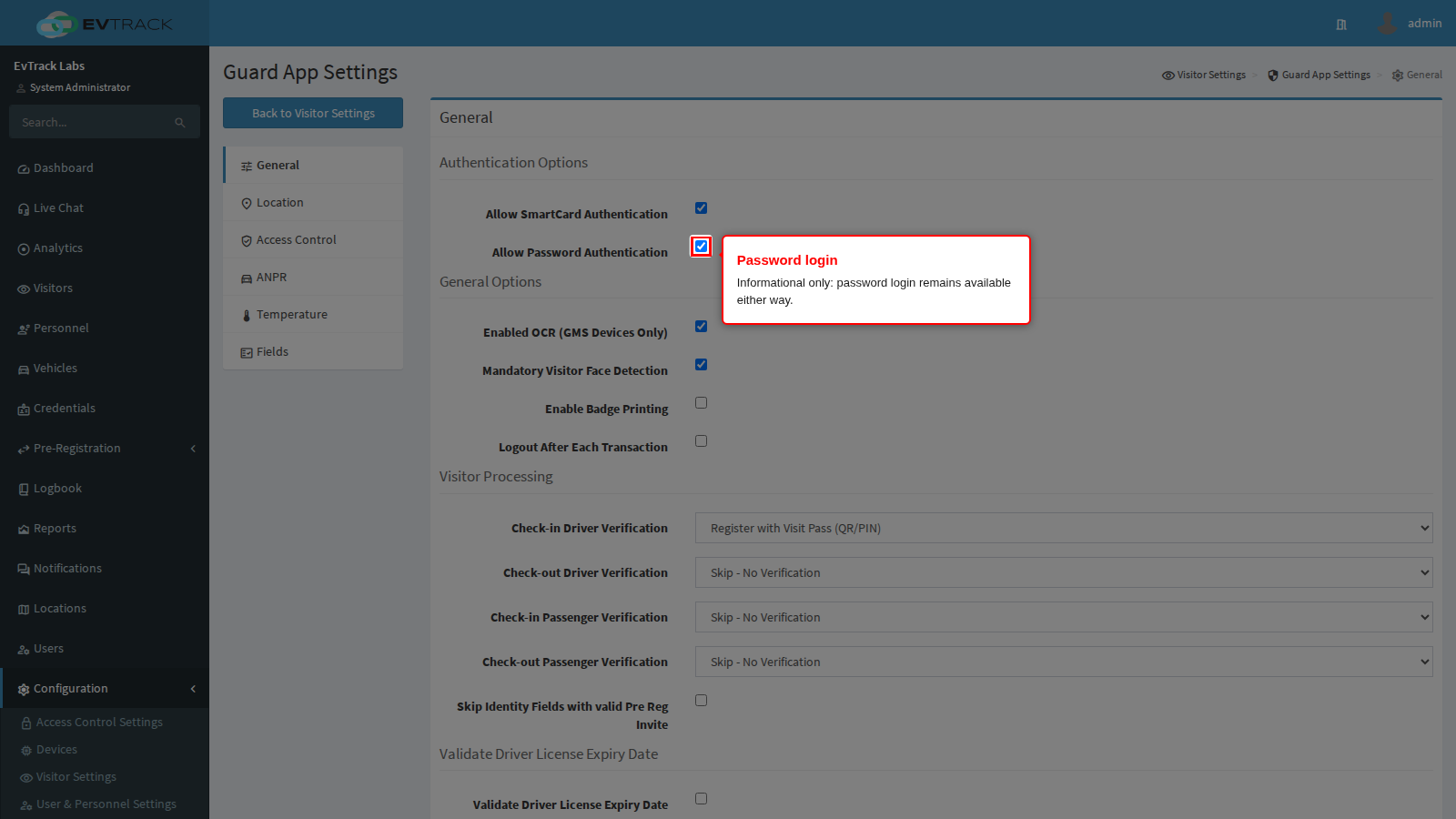
Allow SmartCard Authentication decides which login form the app opens on.
With it on, the app starts on the card screen: the prompt reads Hold Access Card Behind Device, there are no user name and password boxes, and there is a Use Password button below. So this is card- first, not card-only. An officer who has forgotten their card, or whose card has never been enrolled, presses Use Password and logs in normally. With it off, the app opens straight on the user name and password form.
The card has to be enrolled before it can be used, and this is the step people miss. The officer logs in once with their user name and password with the card held against the handset and the Save to NFC switch ticked; the app writes the login onto the card and confirms with Credentials Saved to Tag. From then on a tap is enough. That switch only appears on the password form when this setting is on, so a site that never turns it on can never enrol a card. When the login stored on a card expires, the tap is refused with a message about a bad user name, password or unauthorised access tag, and the officer enrols again the same way.
Three hardware facts to check before you plan a card rollout:
- Only MIFARE Classic cards work. Other card families are simply ignored by the login screen, with no message.
- The card keys are configured elsewhere, under Configuration > System Settings > Security, in the Smart Card Login section. Without the right keys the handset cannot read or write the card.
- On a handset with no card reader, the card screen waits indefinitely and shows no error. The officer presses Use Password.
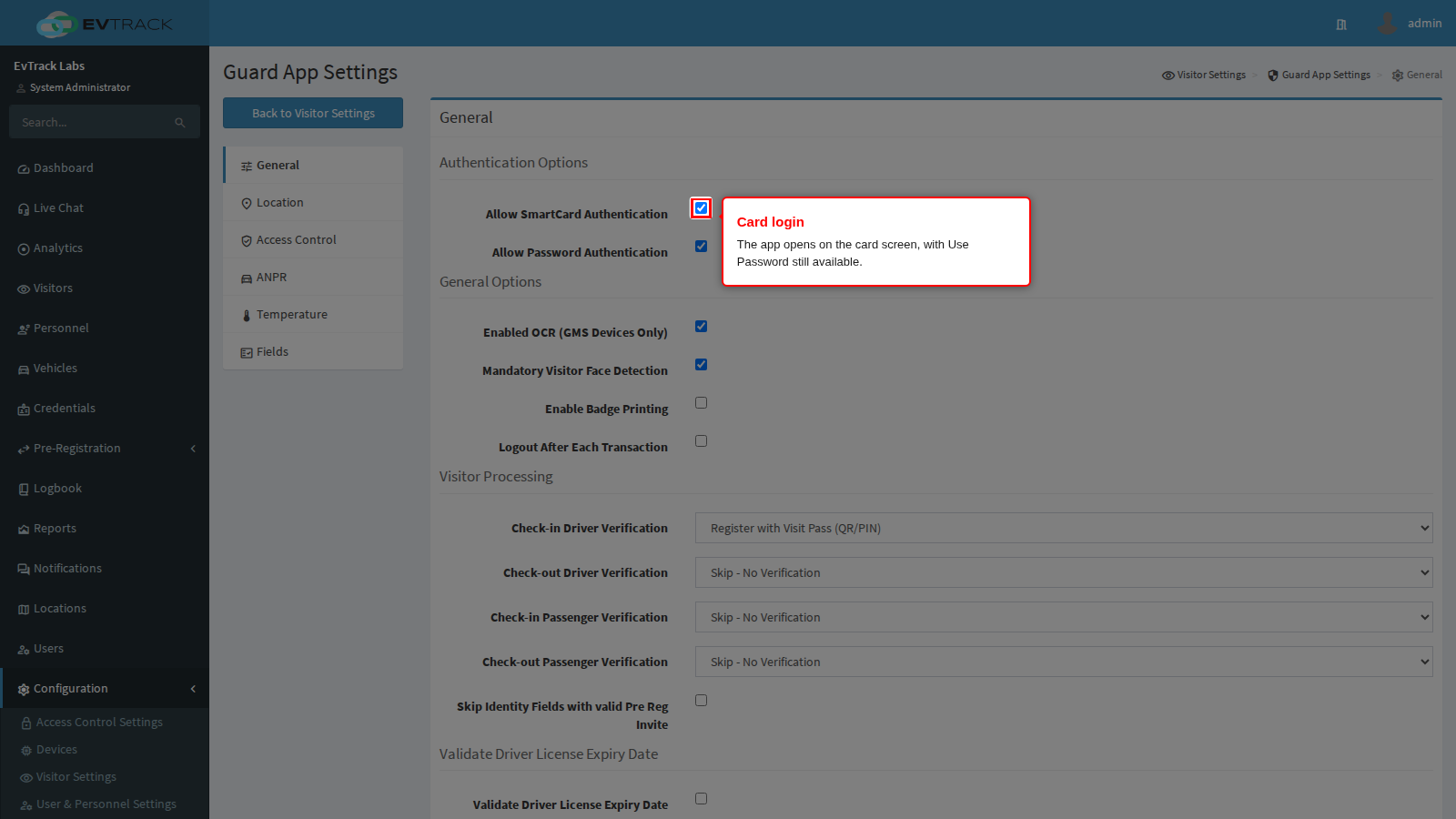
Allow Password Authentication has no effect. Neither the app nor the product acts on it: the app never consults it when deciding what to show or what to accept, and the login itself always accepts a valid user name and password. Turning it off does not stop officers logging in with a password, and the Use Password button remains on the card screen either way. Treat it as informational until that changes, and do not rely on it as a control.
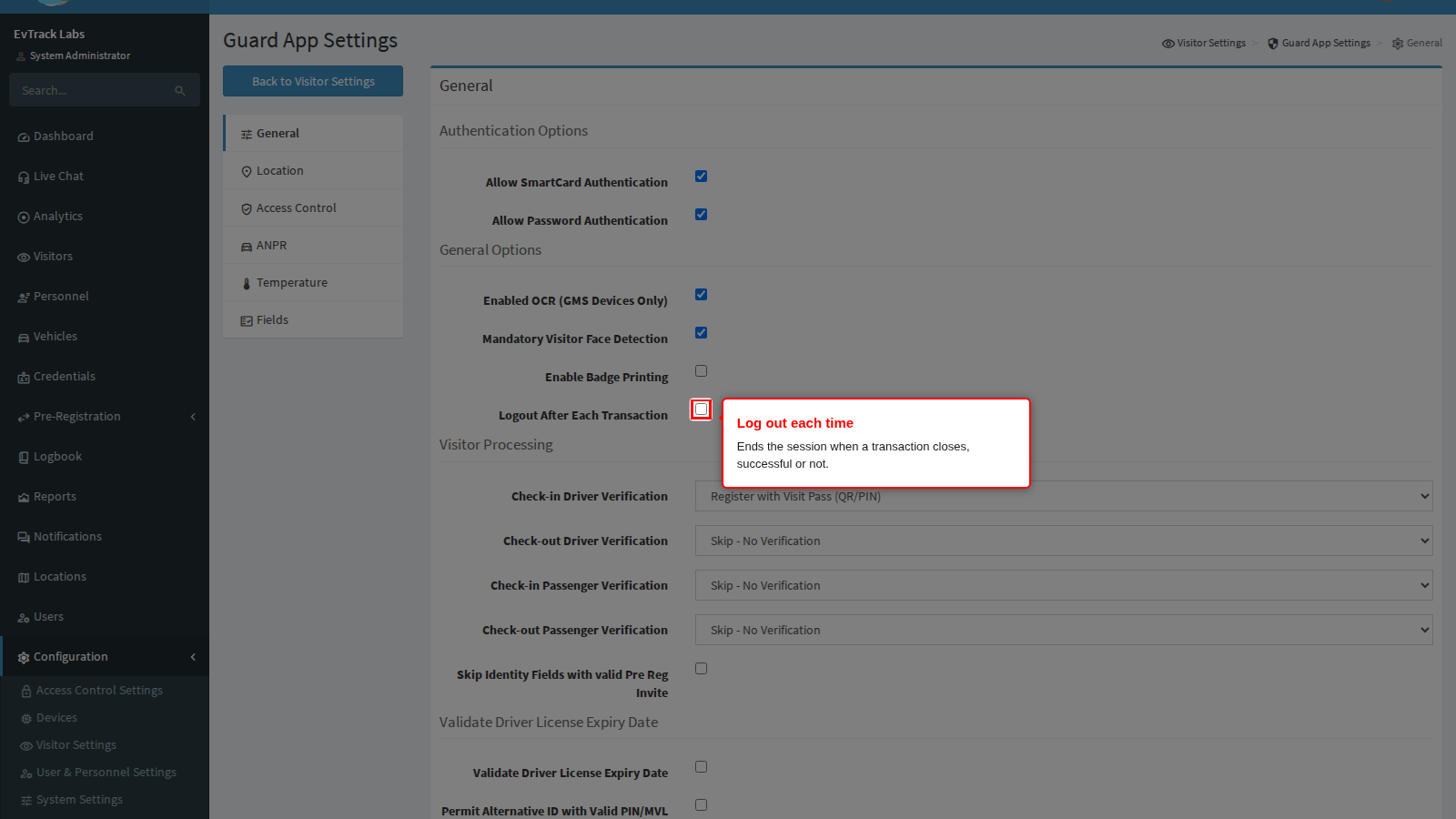
Logout After Each Transaction, further down the same panel under General Options, ends the officer session as soon as a transaction finishes, so the next person to pick up the handset has to identify themselves again.
What counts as a transaction is broader than it sounds. The logout happens when the officer acknowledges the dialog that ends a transaction, and that includes the ones that did not go well: access granted, access denied, credential not found, vehicle not found, already checked in, a watchlist match, a plate refused, and a transaction that was queued because the handset was offline. It also covers both kinds of work, an ordinary entry or exit as well as a full enrolment. It does not fire when the officer cancels a scan part-way, or from the intermediate capture screens.
Anything half-finished is lost. The officer is returned to the login screen, and a registration that was partly captured behind the dialog is gone rather than parked. Warn your officers: acknowledge the dialog when they have really finished.
Turn it on for a handset that is shared, passed between officers, or left on a counter, so every movement is attributed to the officer who actually processed it and the movement log stands up in an investigation. It costs a login per transaction, so pair it with card login above rather than passwords, otherwise your queue grows by the length of a typed password every time.
Turn it off and the officer remains logged in until their session expires. That is faster and is the right choice for a handset issued to one named officer for a shift, but every movement made on it is recorded against whoever logged in last.
Two cautions for offline working. The logout also happens after a transaction that was queued offline, so the officer is put back to the login screen during an outage. If neither offline option on this panel is enabled, they cannot get past that screen again until the connection returns, and the checkpoint stops. And an offline login does not verify the password against the server, so during an outage this setting is a discipline measure rather than a security control.
A saved change reaches a handset at the officer’s next login; see Settings Do Not Take Effect.