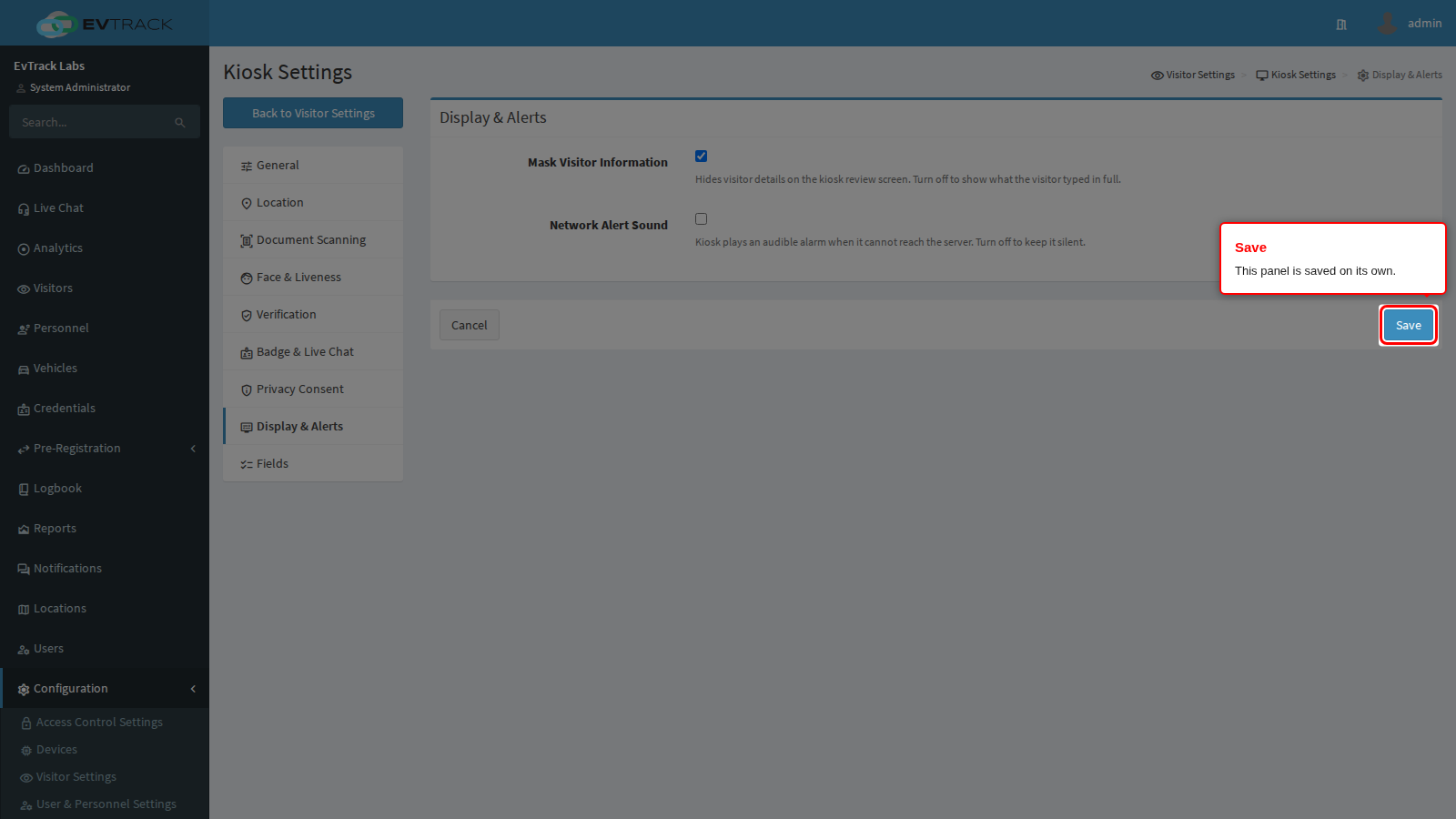
The Display & Alerts panel of the kiosk settings controls two things a visitor or a passer-by can see or hear: how much of the registration details the kiosk shows back on its review screen, and whether it sounds an alarm when it loses the server. The settings apply to every kiosk.
Before you start:
- You can edit visitor settings.
Step 1: Open Display & Alerts
Go to Configuration > Visitor Settings, click the Kiosk tile (the Kiosk Settings page gives the overview), and choose Display & Alerts in the kiosk menu on the left.
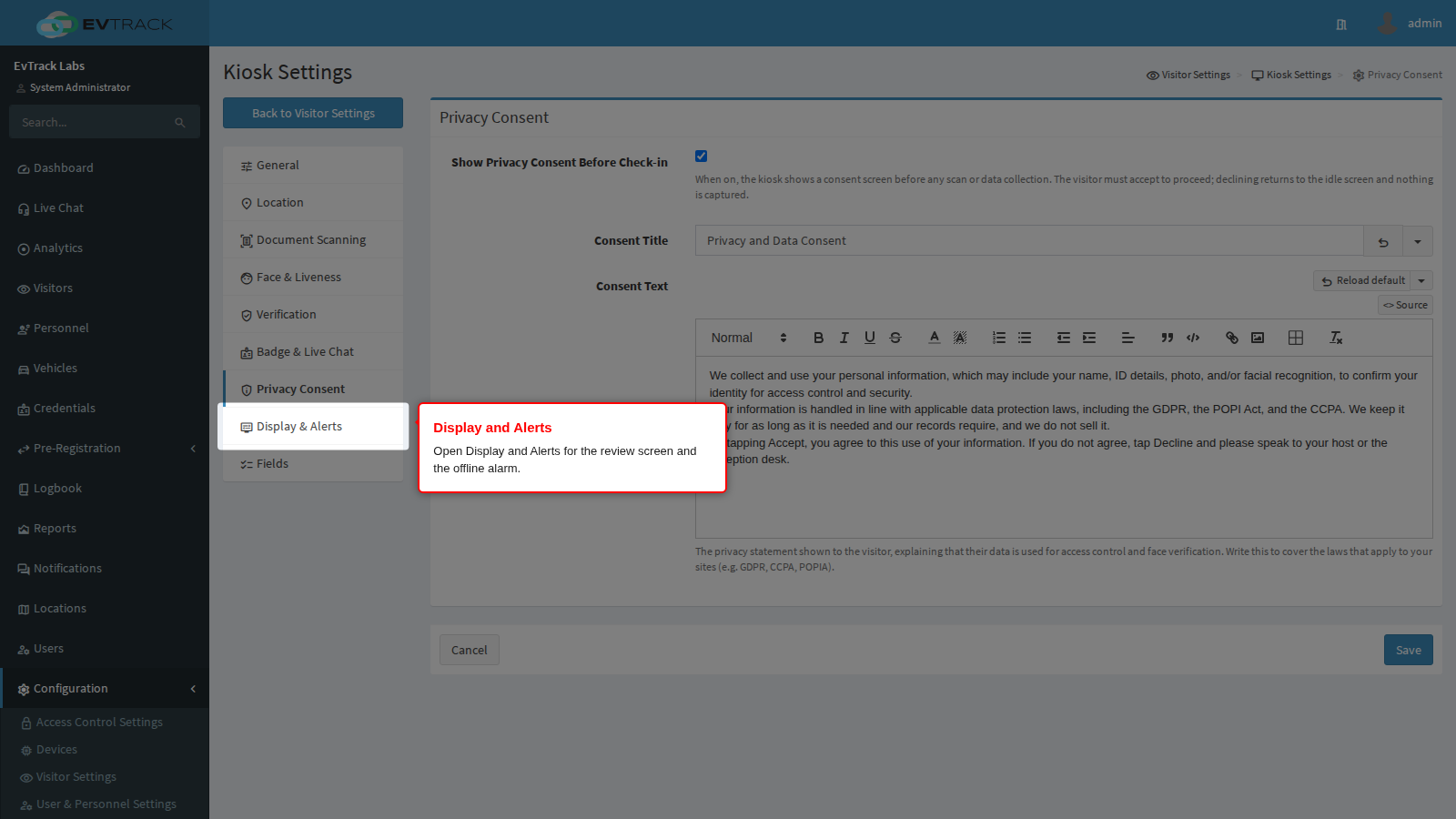
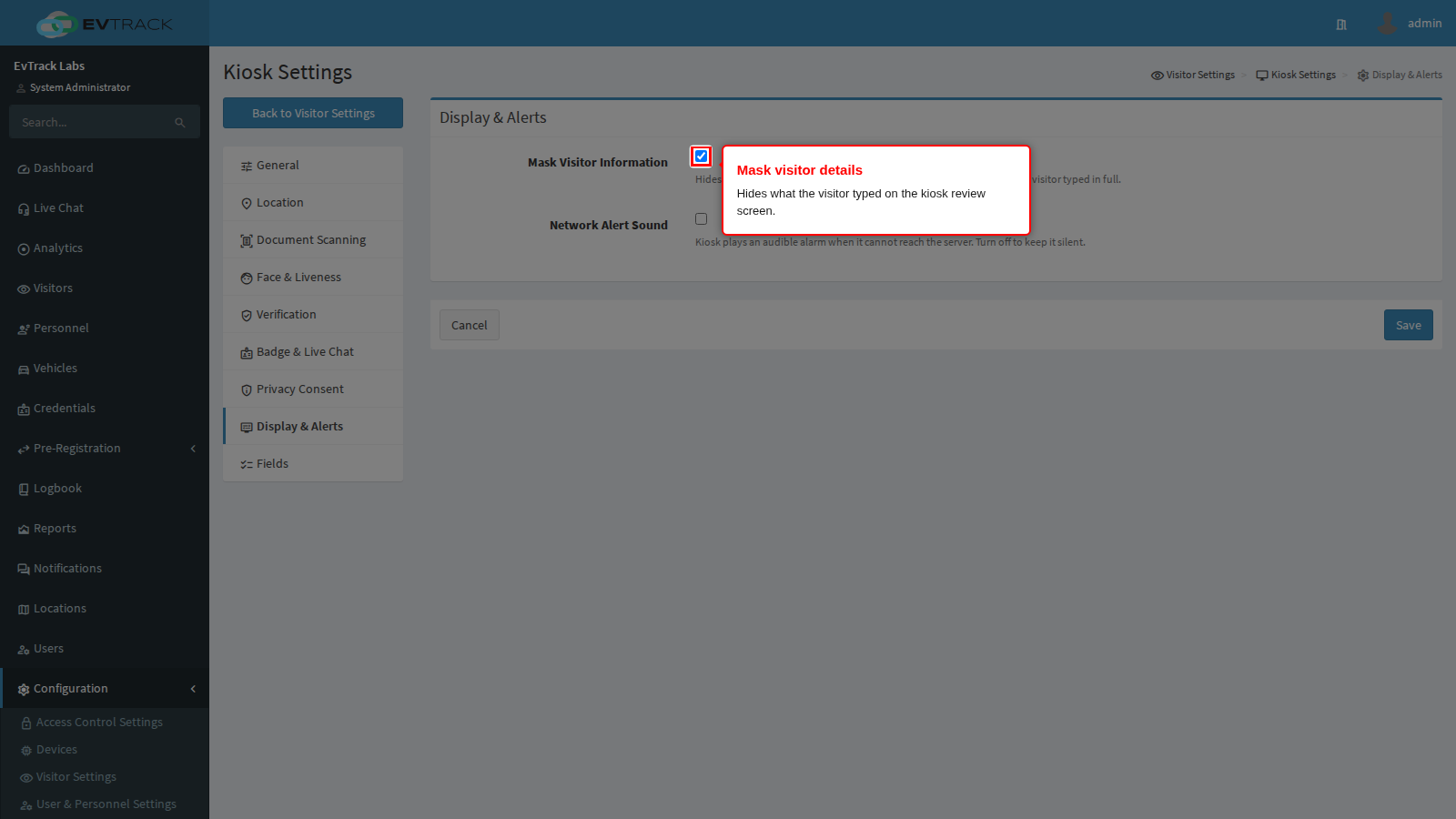
Mask Visitor Information
On by default. The help text reads “Hides visitor details on the kiosk review screen. Turn off to show what the visitor typed in full.”
The review screen is the last step of registration, where the visitor checks their answers before submitting. With masking on, personal details are shown in part only:
| Detail | What the review screen shows |
|---|---|
| First name, last name | The first letter, then asterisks |
| The first two characters and the domain | |
| Mobile number | Only the last four digits |
| ID number | The first two and last two characters |
| Physical address | Asterisks, followed by the part after the last comma when the address has one |
Every other answer is shown as typed. Masking is a display rule only: the full values are still submitted and saved.
Leave it on in a public lobby, where the next person in the queue can see the screen. Turn it off where the kiosk is in a private or staffed area and visitors benefit from checking every character, which matters most for email addresses and phone numbers.
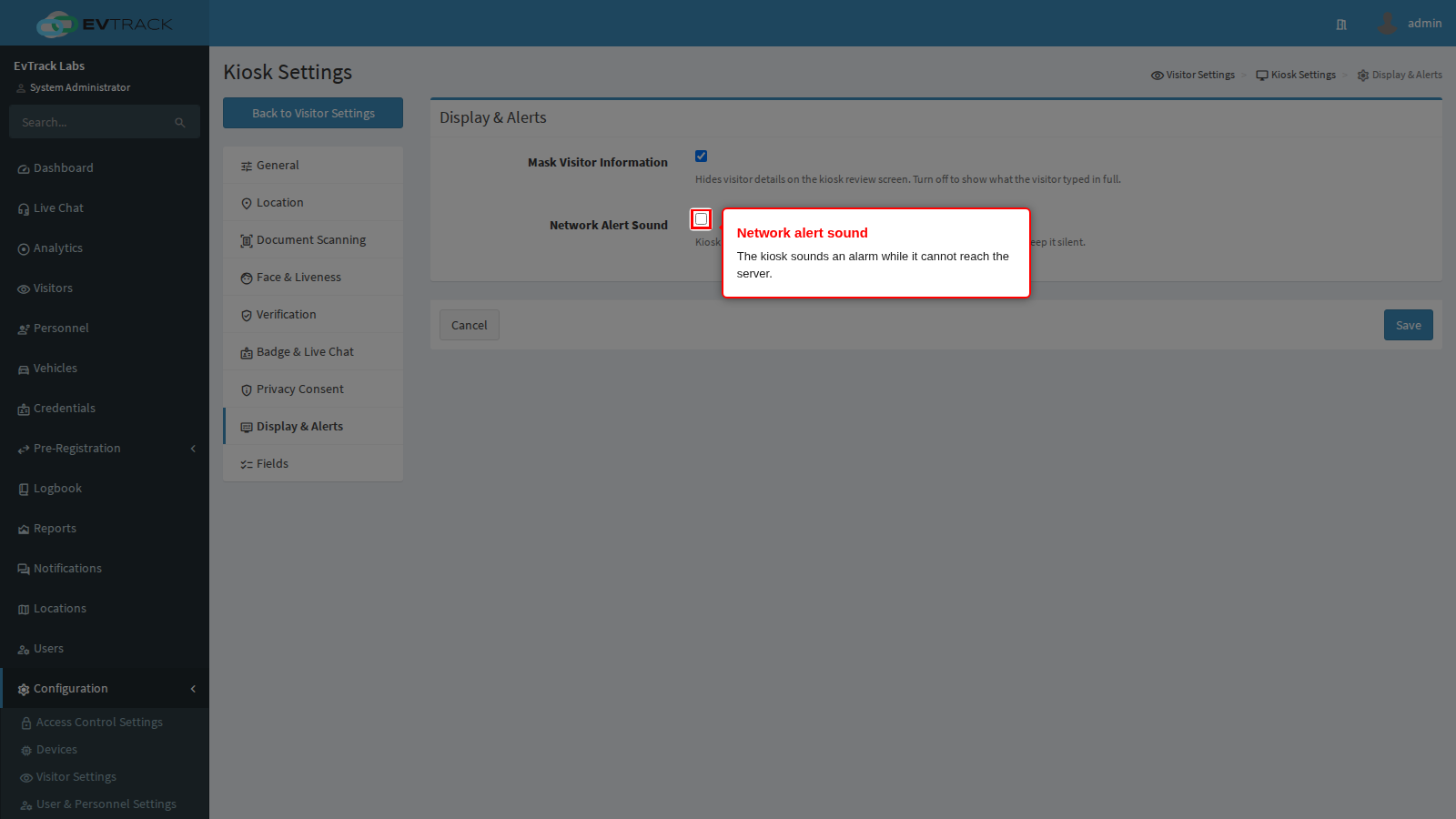
Network Alert Sound
Off by default. The help text reads “Kiosk plays an audible alarm when it cannot reach the server. Turn off to keep it silent.”
With it on, the kiosk’s welcome screen sounds an alarm when the connection to the server has been down for 30 seconds. A shorter blip is ignored. While the outage continues the alarm repeats every five minutes, it is silent while the tablet’s screen is off, and it stops by itself as soon as the server is reachable again. It suits a kiosk that nobody watches, because a tablet that has lost its connection otherwise looks fine to anyone walking past. To control what a kiosk can still do while it is offline, see the walk-in and offline settings.
Save
Click Save at the bottom of the panel. This panel is saved on its own, and neither setting can be overridden for a single location. Paired kiosks pick the change up within five minutes, or at once when the app restarts.