The Managers tab lists the people who review registrations and invitations for this location when Require Manager Approval is switched on for it (see Location Advanced Settings). Without that setting the list has no effect: nobody is asked to approve anything.
Who can use this tab: to see it, “Configuration: Permissions: Users - List Users”. To add a manager, delete one or switch one on or off, “Configuration: Location - Manage Managers”.
Step 1: Open the Managers tab
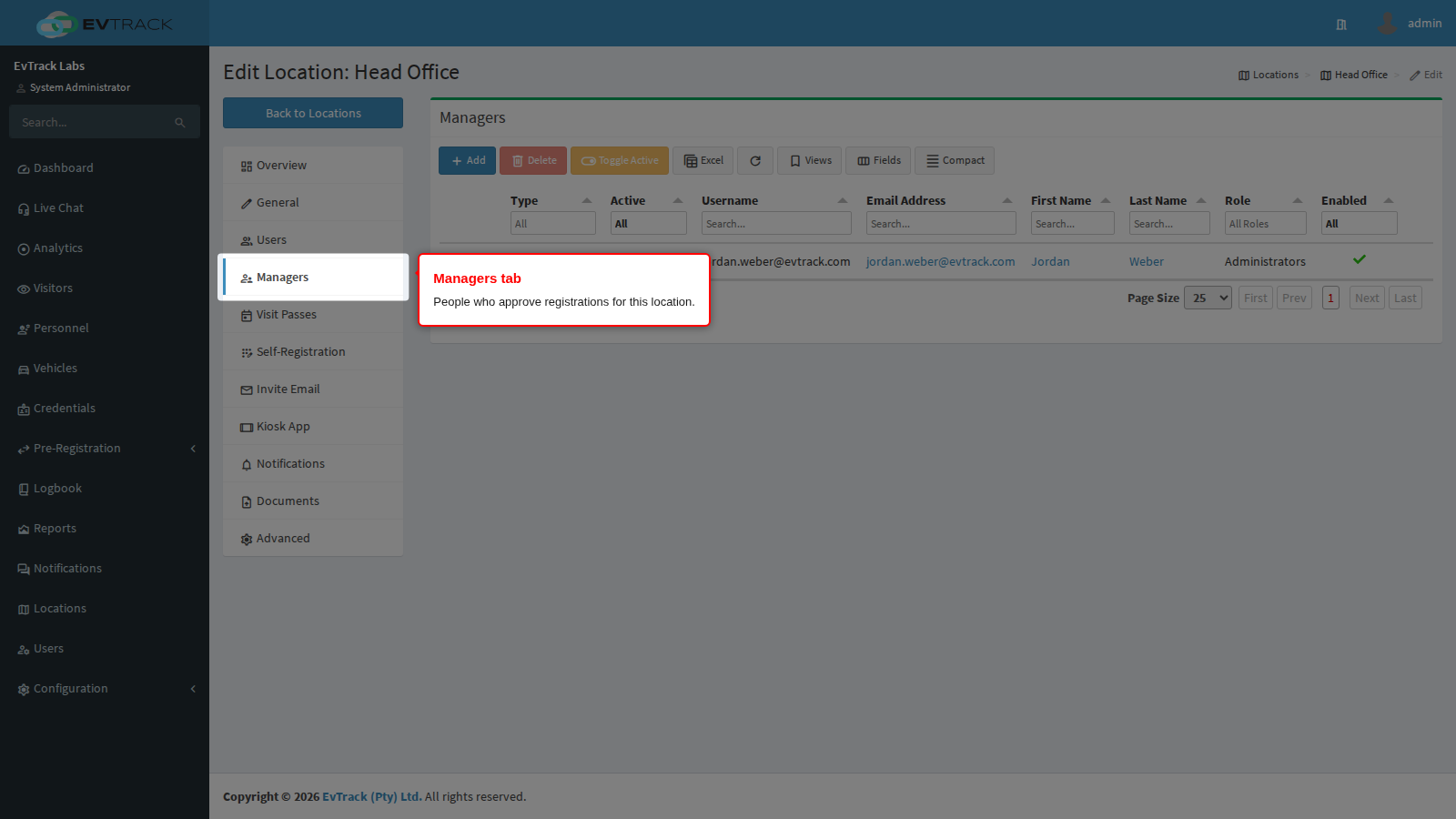
Open the location from the location list and click Managers in the menu on the left.
Step 2: Read the list
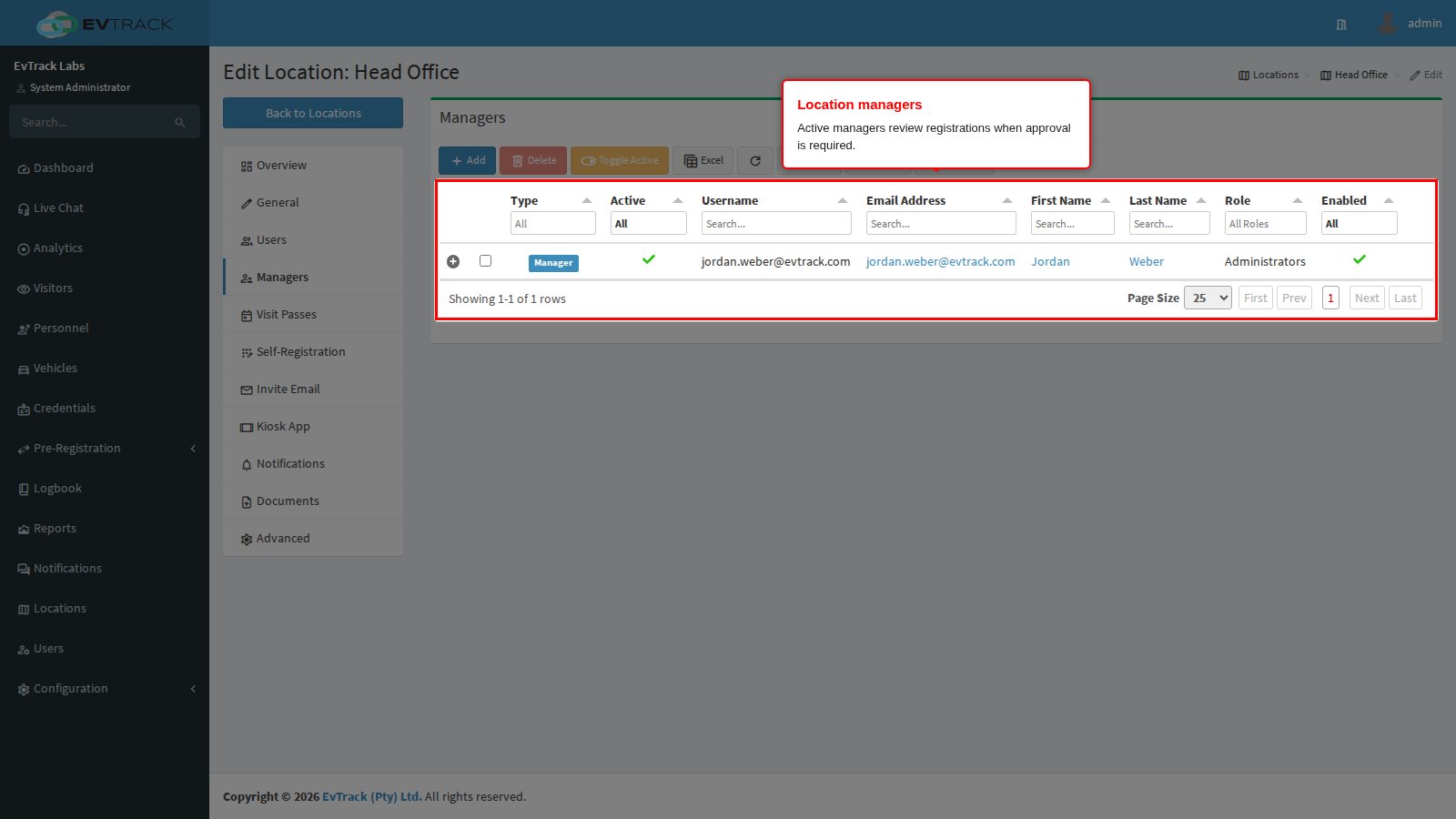
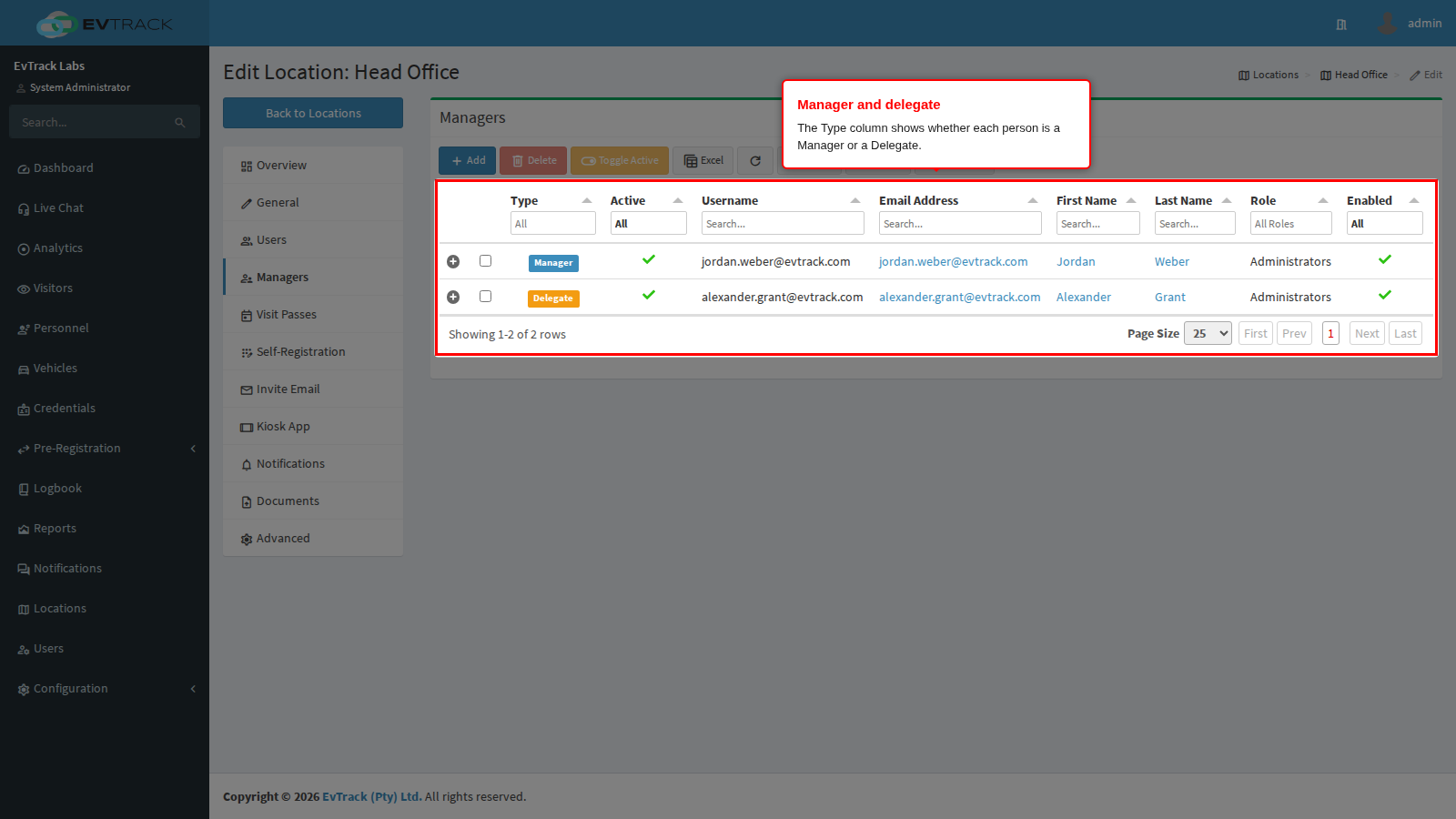
Each row is one person assigned to this location, either as a Manager or as a Delegate. The list loads when you first open the tab. Click a name or email address to open that user.
Step 3: Add a manager
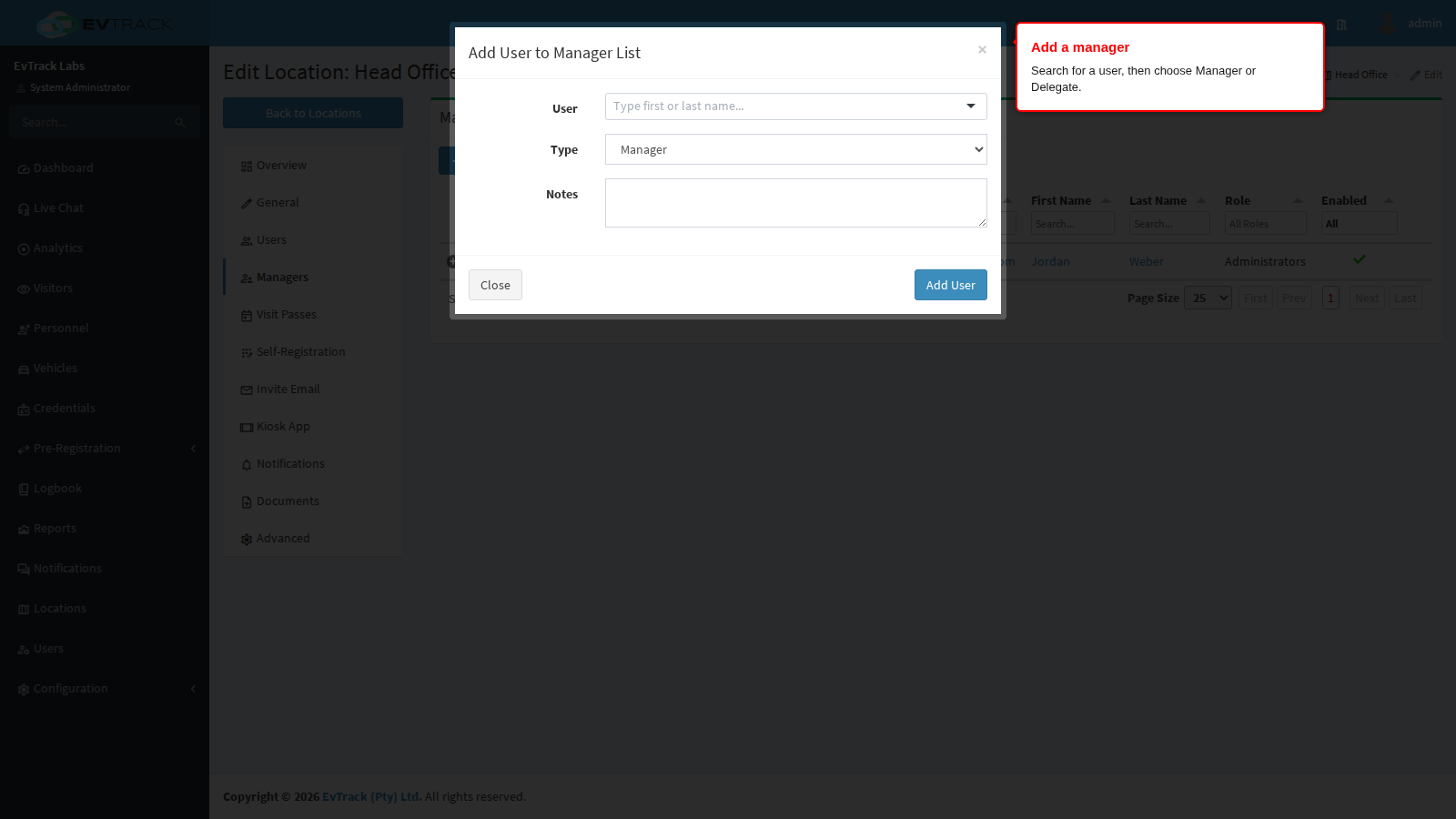
Click Add. The Add User to Manager List dialog opens. Search for the user by name, choose the Type and click Add User. The new row appears in the table and the page shows “The user was successfully added to the location manager list.”
Step 4: Add a delegate
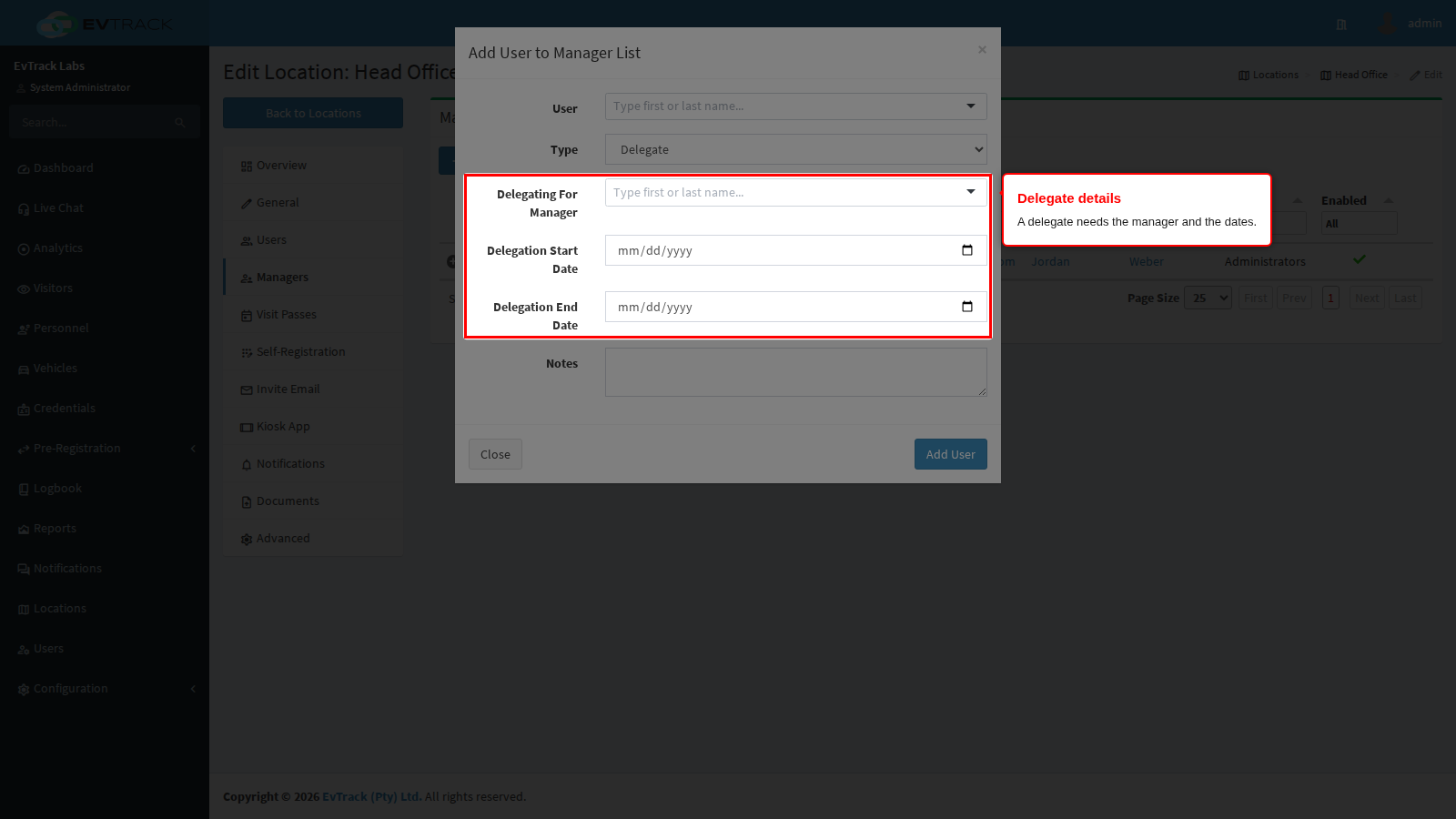
Choose the type Delegate to add someone who stands in for a manager for a period. Three more fields appear: Delegating For Manager, Delegation Start Date and Delegation End Date. All three are required for a delegate.
Once saved, the Type column shows a Manager or Delegate label for each row, and a delegate row also carries who it stands in for and the dates (on a narrow screen these columns fold into the row’s details, opened with the plus icon).
Step 5: Switch a manager on or off
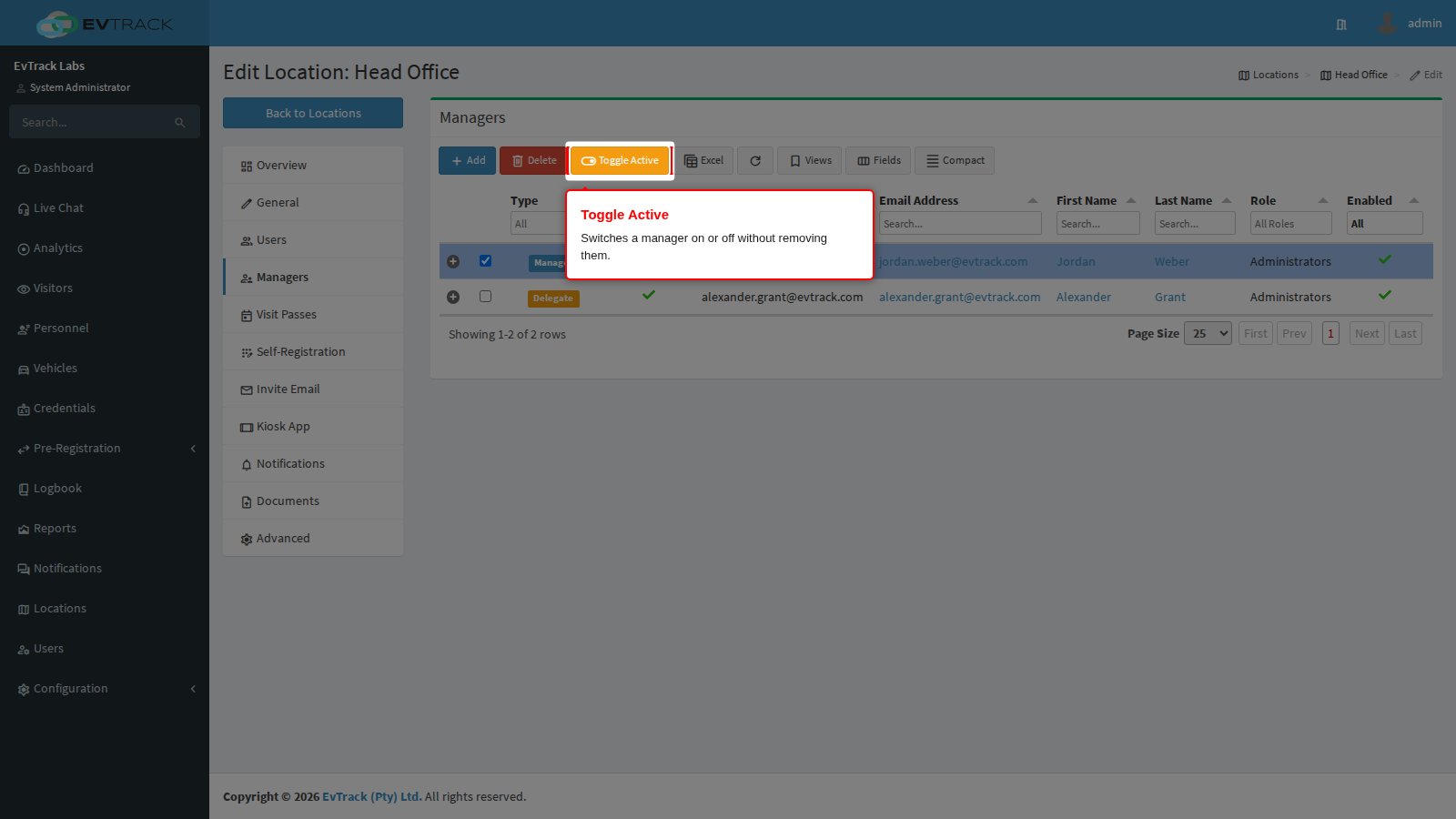
Select one or more rows and click Toggle Active. Each selected row flips between active and inactive straight away, without a confirmation, and the table reloads. An inactive manager remains in the list but is not asked to approve anything.
Options on this tab
| Column | What it shows |
|---|---|
| Type | Manager or Delegate. |
| Active | A tick when the row is switched on. |
| Username | The login name. Hidden when users log in through your identity provider (SSO) or the system is licensed for several separate organisations. |
| Email Address | The user’s email address, as a link to the user. |
| First Name | The user’s first name. |
| Last Name | The user’s last name. |
| Role | The user’s role. |
| Delegating For | For a delegate, the manager they stand in for. Empty for a manager. |
| Delegation Start | For a delegate, the first day of the delegation. |
| Delegation End | For a delegate, the end day of the delegation. |
| Organisation | The user’s organisation. |
| Notes | The note entered when the row was added. |
| Enabled | A tick when the user’s account is enabled. |
If the user behind a row has been deleted, the row shows “Deleted User” and can still be removed.
The table shows 25 rows per page (10, 50 or 100 are also offered).
| Toolbar button | What it does |
|---|---|
| Add | Opens the Add dialog. |
| Delete | Removes the selected rows (up to 200) after a confirmation page. The users themselves are not deleted. |
| Toggle Active | Switches each selected row (up to 200) on or off. |
| Excel | Downloads the table as <location name> - Managers.xlsx. |
| Refresh | Reloads the list. |
The fields of the Add dialog:
| Field | Required | Rules |
|---|---|---|
| User | Yes | Search by name; up to 50 matches are shown. A user who is already on this location’s manager list is not offered. Without one the dialog says “Please select a user.” |
| Type | Yes | Manager (the default) or Delegate. |
| Delegating For Manager | Delegates only | One of the Manager rows already in the table. Without one the dialog says “Please select a delegating manager.” |
| Delegation Start Date | Delegates only | A date. The dialog says “Delegation start date is required for delegates.” when it is empty. |
| Delegation End Date | Delegates only | A date after the start date. The dialog says “Delegation end date is required and must be after start date.” when it is empty or not later. |
| Notes | No | Up to 500 characters. |
Dates are whole days, so a delegation cannot start and end on the same day. The page also checks the dates when you save and answers “Delegation start and end dates are required for delegates.” or “Delegation end date must be after the start date.” if one slipped through. If the same user is somehow added twice with the same type, the page answers “The User already exists in the system.”
How it works
- When approval applies. A registration for this location waits for manager approval only when the location’s Require Manager Approval is on and at least one manager or delegate is currently active. If every manager is removed or switched off, registrations stop waiting for approval even though the setting remains on. The Approval Mode setting on the Advanced tab offers a single choice, Any One Manager: one active manager’s approval is enough.
- Managers. An active Manager row is asked to approve and can approve for as long as it remains active.
- Delegates. A Delegate row counts only while it is active and today falls inside its dates: from the start of the start date up to the start of the end date (dates are read at midnight UTC). Inside that window a delegate is treated like a manager: they receive the approval emails and can approve. Outside it the row remains in the list but is not asked to approve. Delegation adds people; the manager named in Delegating For keeps full authority, and that name is recorded for reference only.
Troubleshooting
- Registrations are no longer waiting for approval. Check that the location’s Require Manager Approval is still on and that at least one row in this table is active. A delegate row also needs today to fall inside its dates.
- A user cannot be found in the Add dialog. Users who are already on this location’s list are not offered. Look for them in the table first.