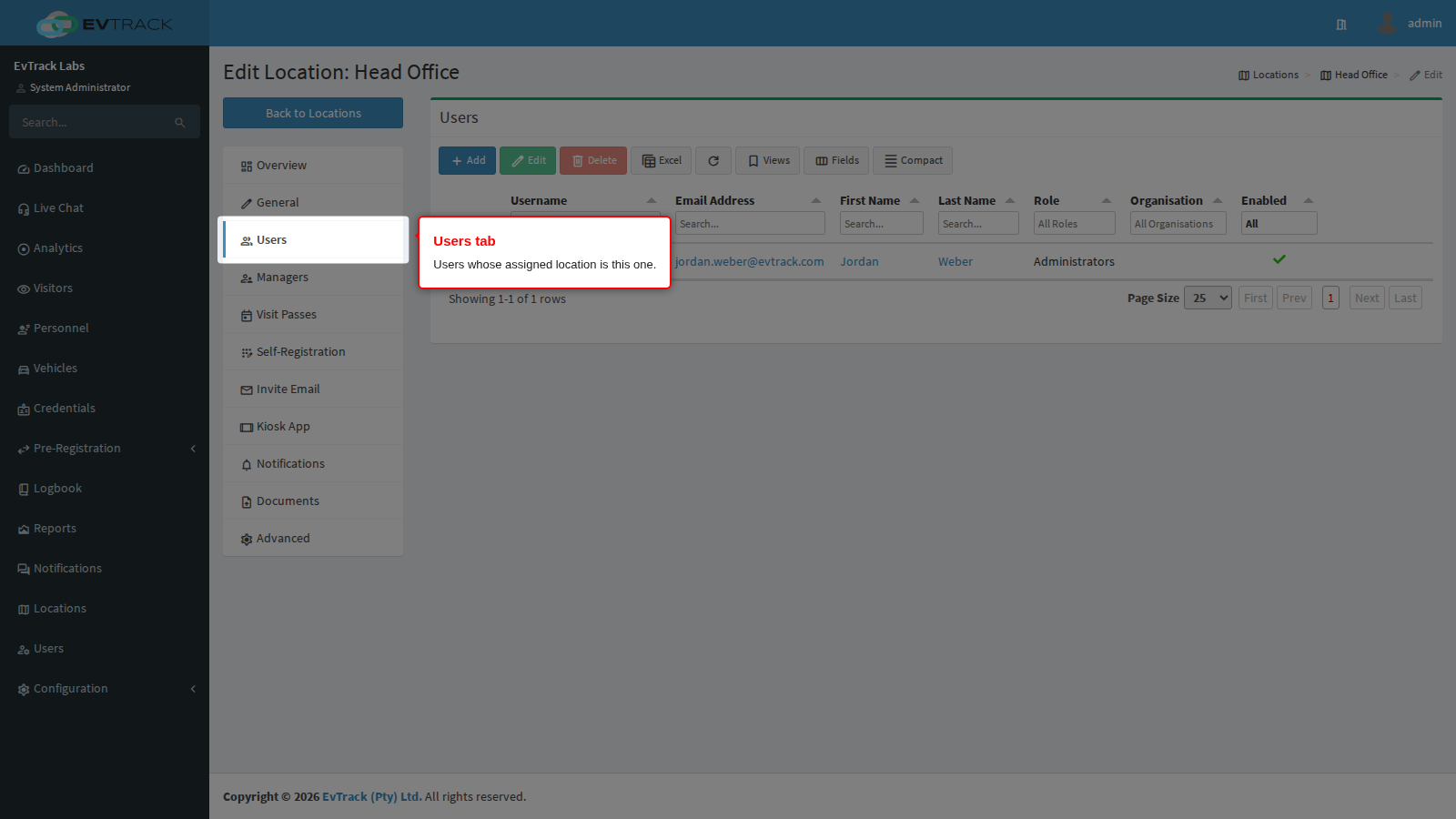
The Users tab lists the users whose assigned location is this location. It is a read-only list: the assignment itself is the Location field on each user’s Profile tab (see Edit a User), so to move someone to or from this location you change their profile, not this tab.
Who can use this tab: users with “Configuration: Permissions: Users - List Users” see the tab and its list. Adding, editing and deleting use the user permissions: “Configuration: Permissions: Users - Add User”, “Configuration: Permissions: Users - Edit/View Users” and “Configuration: Permissions: Users - Delete Users”.
Step 1: Open the Users tab
Open the location from the location list and click Users in the menu on the left.
Step 2: Read the list
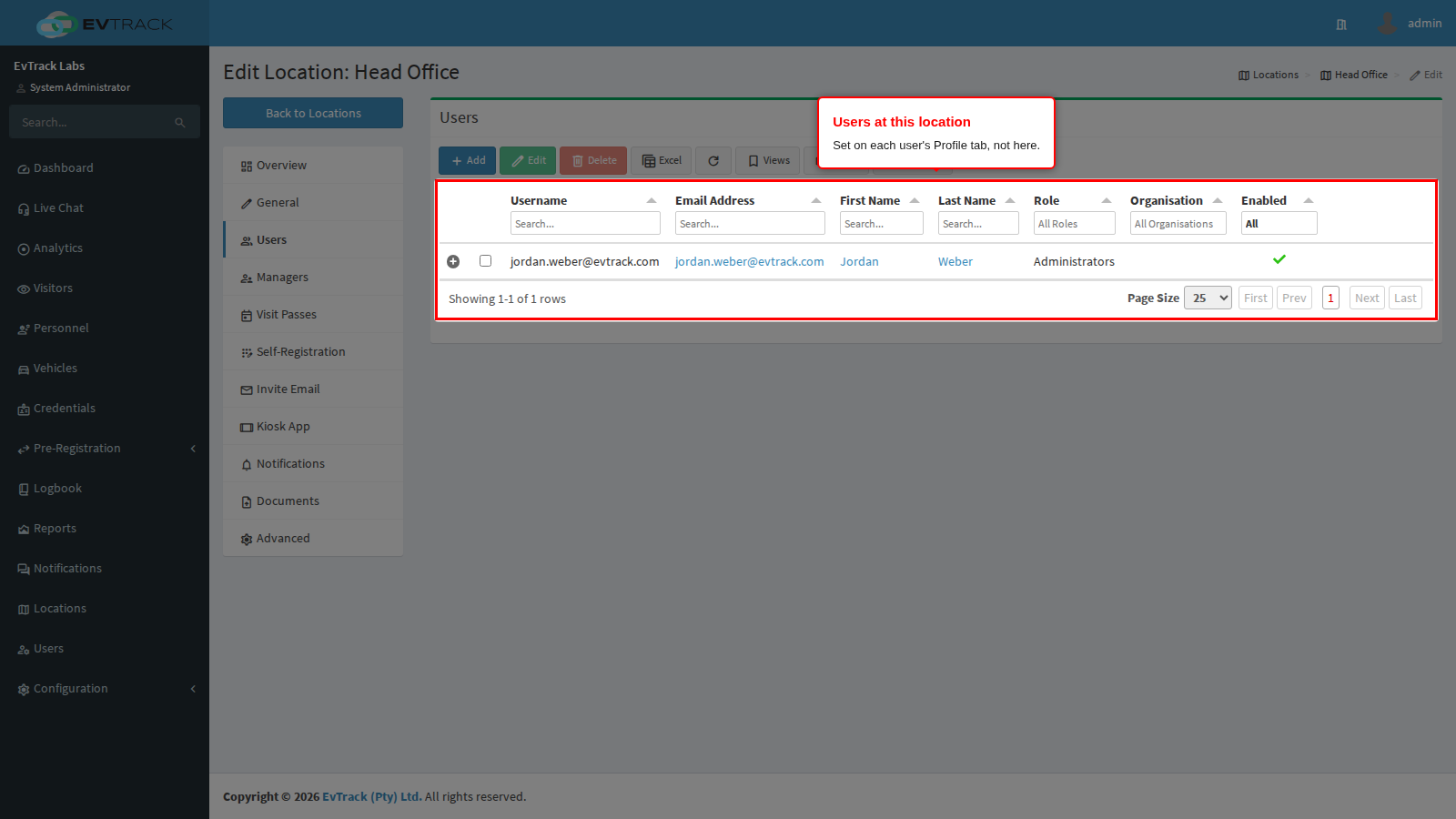
The table shows every user assigned to this location, one row per user. The list loads when you first open the tab. Click a name, email address or date to open that user.
Step 3: Find the toolbar
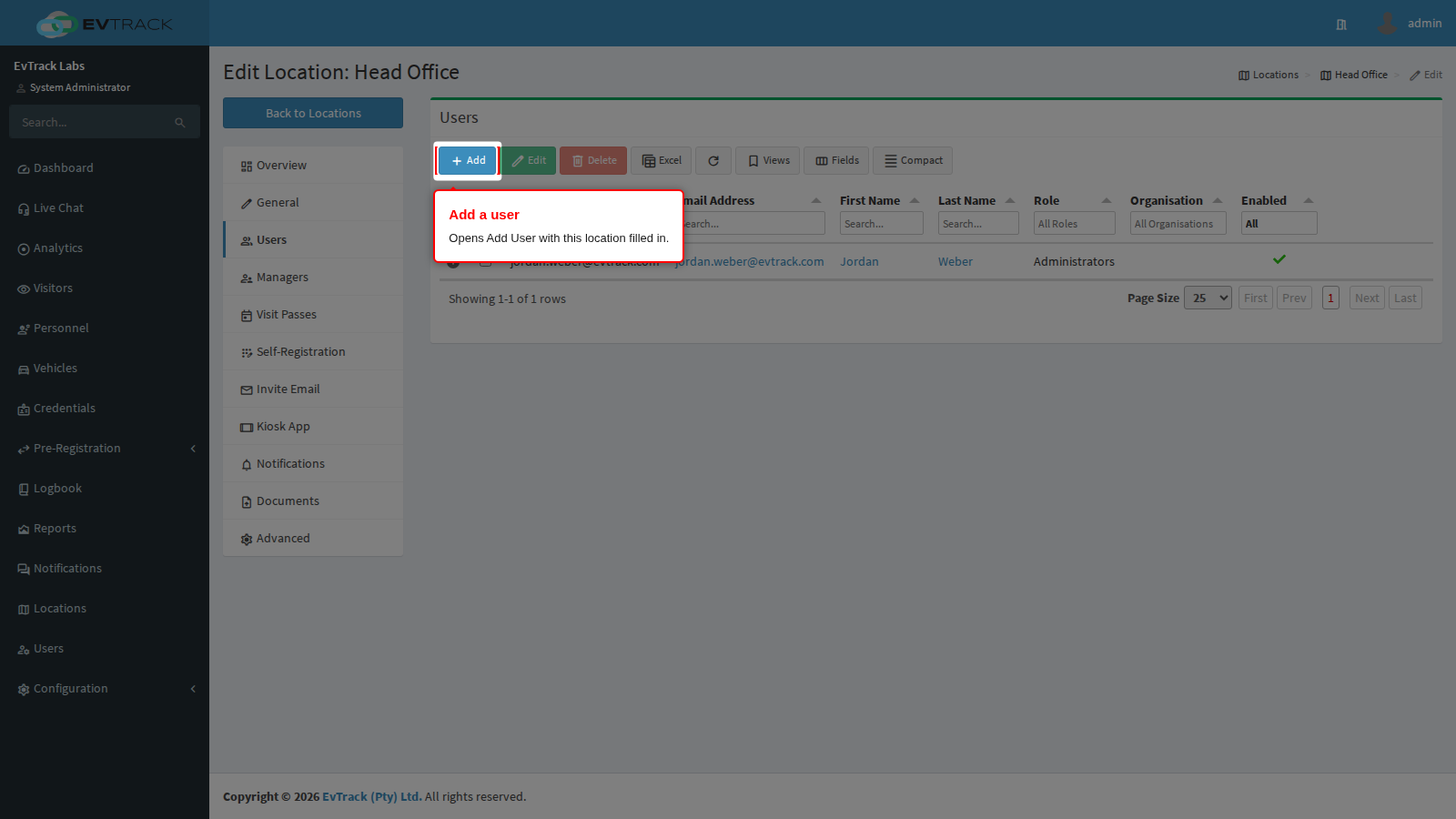
The toolbar above the table holds Add, Edit, Delete, the Excel export and Refresh. Edit and Delete are greyed out until you select at least one row.
Step 4: Add a user to this location
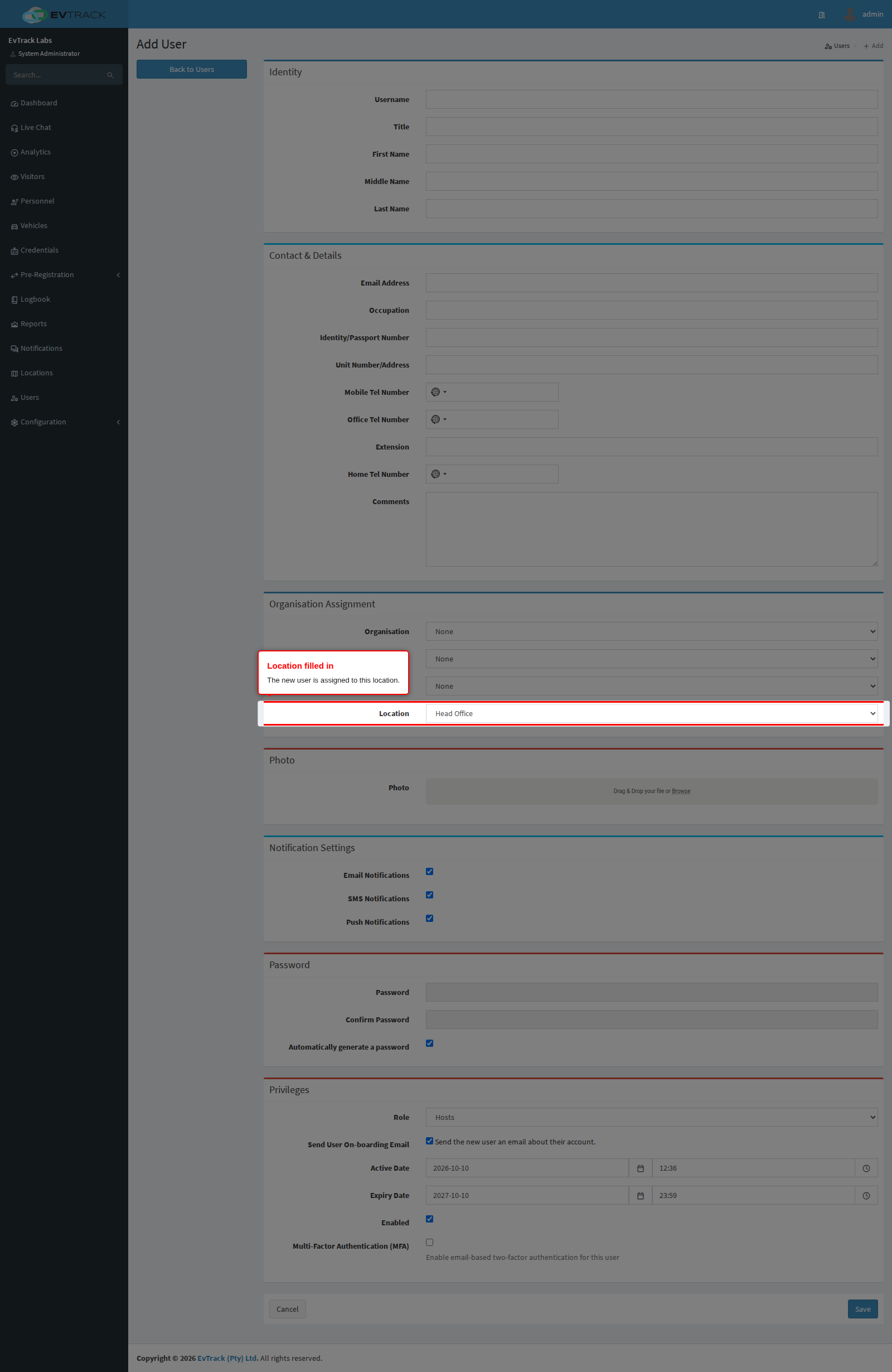
Click Add. The Add User page opens with Location already set to this location. Fill in the rest of the user’s details and save as you would for any new user (see Add a User). Leaving the page without saving adds nobody.
Options on this tab
| Column | What it shows |
|---|---|
| Username | The login name. Hidden when users log in through your identity provider (SSO) or the system is licensed for several separate organisations. |
| Email Address | The user’s email address, as a link to the user. |
| First Name | The user’s first name, as a link to the user. |
| Last Name | The user’s last name, as a link to the user. |
| Role | The user’s role. Filter the column to pick one role. |
| Organisation | The user’s organisation. Filter the column to pick one. |
| Active Date | When the account becomes active. |
| Expiry Date | When the account expires. |
| Enabled | A tick when the account is enabled, a cross when it is disabled. |
The table shows 25 rows per page; you can change that to 10, 50 or 100. Each column has a filter under its heading.
| Toolbar button | What it does |
|---|---|
| Add | Opens Add User with this location filled in. |
| Edit | With one row selected, opens that user’s Profile tab. With several rows selected (up to 200), opens bulk edit for them. |
| Delete | Opens a confirmation page for the selected users (up to 200). Nothing is deleted until you confirm there. |
| Excel | Downloads the table as <location name> - Users.xlsx, for example Head Office - Users.xlsx. |
| Refresh | Reloads the list from the server. |