Kiosks follow the global Kiosk settings. The Kiosk App tab lets one location change five appearance settings (logo, welcome message, color scheme, default language and telephone country code) and the kiosk field list for the kiosks assigned to it. A kiosk takes these settings from the location assigned to its device on the Devices page, not from the location where its registrations are filed.
Who can use this tab: to see it, “Configuration: Location - Edit/View” and “Configuration: System Settings - View”; to save it, “Configuration: Location - Save” and “Configuration: System Settings - Save”. Assigning a location to a device needs “Configuration: Devices - Edit/View” and “Configuration: Devices - Save”.
Step 1: Assign the kiosk to the location
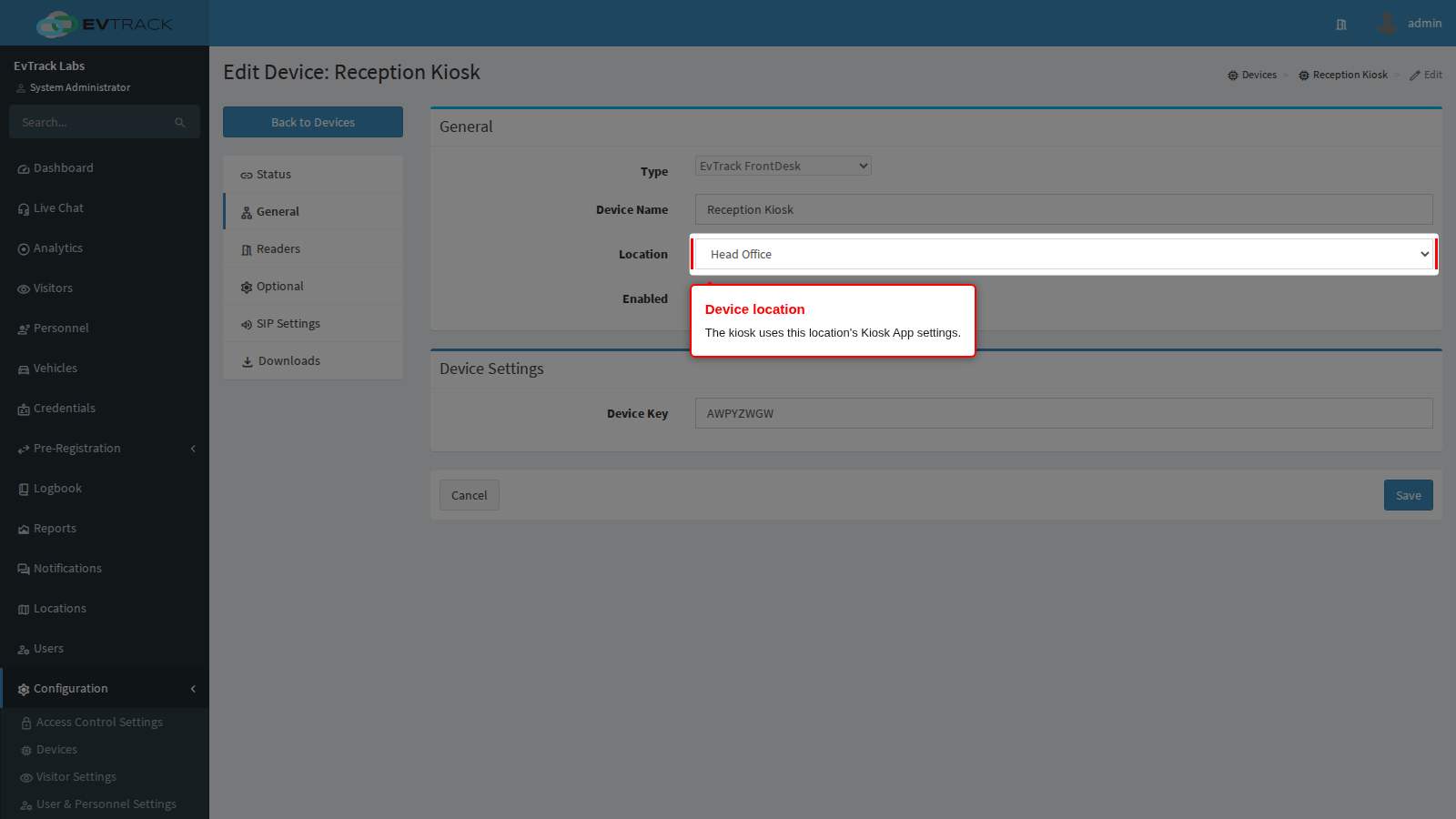
Go to Devices, edit the kiosk device and open the General panel. Choose the location in Location. None means the kiosk uses the global settings for everything.
Step 2: Open the Kiosk App tab
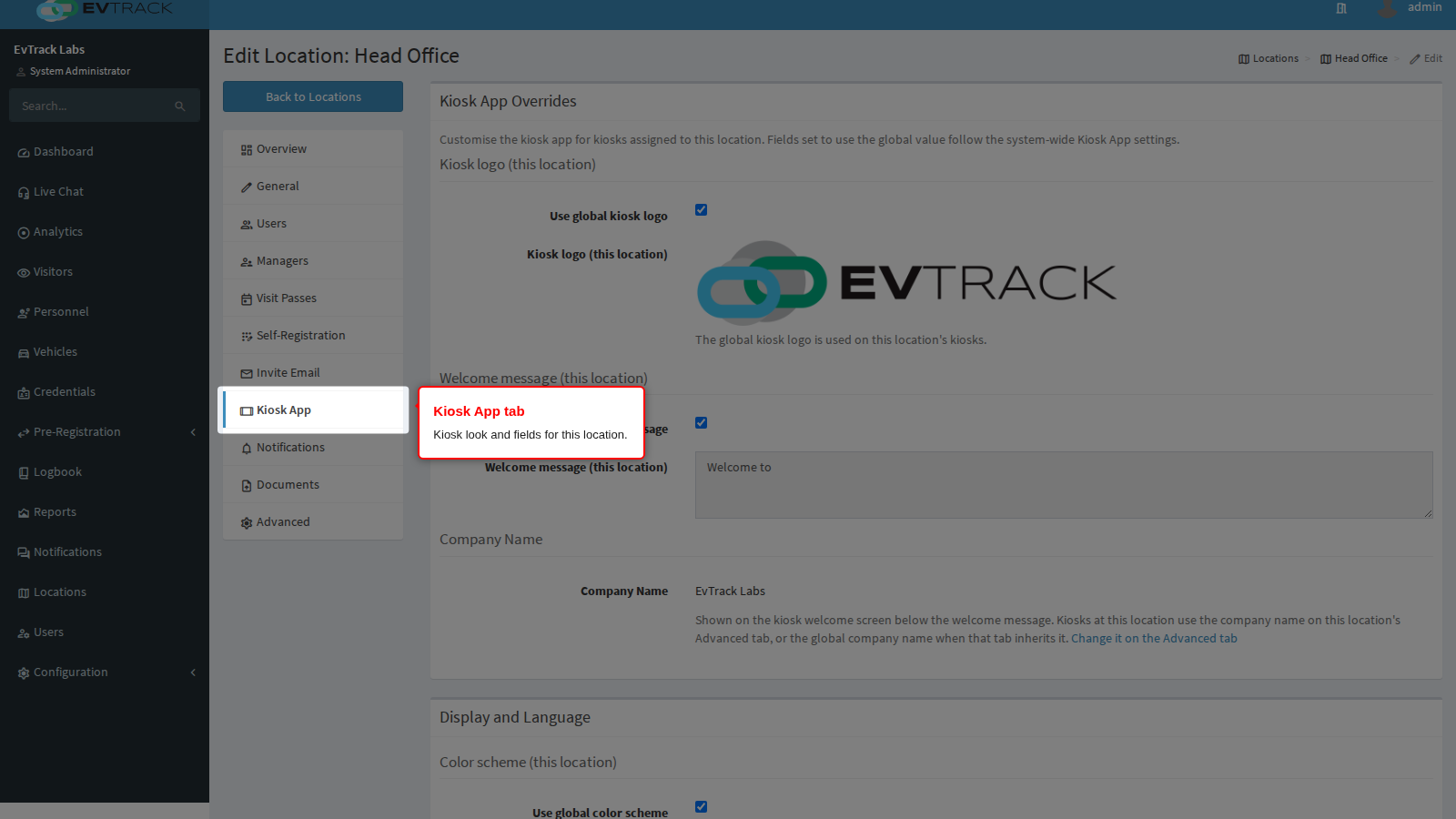
Open the location from the location list and click Kiosk App in the menu on the left. The tab has three titled sections: Kiosk App Overrides, Display and Language and Kiosk fields (this location).
Step 3: Check the company name
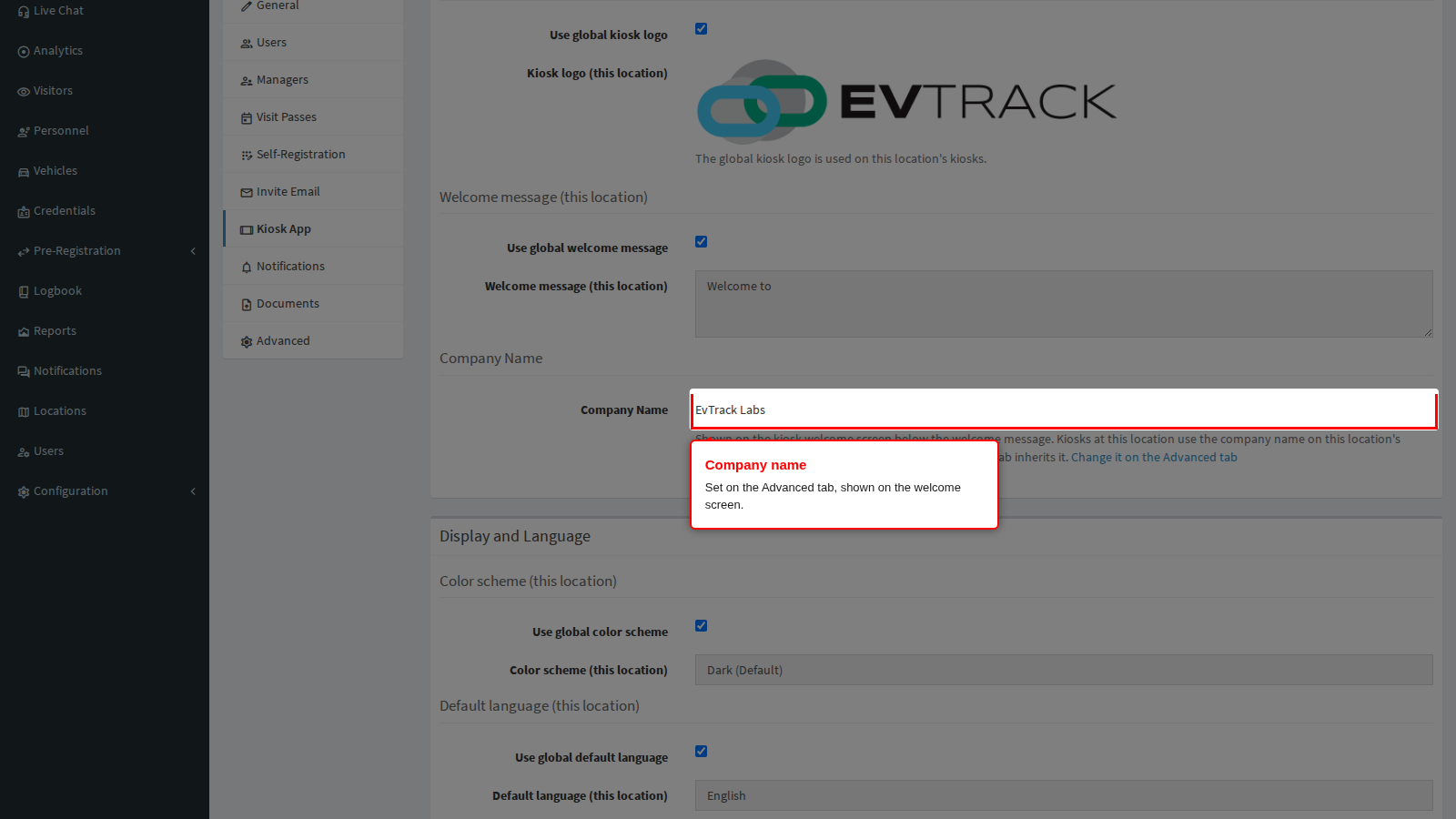
The second line of the kiosk welcome screen is the company name. The Company Name line in the first section shows what the kiosks at this location display. It uses the company name on this location’s Advanced tab when that tab overrides it (its company-name Inherited tick is unticked and the name is valid). Otherwise it uses the global company name on System Settings > General. The company name must be 6 to 200 characters on one line when you save it. When a kiosk is served, a name with a character outside letters (in any language), digits, spaces and / . , - ‘ ( ) & : ; @ ? ! silently falls back to the global name. The name is not set on this tab: click Change it on the Advanced tab to edit it, see Location Advanced Settings.
Step 4: Set the overrides
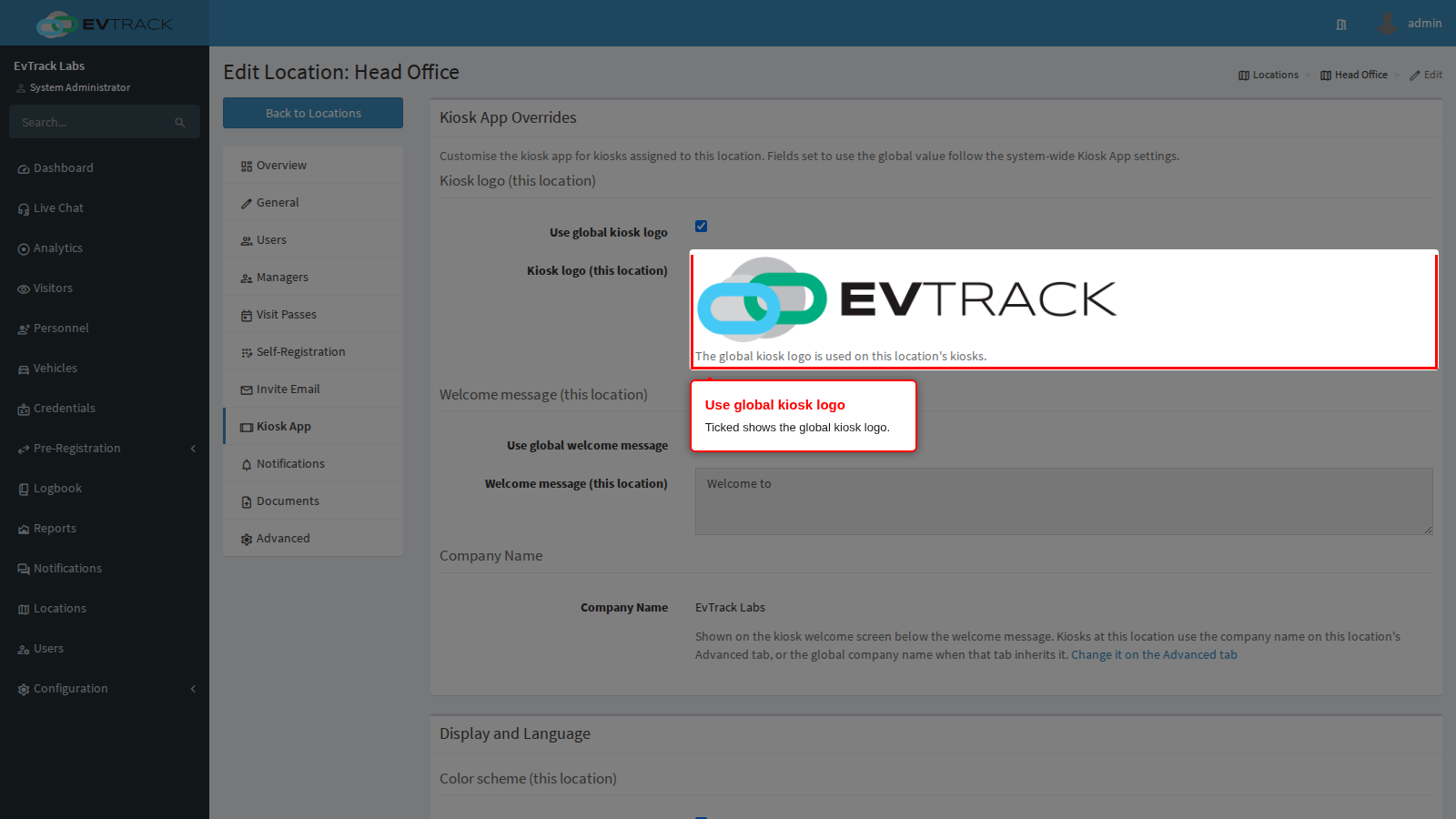
Every override starts with its Use global box ticked. With the box ticked the control is hidden and a read-only preview shows the global value. For the logo, Use global kiosk logo previews the global kiosk logo.
Untick the box to upload a logo for this location. The uploader accepts a PNG or JPEG of up to 256 KB.
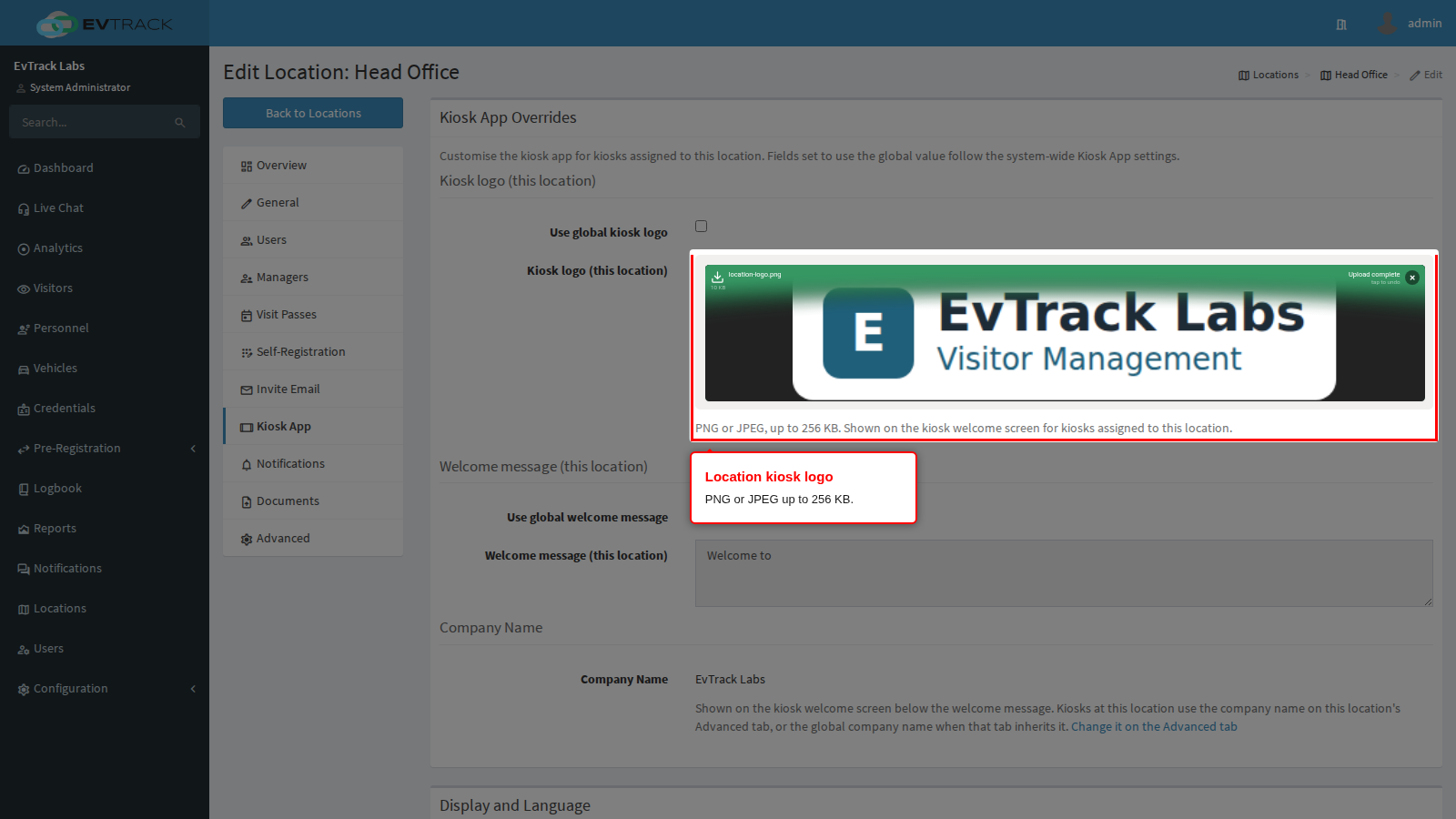
A logo override with no file falls back to the global logo without a message. If you leave Use global kiosk logo unticked and upload no file, the kiosks at this location show the global logo and nothing on the page tells you so. Upload the file, or tick the box again.
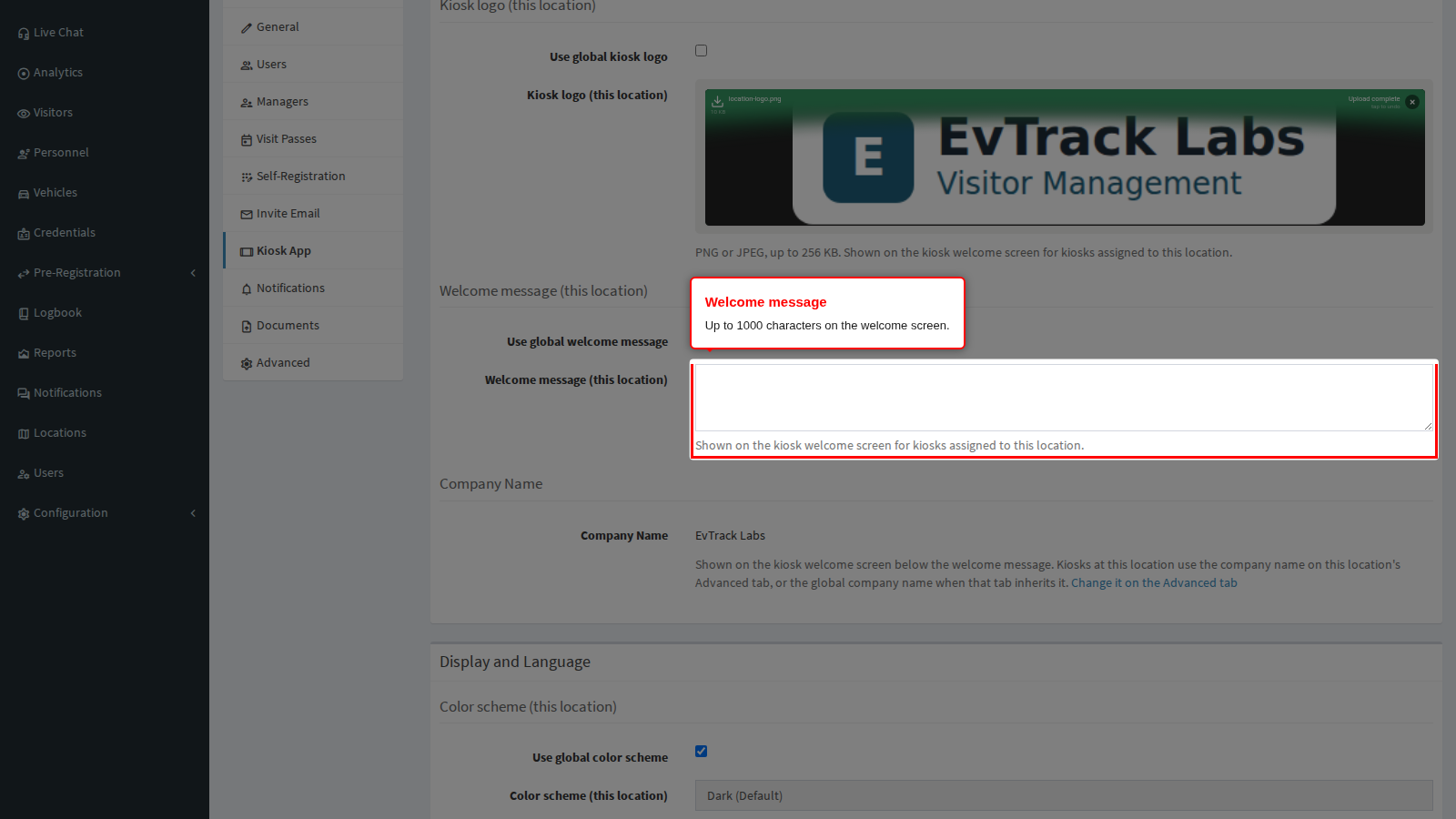
Untick Use global welcome message to type a welcome message of up to 1000 characters for this location.
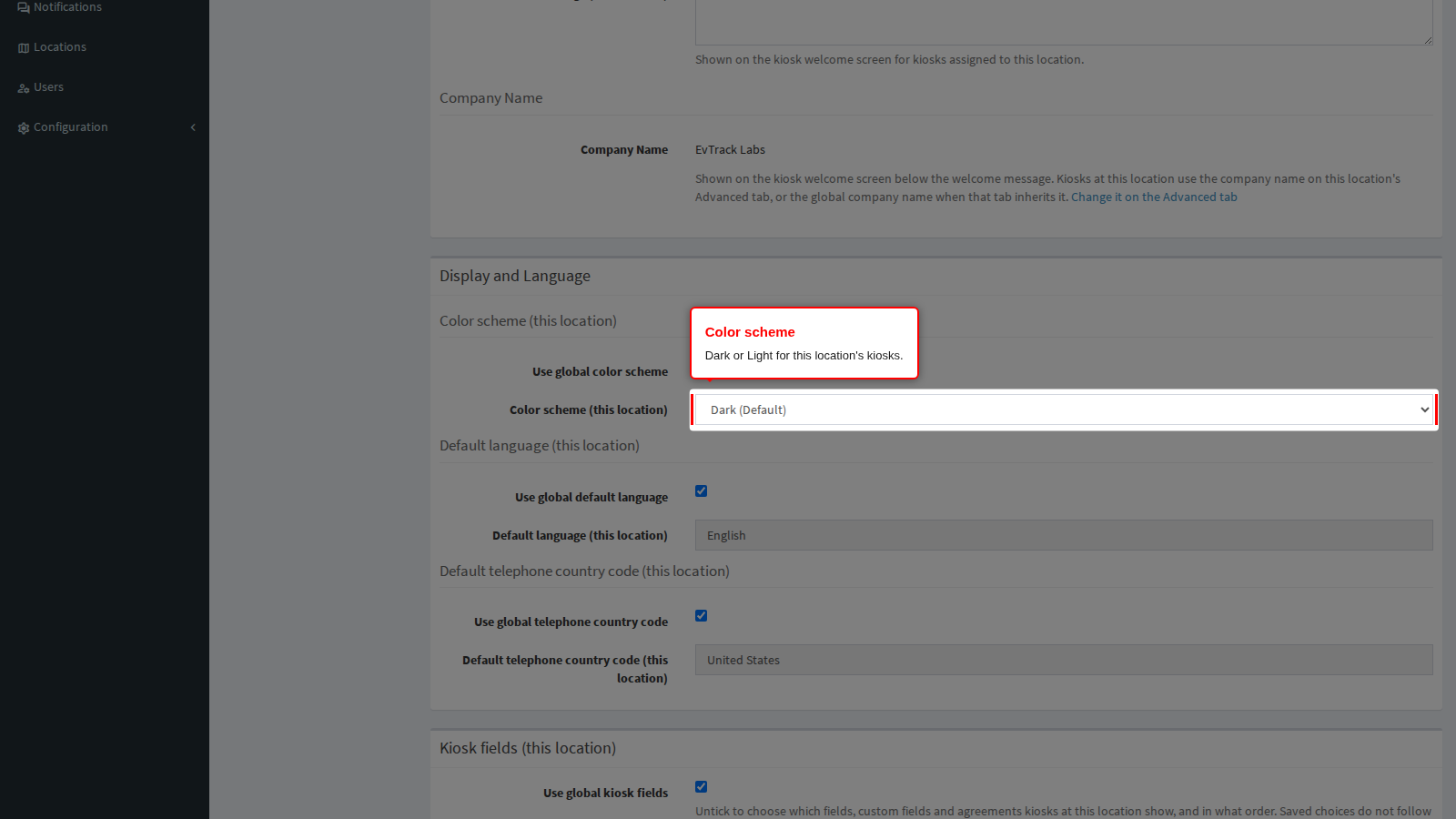
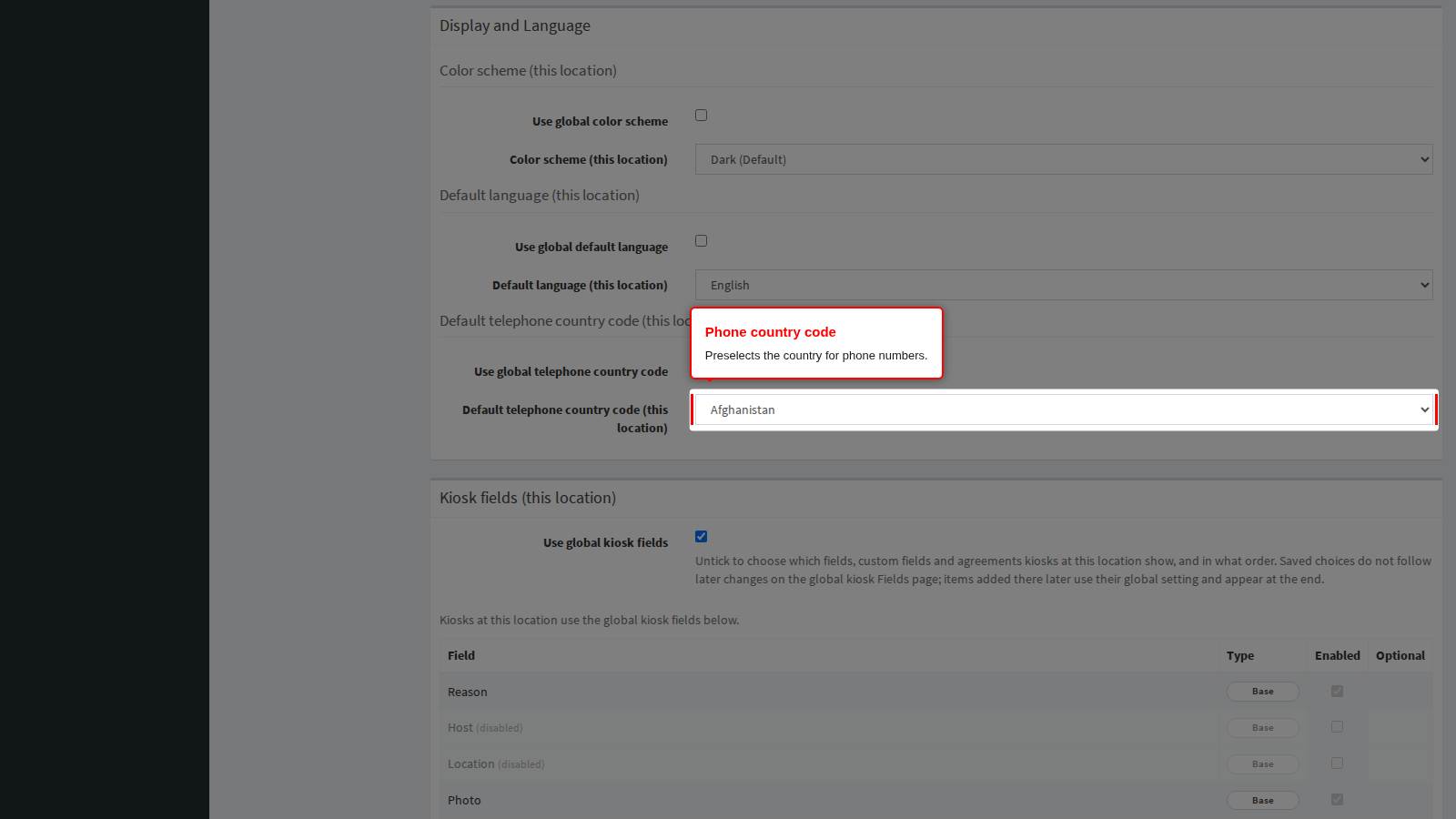
The Display and Language section holds three more overrides. Untick Use global color scheme to choose a color scheme.
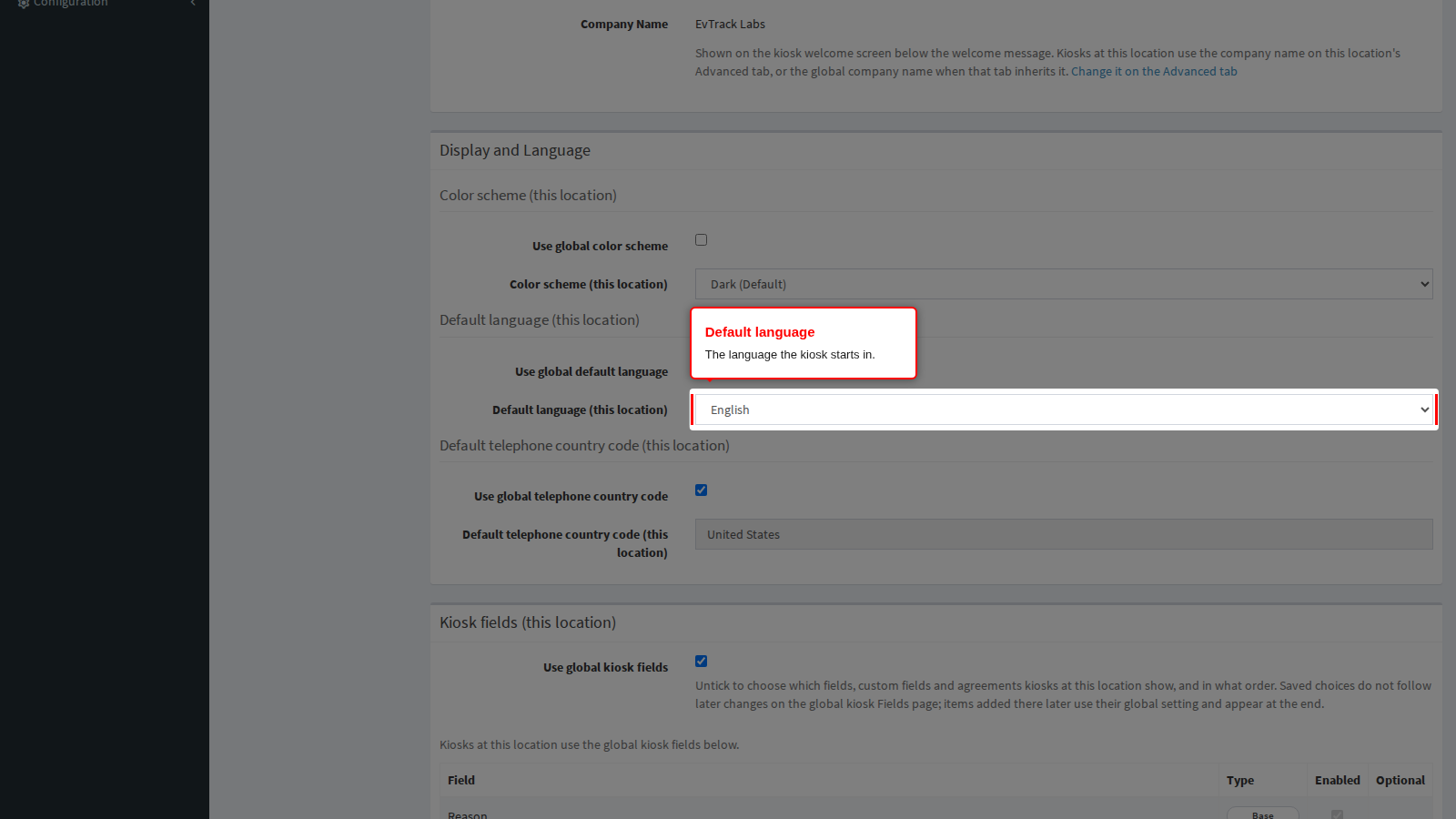
Untick Use global default language to choose the language the kiosk starts in.
Untick Use global telephone country code to choose the country preselected for phone numbers.
Step 5: Choose the kiosk fields
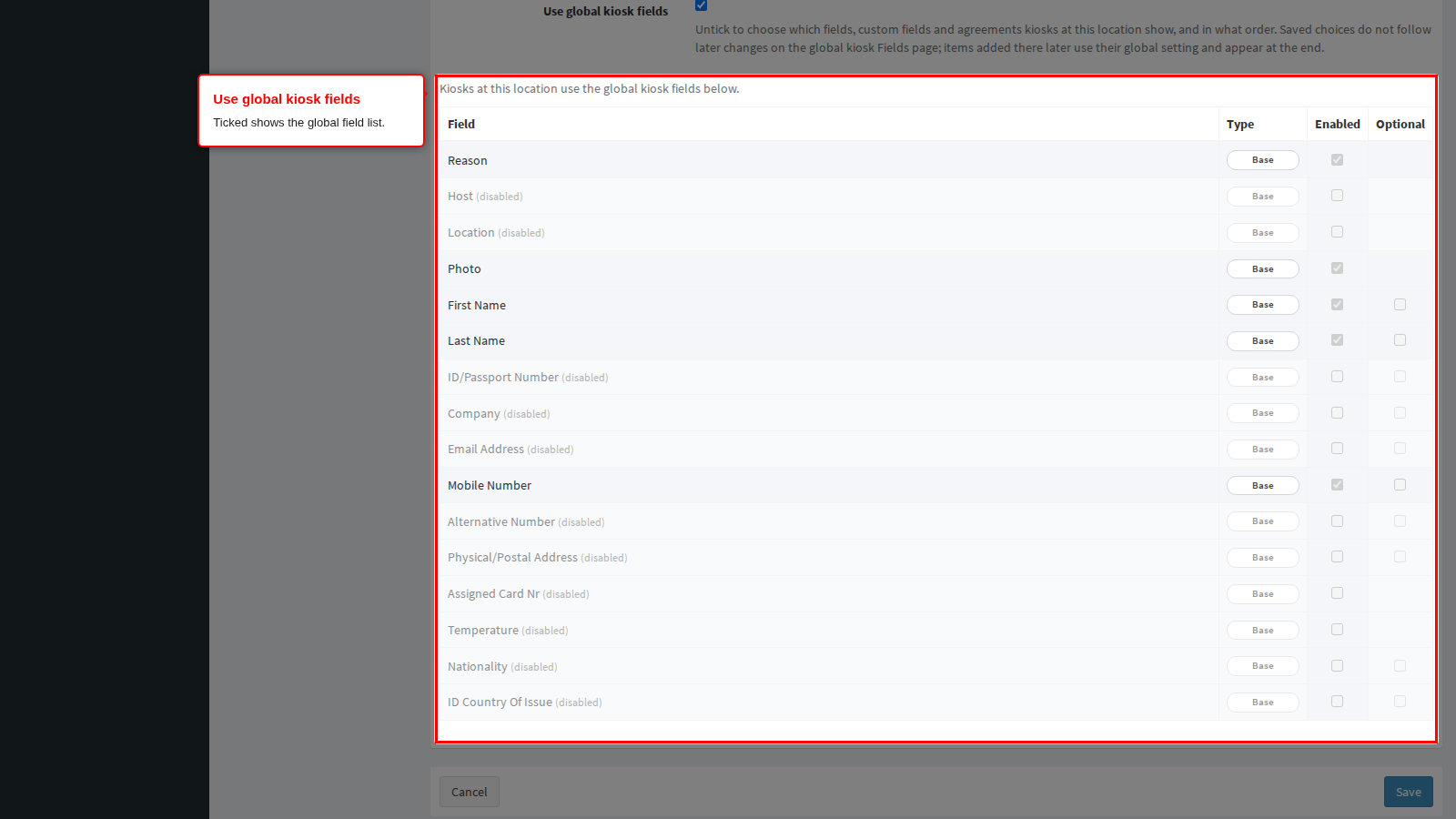
Use global kiosk fields is ticked by default. Kiosks at this location then ask for the fields in the global list, shown read-only under the heading “Kiosks at this location use the global kiosk fields below.”
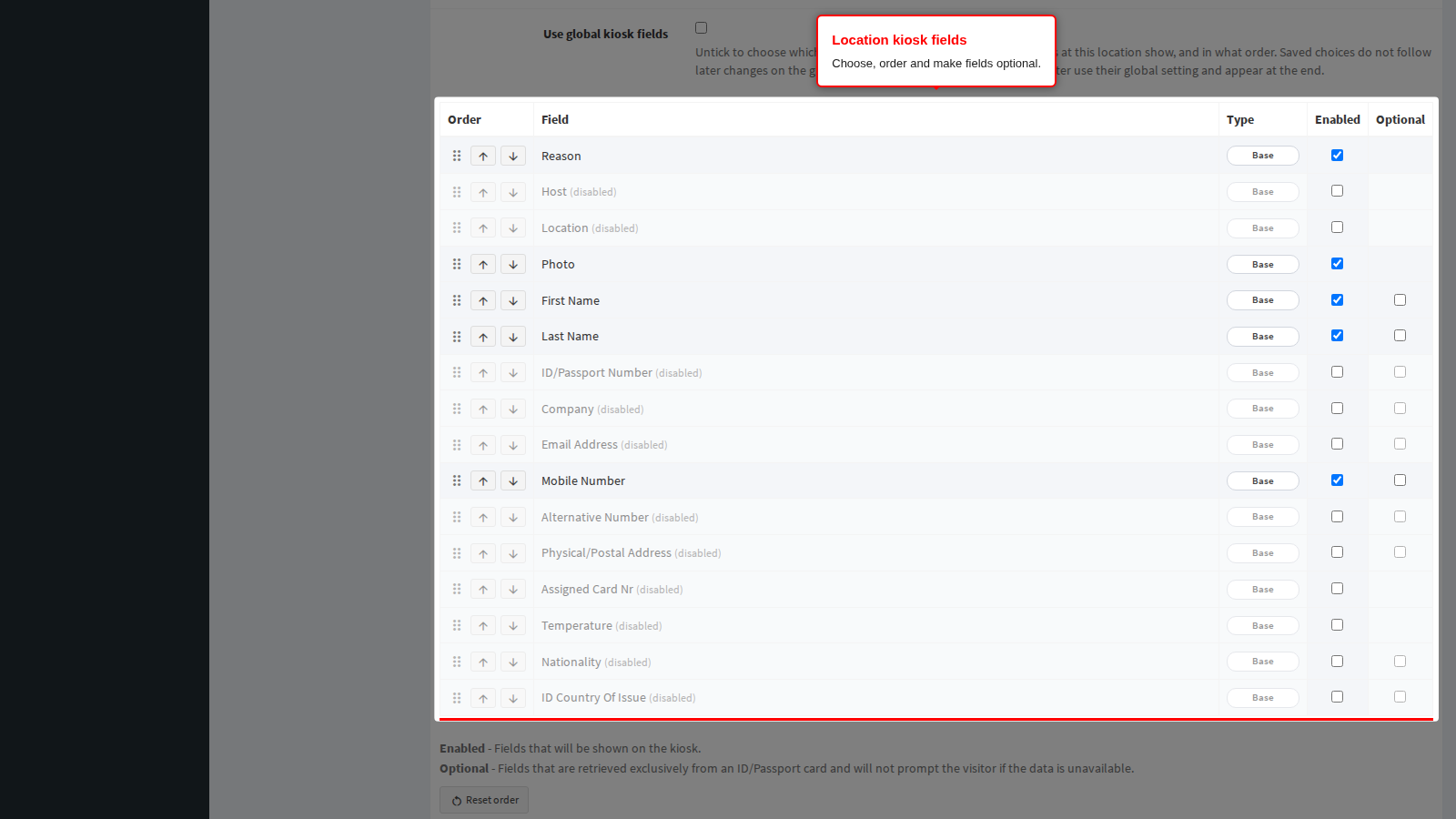
Untick it to choose the fields, custom fields and agreements for this location only.
Step 6: Save
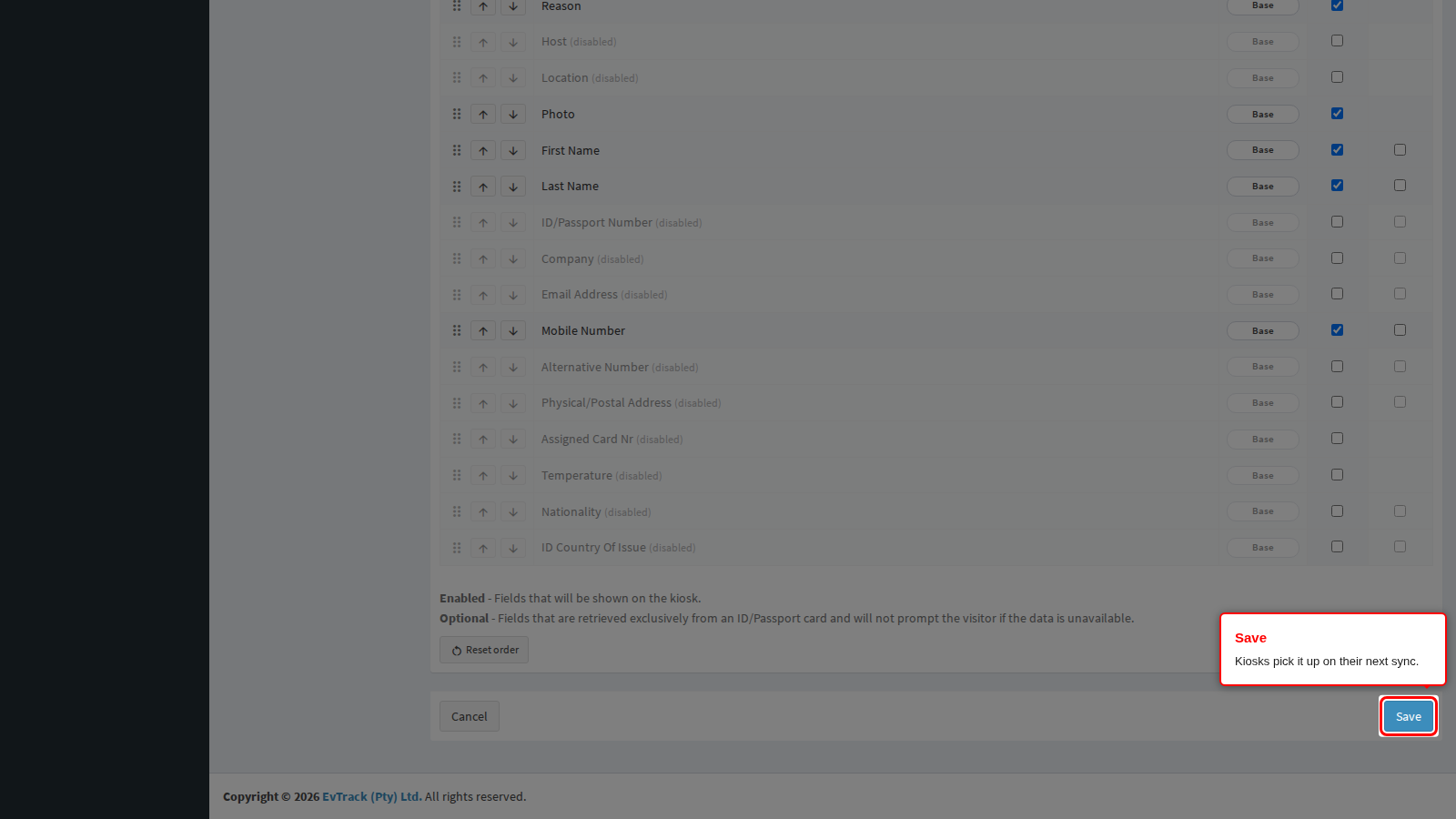
Click Save. Saving this tab keeps you on the Kiosk App tab and does not touch the other tabs. Kiosks pick the change up on their next sync.
Options on this tab
| Option | Use-global tick | Values and rules | Global setting |
|---|---|---|---|
| Kiosk logo (this location) | Use global kiosk logo, ticked | PNG or JPEG of 256 KB or less. The file is checked by its content, not its name, so a renamed file or a GIF is not accepted. The logo is stored as uploaded, with no resizing. A rejected upload keeps the previous logo and shows the warning “The uploaded logo could not be saved (file too large or not a PNG/JPEG image). The existing logo was kept.” The rest of the tab still saves. | Kiosk Settings |
| Welcome message (this location) | Use global welcome message, ticked | Up to 1000 characters. | Kiosk Settings |
| Color scheme (this location) | Use global color scheme, ticked | Dark (Default) or Light. Light carries the warning “Light (Continuous white display can cause damage, not covered by warranty!)”. | Kiosk Settings |
| Default language (this location) | Use global default language, ticked | English, Afrikaans, Arabic, German, Spanish, French, Indonesian, Italian, Malay, Dutch, Portuguese, Thai or Chinese. | Kiosk Settings |
| Default telephone country code (this location) | Use global telephone country code, ticked | Any country in the list; the drop-down starts on Afghanistan until you choose. The global preview shows “Automatic” when the global value is empty. | Kiosk Settings |
All five have the same global counterpart, see Kiosk Settings. The FrontDesk guide covers the same overrides from the kiosk side: Location overrides.
The rule for every override: it applies only when its Use global tick is off and a value is set. An unticked box left empty (no logo, or blank text) silently uses the global value, and there is no warning. The three drop-downs are different: when you untick one, it starts on its first value (Dark (Default), English or Afghanistan) rather than on an empty choice, and saving stores that value as the override. Choose the value you want before you save.
Kiosk fields. With Use global kiosk fields ticked, the table is read-only. Unticked, the table has these columns:
- Order: drag a row, or use its up and down buttons.
- Field: the name of the field, custom field or agreement.
- Type: Base, Custom or Agreement.
- Enabled: whether the kiosk shows the row.
- Optional: only on First Name, Last Name, ID/Passport Number, Company, Email Address, Mobile Number, Alternative Number, Physical/Postal Address, Nationality and ID Country Of Issue. The help text reads “Fields that are retrieved exclusively from an ID/Passport card and will not prompt the visitor if the data is unavailable.”
Reset order puts the rows back in the default order. The rows are the 16 base fields in this order: Reason, Host, Location, Photo, First Name, Last Name, ID/Passport Number, Company, Email Address, Mobile Number, Alternative Number, Physical/Postal Address, Assigned Card Nr, Temperature, Nationality and ID Country Of Issue. Custom fields follow, then agreements.
- Locked rows. While OTP verification sends codes by email or SMS, the Email Address or Mobile Number row remains enabled and locked. The help text reads “Locked rows remain enabled because OTP verification on the global kiosk Verification page uses them.”
- Saved choices are fixed. They do not follow later changes on the global kiosk Fields page. Items added there later use their global setting and appear at the end of the list.
- Custom fields need one global save. Until the global kiosk Fields page has been saved once, custom fields cannot be overridden. Saving then shows “Nothing on this tab could be saved. Open the global kiosk Fields page, save it once, then save this tab again.”
- Going back to global. Ticking Use global kiosk fields and saving clears the stored choices.
- The Host row. Changing it makes the kiosks fetch their host list again.
How it works
When a kiosk asks for its settings, EvTrack resolves each value in this order: the location assigned to the device, then that location’s Kiosk App override, then the global Kiosk settings. The kiosk’s options sync and its logo download use the same rule, so they always agree. The kiosk downloads the logo again only when the logo’s file size changes, so a replacement logo of exactly the same size keeps showing the old one until the app’s data is cleared (The kiosk shows the wrong logo or company name). A device with no location, or whose location was deleted, uses the global values.
A related global setting, Inherit Kiosk Device Location (Kiosk > Location), files registrations that have no location under the device’s location. It does not change the logo, the welcome message or the fields. See Where registrations are filed.
Troubleshooting
The kiosk shows another site’s logo or company name. Check which location is assigned to the device in Step 1, then see The kiosk shows the wrong logo or company name.