The Visit Passes tab lists the visit passes recorded at this location, so you can see who is expected, who has checked in and who has checked out. It is a read-only list: you cannot add or delete passes here, and it holds no settings.
Who can use this tab: users with “Configuration: Location - Edit/View”. The actions in each pass’s Status menu follow the visit permissions, so each user sees only what their role allows.
Step 1: Open the Visit Passes tab
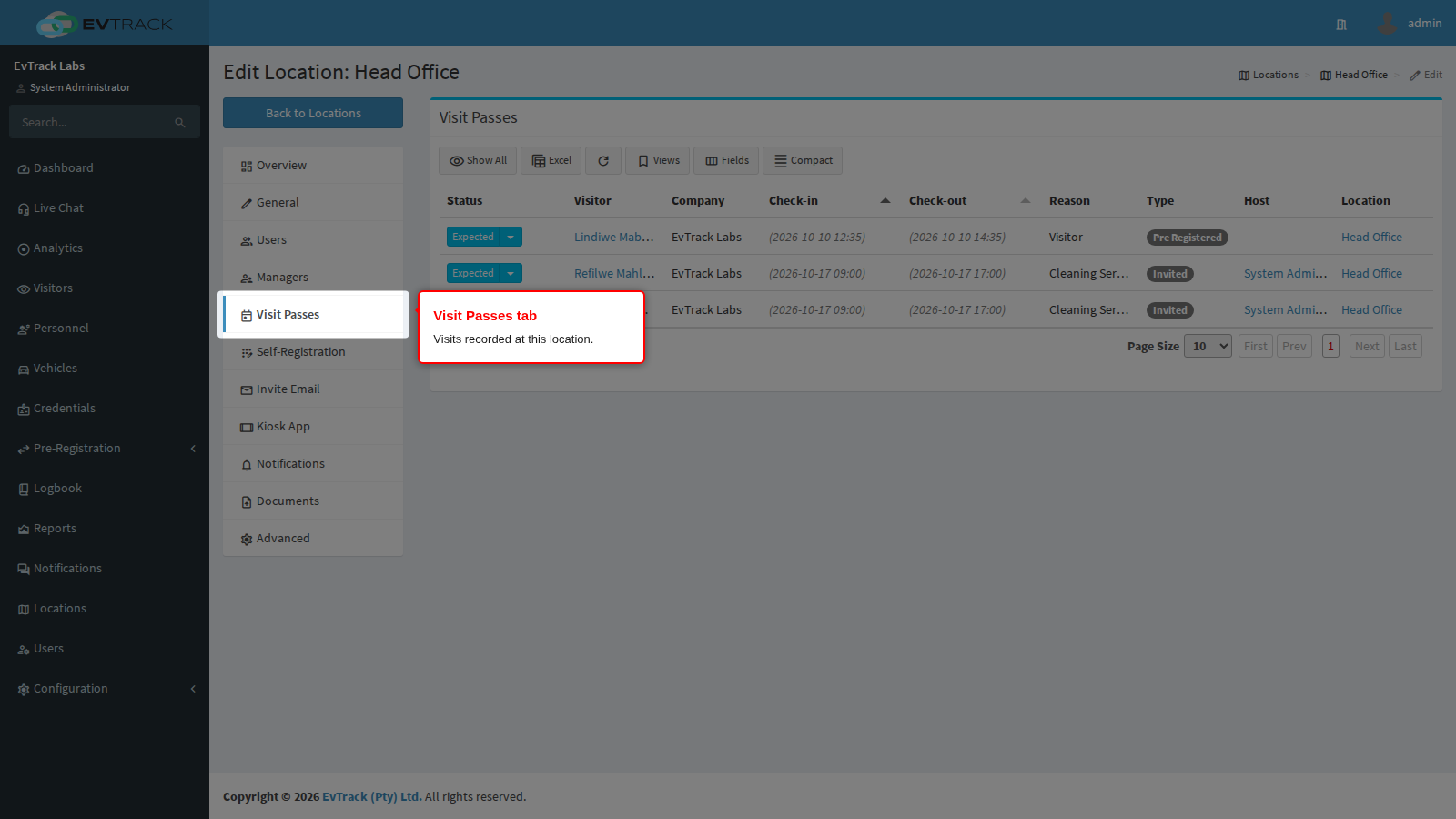
Open the location from the location list and click Visit Passes in the menu on the left.
Step 2: Read the list
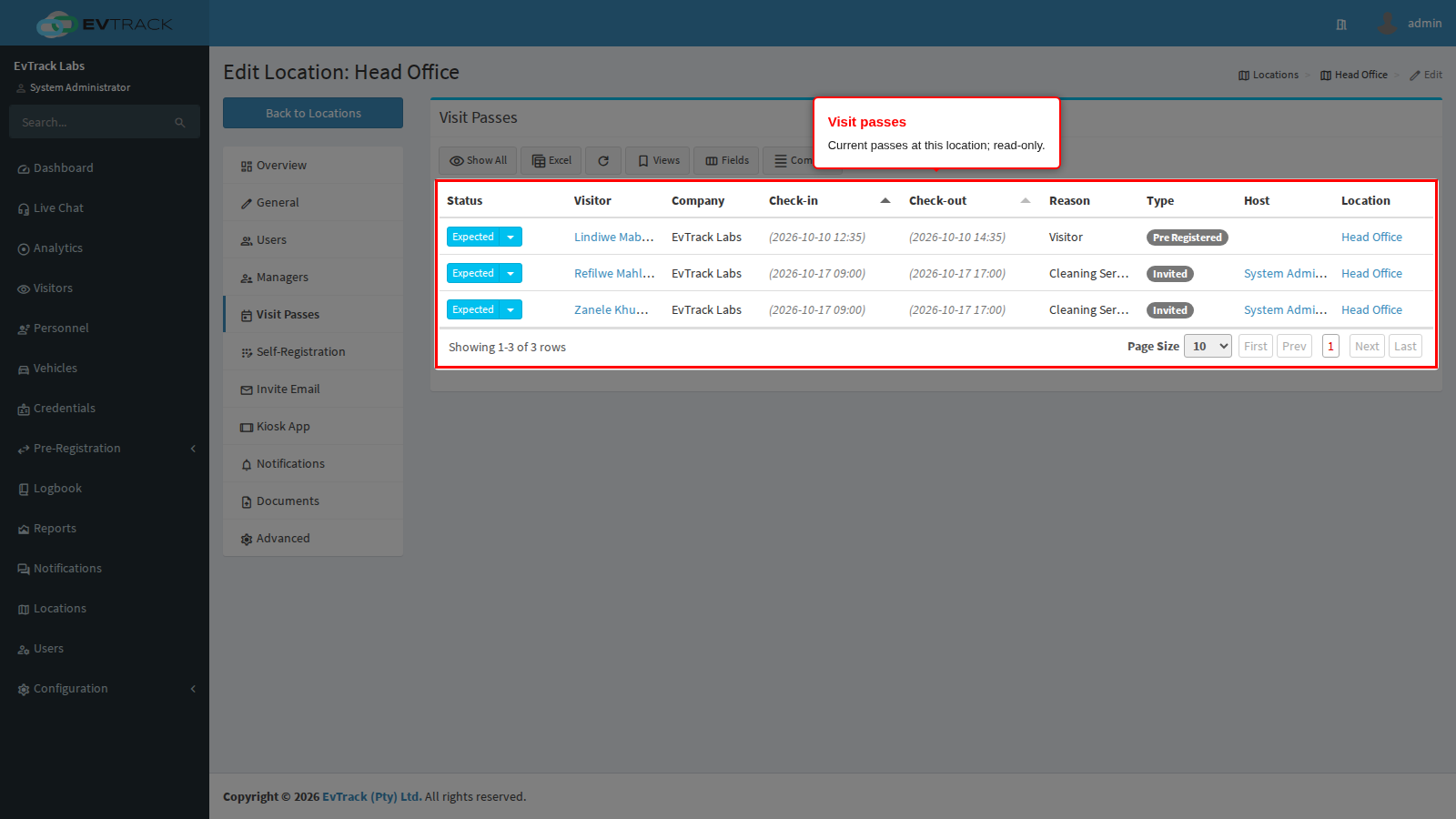
Each row is one visit at this location. The list loads when you first open the tab and is sorted by check-in time, earliest first. By default it shows the current passes. Click the visitor or host to open them.
Step 3: Show every pass
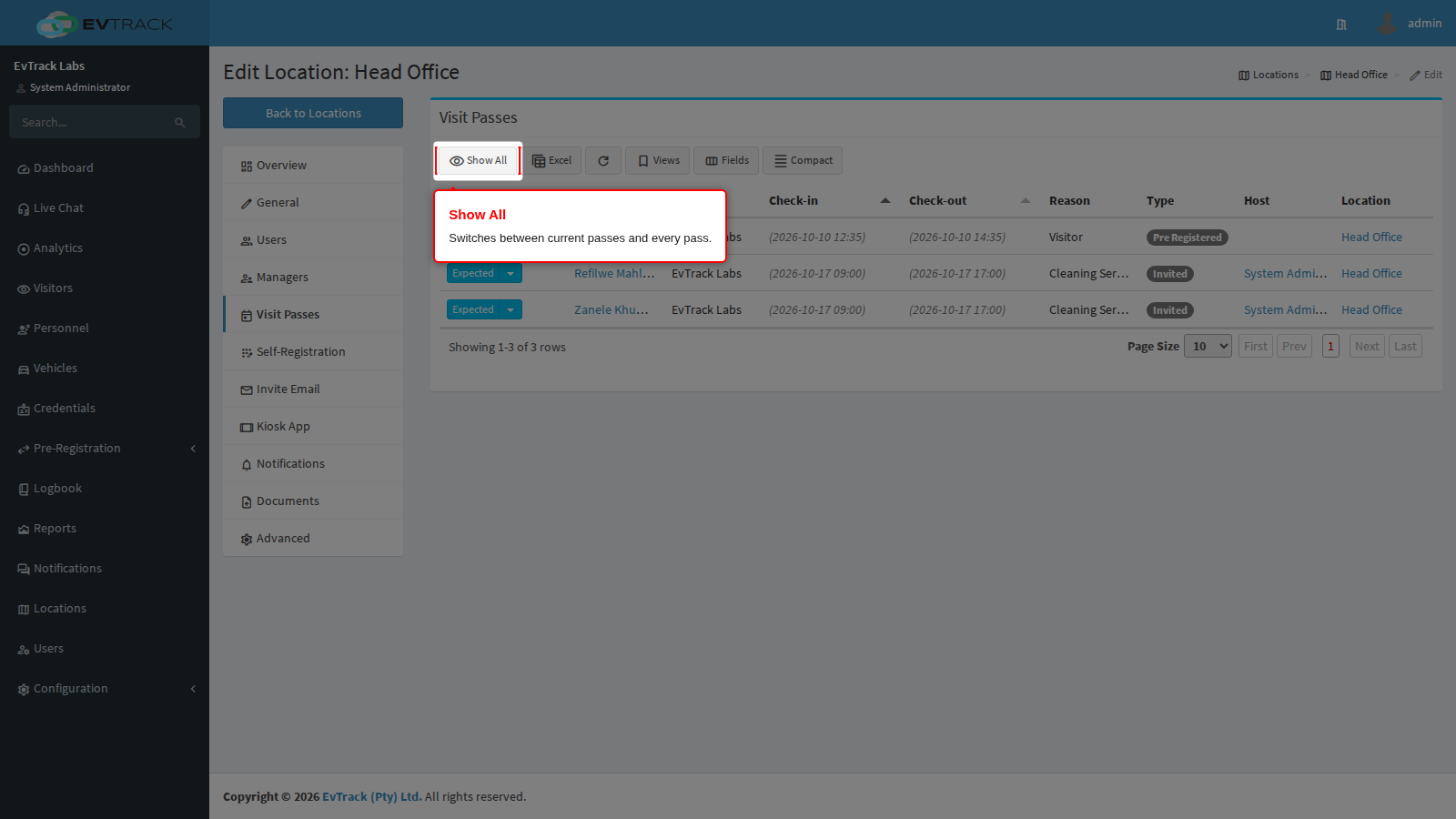
Click Show All to include passes that are no longer current, such as visits that have checked out. The button then reads Show Current; click it to go back.
Step 4: Act on a pass
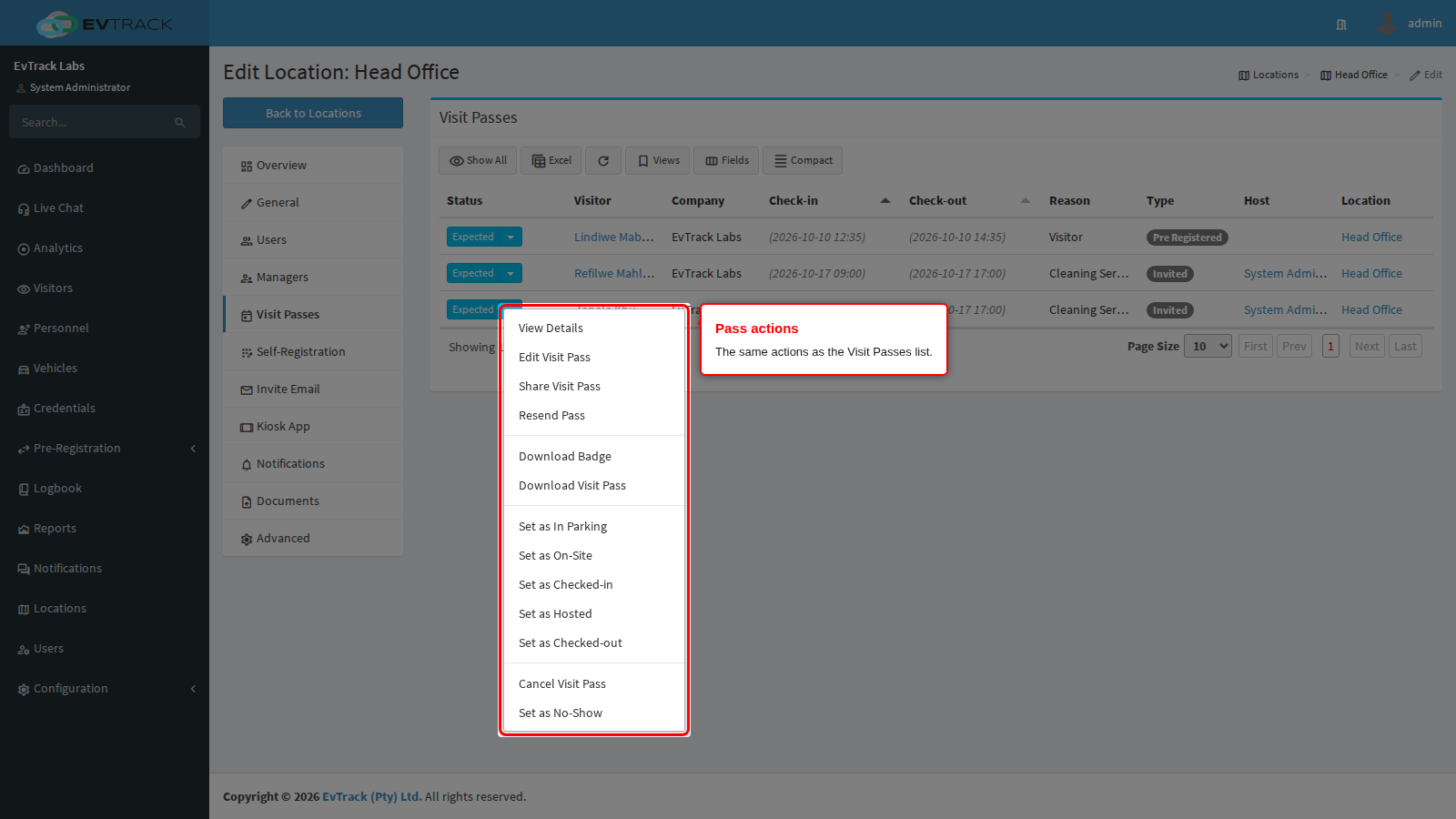
Click a pass’s status to open its action menu. It offers the same actions as the Visit Passes list, such as viewing or editing the pass and changing its status.
Options on this tab
| Column | What it shows |
|---|---|
| Status | The state of the visit. A small arrow on the status means it has an action menu. |
| Visitor | The visitor’s name, as a link to the visitor. |
| Company | The visitor’s company. |
| Check-in | The check-in time. A time in brackets is the scheduled time, not yet an actual check-in. |
| Check-out | The check-out time, in brackets while it is only scheduled. |
| Reason | The reason for the visit. |
| Type | The kind of visit. |
| Host | The host’s name, as a link to the host. |
| Location | The visit’s location, as a link to the location. |
The table shows 10 rows per page (25, 50 or 100 are also offered).
| Toolbar button | What it does |
|---|---|
| Show All / Show Current | Switches between the current passes and every pass. |
| Excel | Downloads the table as visit-passes.xlsx. |
| Refresh | Reloads the list. |
There is no Add or Delete button on this tab.
How it works
- Which visits appear. A visit appears here when the location recorded on the visit is this location. The host’s location and the location of a device do not count.
- The date window. Both views only look at visits whose scheduled start falls between 365 days before today and 365 days after today, counted in the system time zone. An older or later pass does not appear in either view.
- Show Current. The default view lists the visits inside that window that are still open: Expected, On-Site, Checked-in, In Parking or Hosted. A Temporary Visitor Permit that can still be used for a check-in is always listed, even outside the window.
- Show All. Lists every status inside the window, so it adds Checked-out, Auto Checked-out, No Show and Cancelled visits.