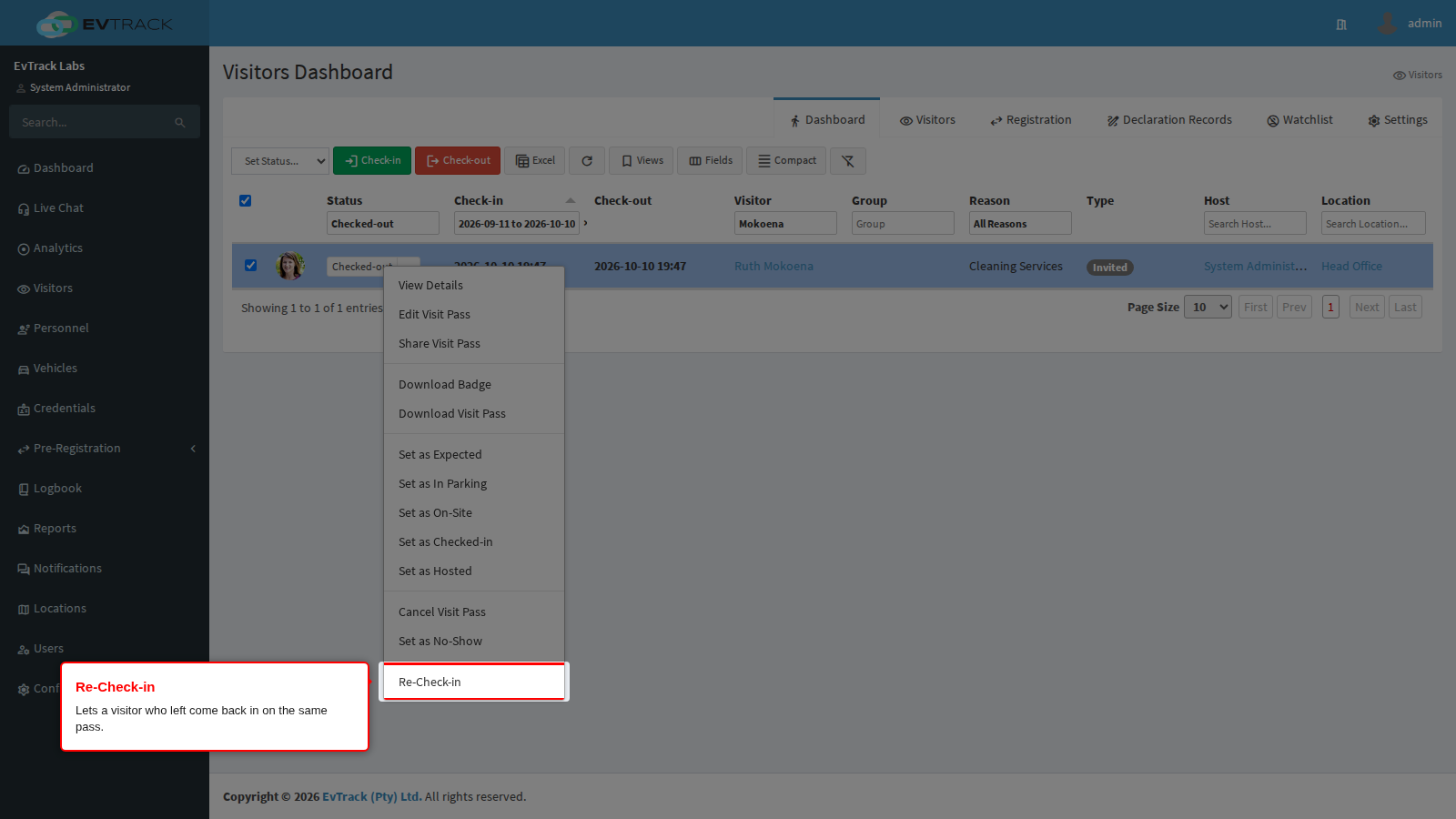
Plans change. You can change an approved visit, re-send the pass, cancel the visit, or let a visitor who has left come back in, all from the visit’s row on the Visitors Dashboard.
Which change should I make?
| Situation | Do this |
|---|---|
| The meeting moved to another day or time | Edit Visit Pass and change Check-in and Check-out |
| The meeting moved to another building | Edit Visit Pass and change Location |
| A colleague will host instead | Edit Visit Pass and change Assign to Host |
| The visitor never received the email | Resend Pass or Share Visit Pass; no edit needed |
| The visit is called off | Cancel Visit Pass (return any assigned card first) |
| The visitor did not turn up | Set as No-Show |
| The visitor’s own details are wrong | Change them on the visitor - see Edit Visitor |
Step 1: Open the visit’s actions
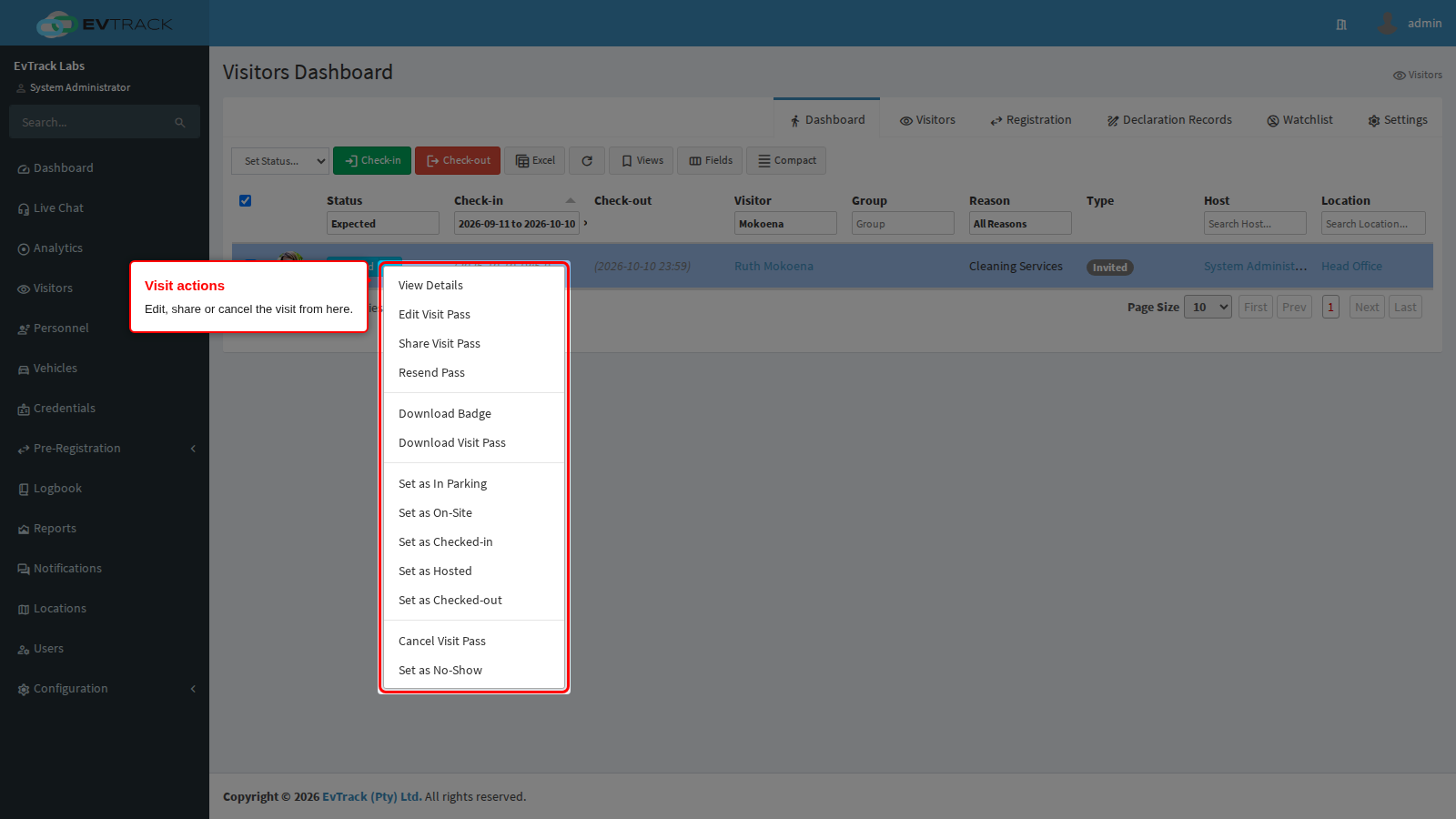
On the Visitors Dashboard, open the actions menu on the visit’s row.
Step 2: Edit the visit
Choose Edit Visit Pass. You can change Visit Reason, Assign to Host, Location, Check-in and Check-out, and, where your site issues cards, Assigned Card. Click Save.
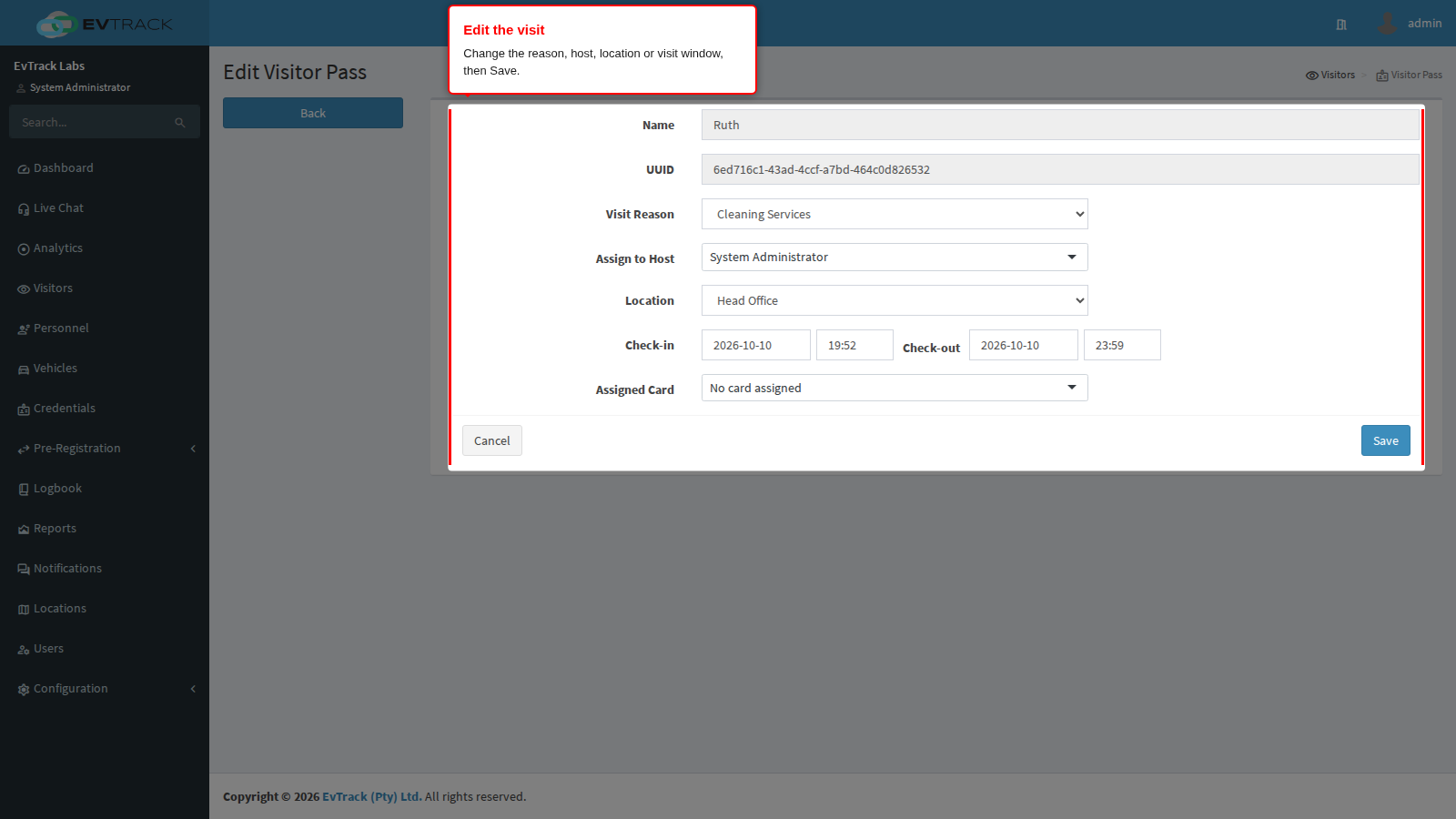
The visit keeps the same pass: only its details change. Editing does not send the visit back for manager approval.
Step 3: Re-send the pass
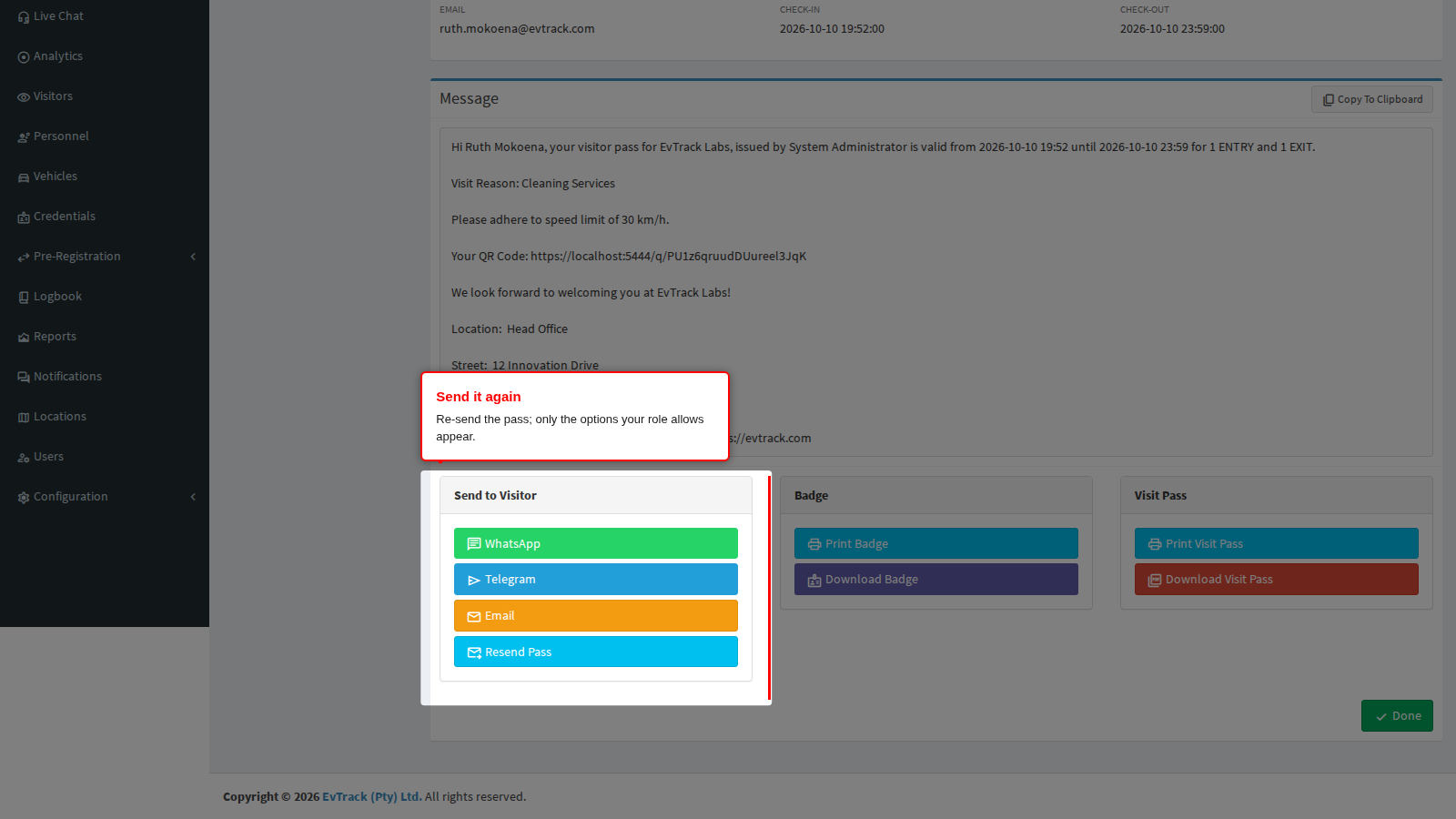
Choose Resend Pass to send the pass again: pick Email, SMS or WhatsApp in the dialog (SMS and WhatsApp need a mobile number on the visitor). For more ways to share it, choose Share Visit Pass to open the Share Visitor Pass page, which sends it by WhatsApp, Telegram or Email, or Copy To Clipboard. Only the options your role and settings allow are shown.
Step 4: Cancel a visit
Choose Cancel Visit Pass, pick a Cancellation Reason, add a Message to Visitor if you want to, and click Cancel Visit. The pass stops working at once. Cancel Visit Pass is not offered while the visit holds a card: return the card first. The message reaches the visitor only when the Cancel email is switched on (see below). Reasons are set under Cancellation.
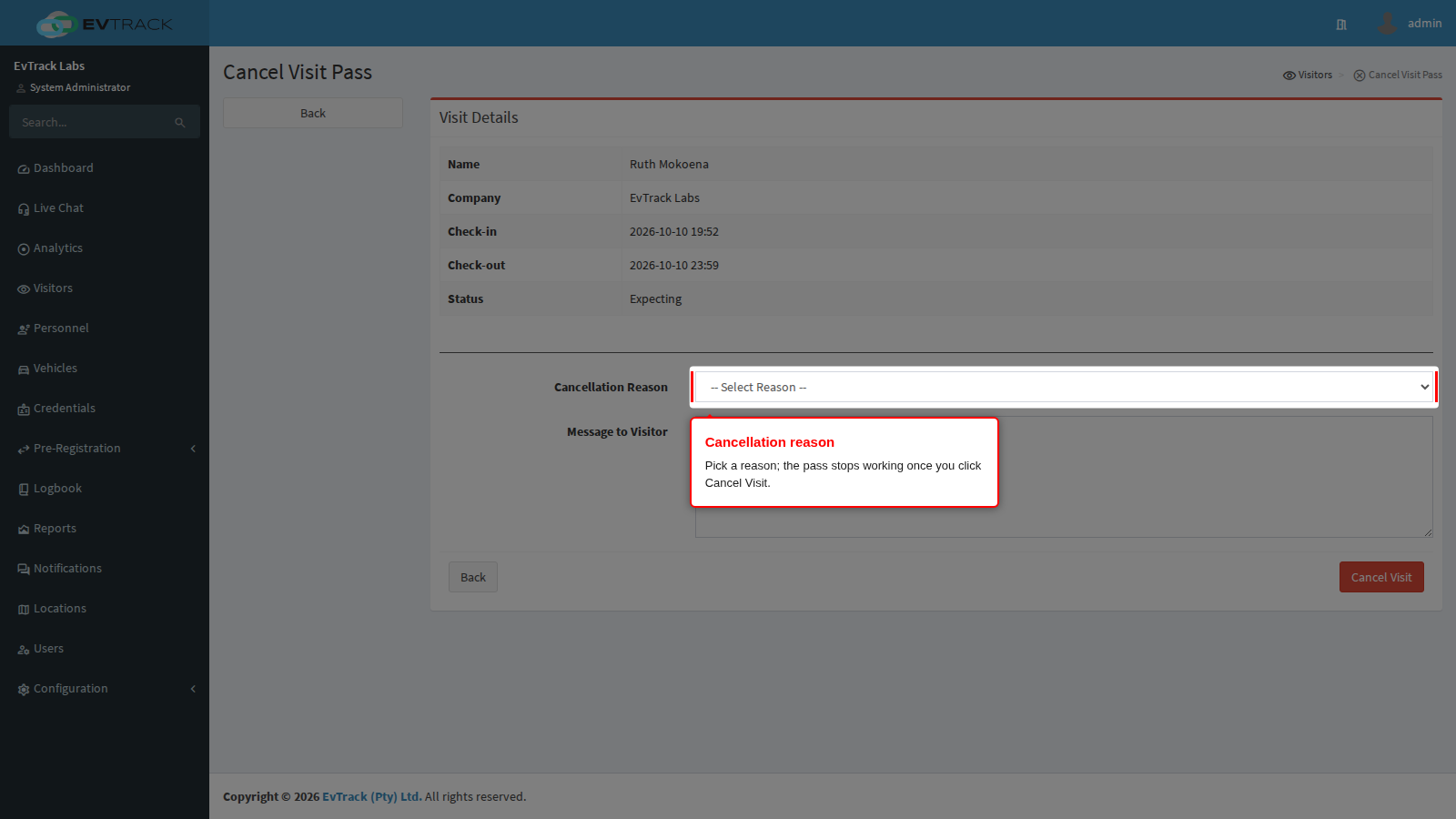
Cancel when a visit is called off; use Set as No-Show when the visitor was expected and did not come. Reports and the visit history show the two as different statuses.
Does the visitor get an email?
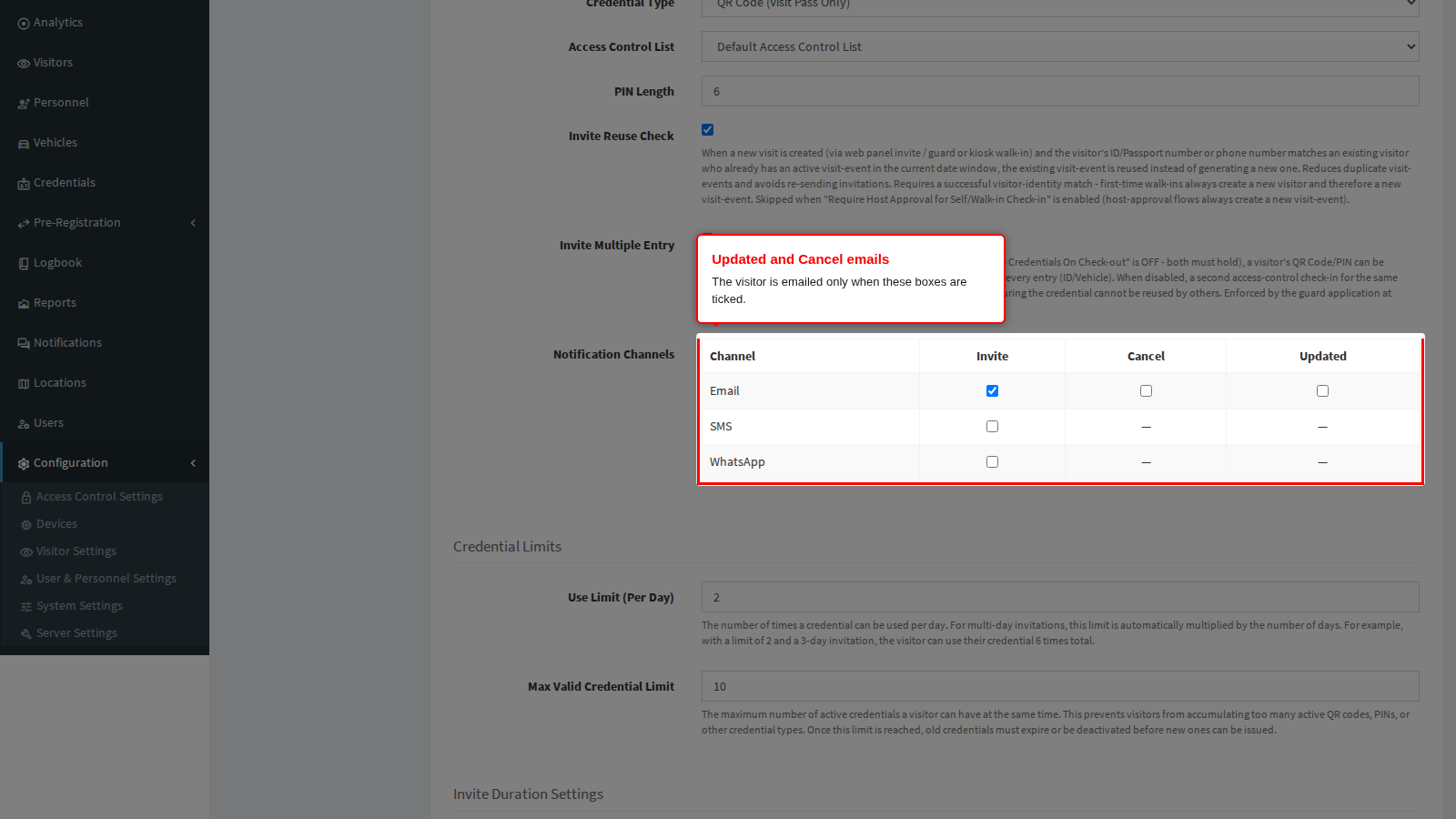
Only when your administrator has switched it on. Under Visit Pass, Notification Channels has an Email box for Updated and for Cancel; both are off by default. With Updated on, a changed visit sends a new pass email whose subject starts with “UPDATED:”, and the visitor should use the newest email.
A visitor who came back
If a visitor has checked out and returns the same day, choose Re-Check-in in the row’s actions: no new pass is needed. It is offered for visits that are Checked-out or Cancelled (not Auto Checked-out); once the visit window has ended it is greyed out and the visitor needs a new invite or an edited visit.