A device is a piece of hardware or an app that EvTrack talks to: a FrontDesk kiosk, a guard handset, an intercom, a door controller, an ANPR camera or a reader. To choose the right type for a job, see Devices.
Before you start: you need the permission Configuration: Devices - Add, a free device licence, and the device’s connection details (address, port, username and password) from its own setup.
Step 1: Open Devices
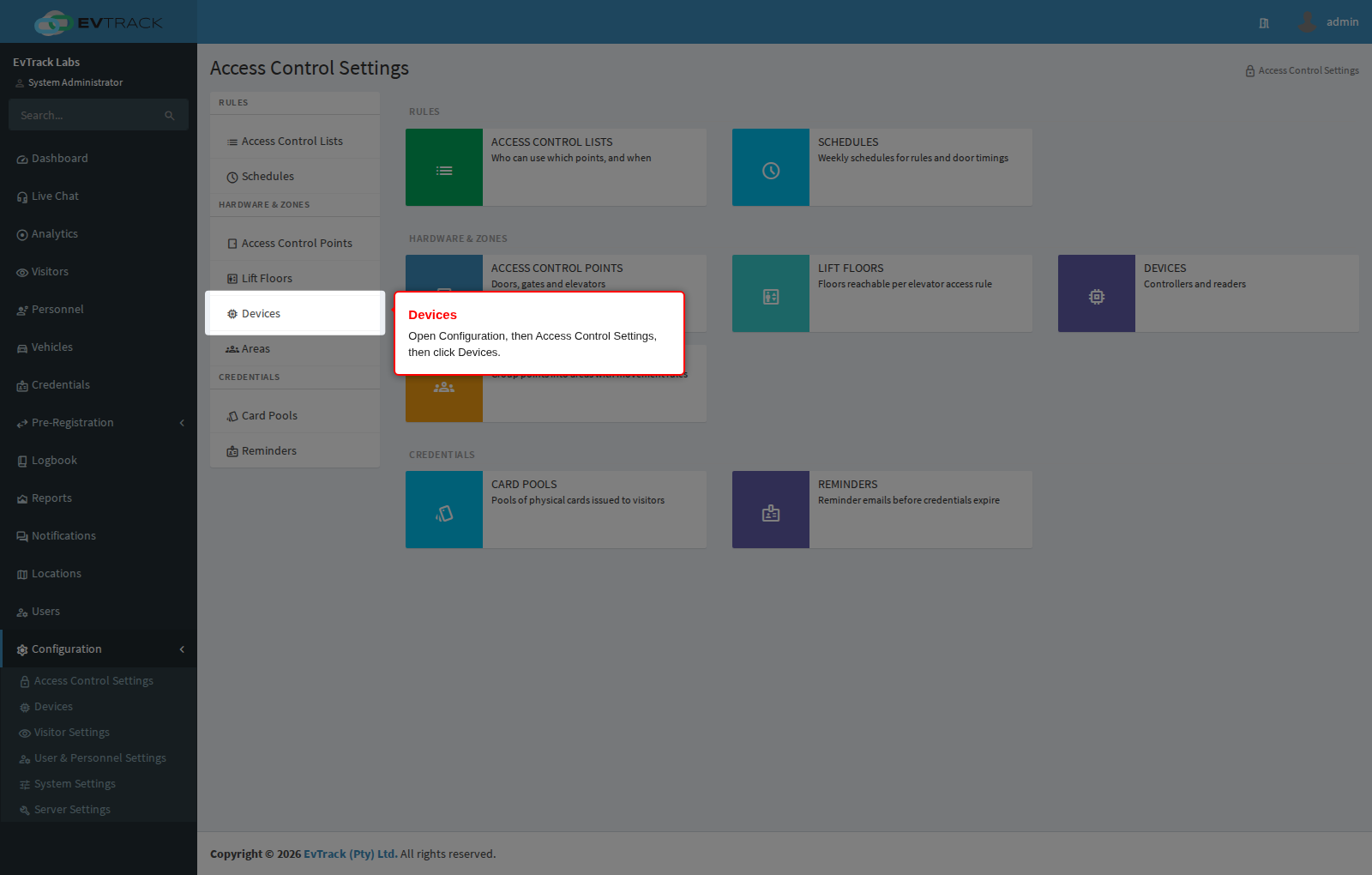
In the left sidebar open Configuration, click Access Control Settings, then click Devices.
Step 2: The device list
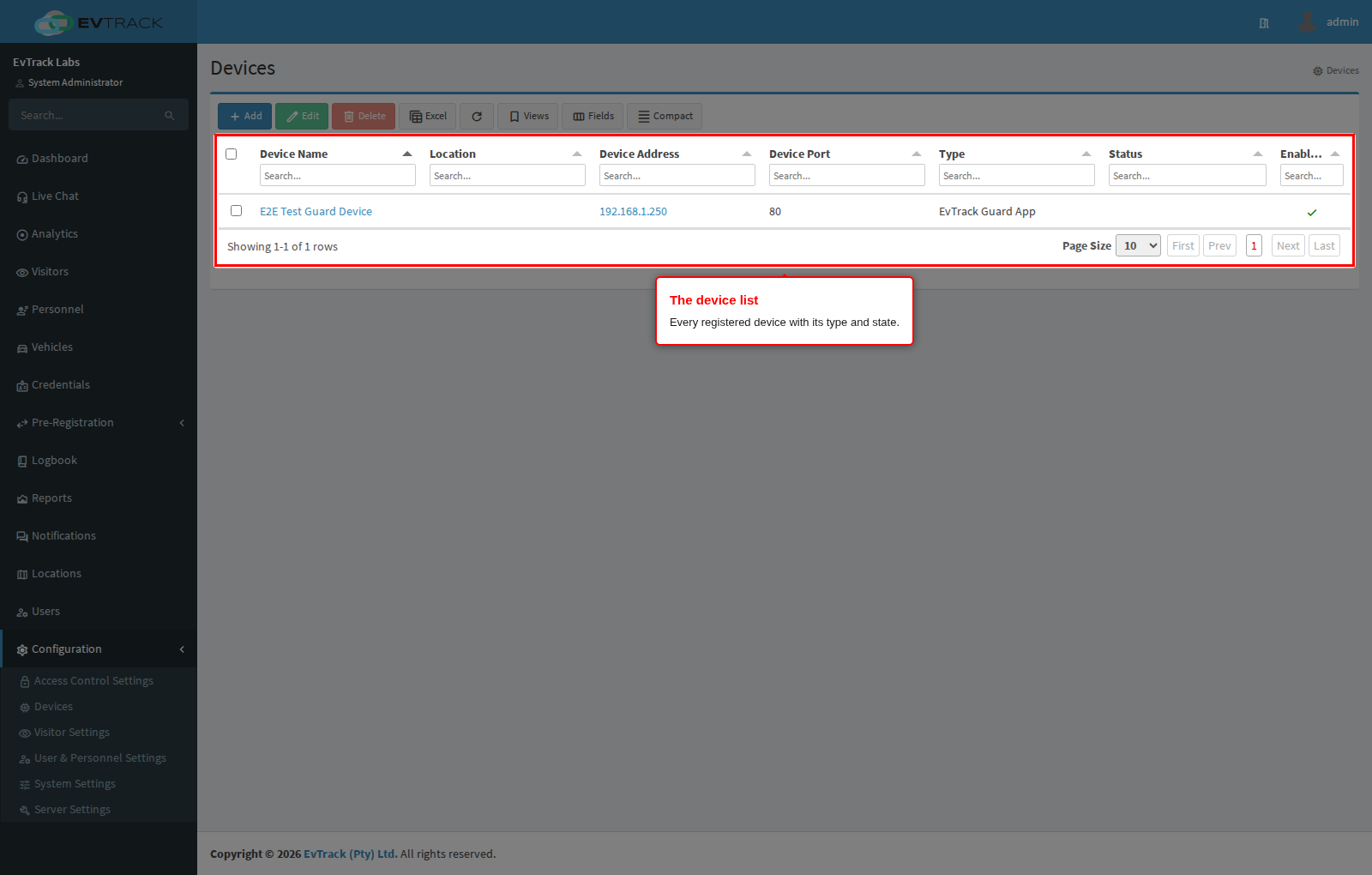
The table lists every registered device with its type and state.
Step 3: Click Add
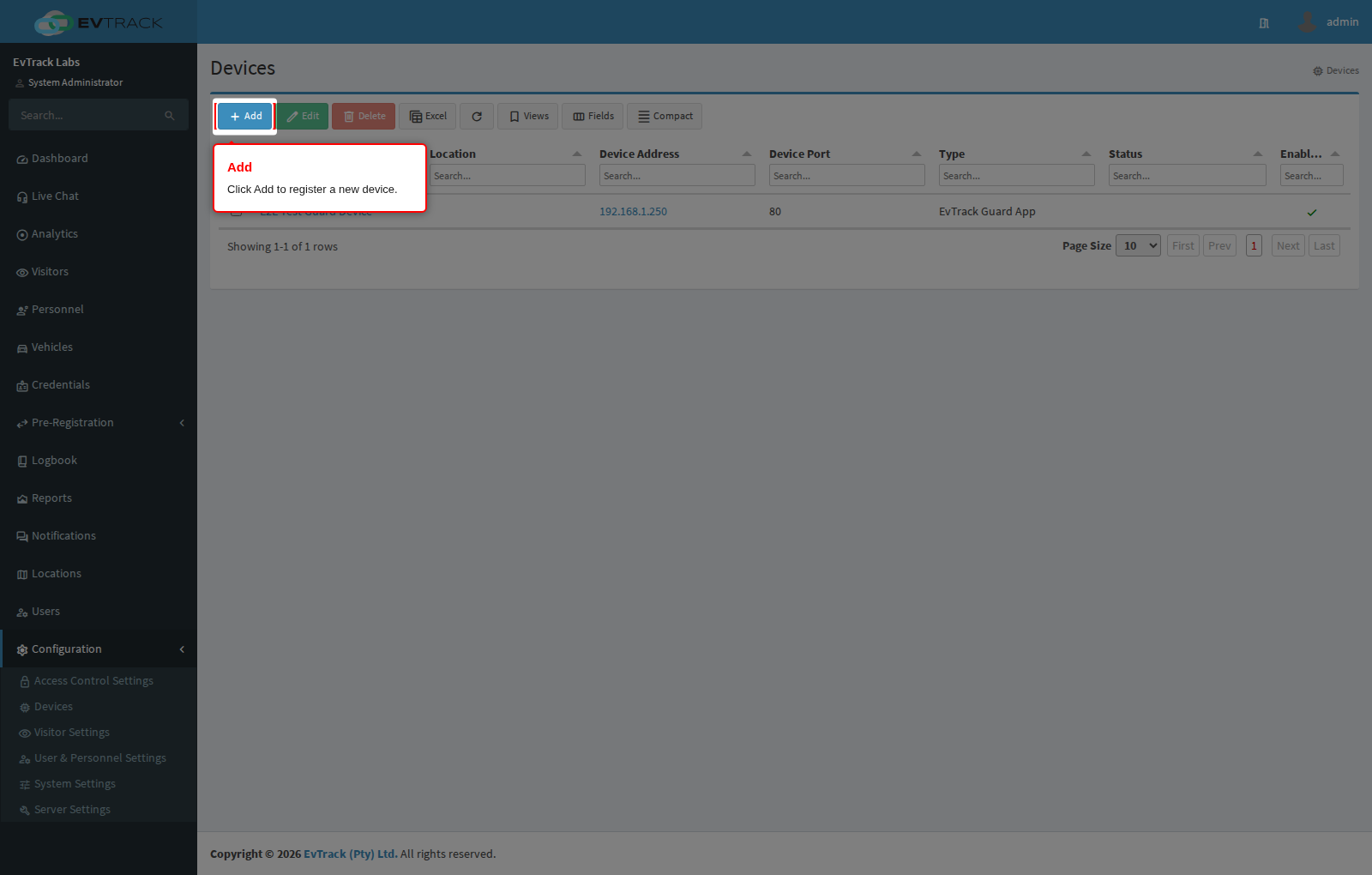
Click the Add button above the table. The new device form opens.
Step 4: Choose the device type
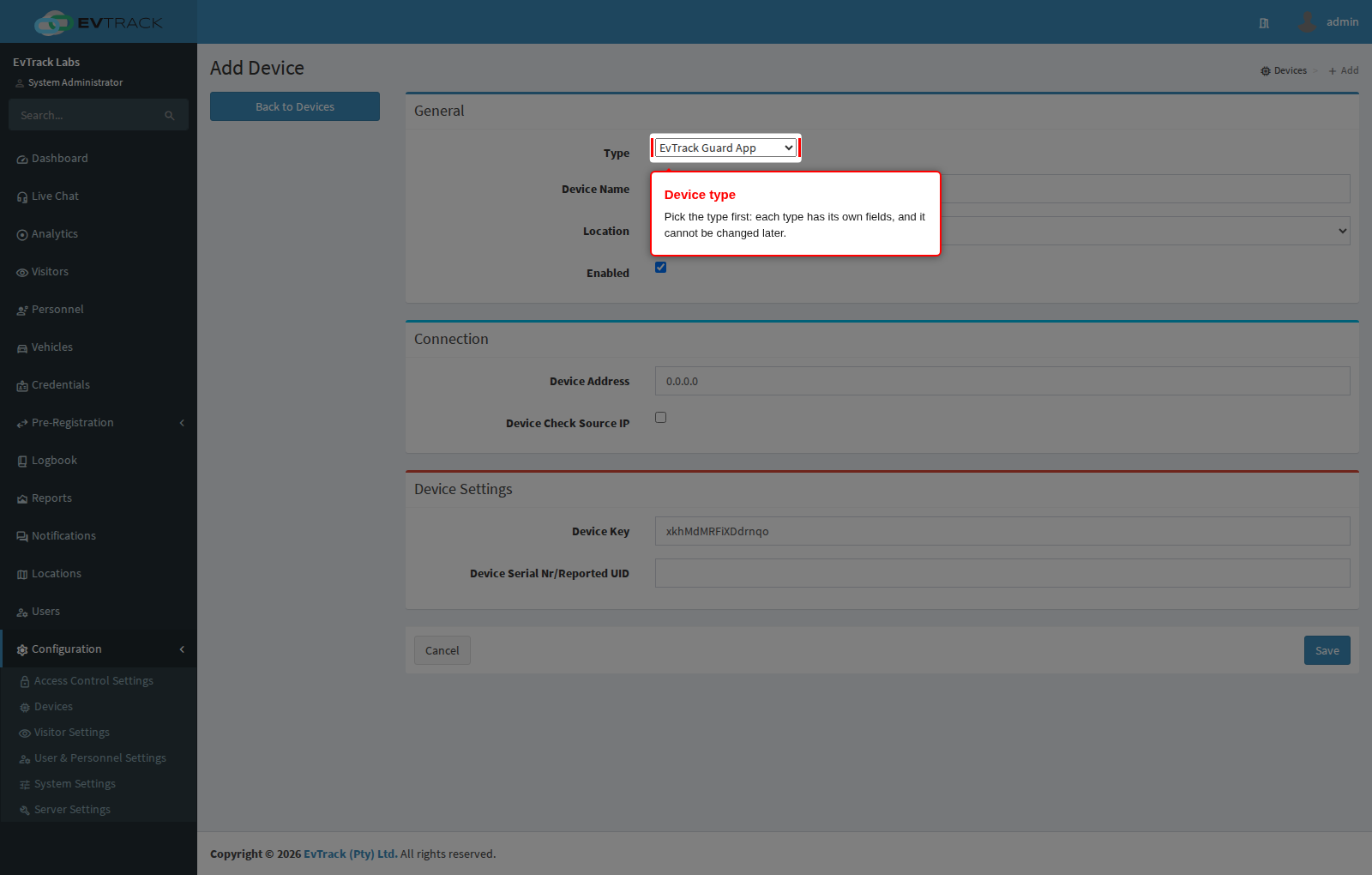
Pick the Type first. The form reloads with the fields that type needs, and the type cannot be changed once the device is saved: a device of the wrong type has to be deleted and added again.
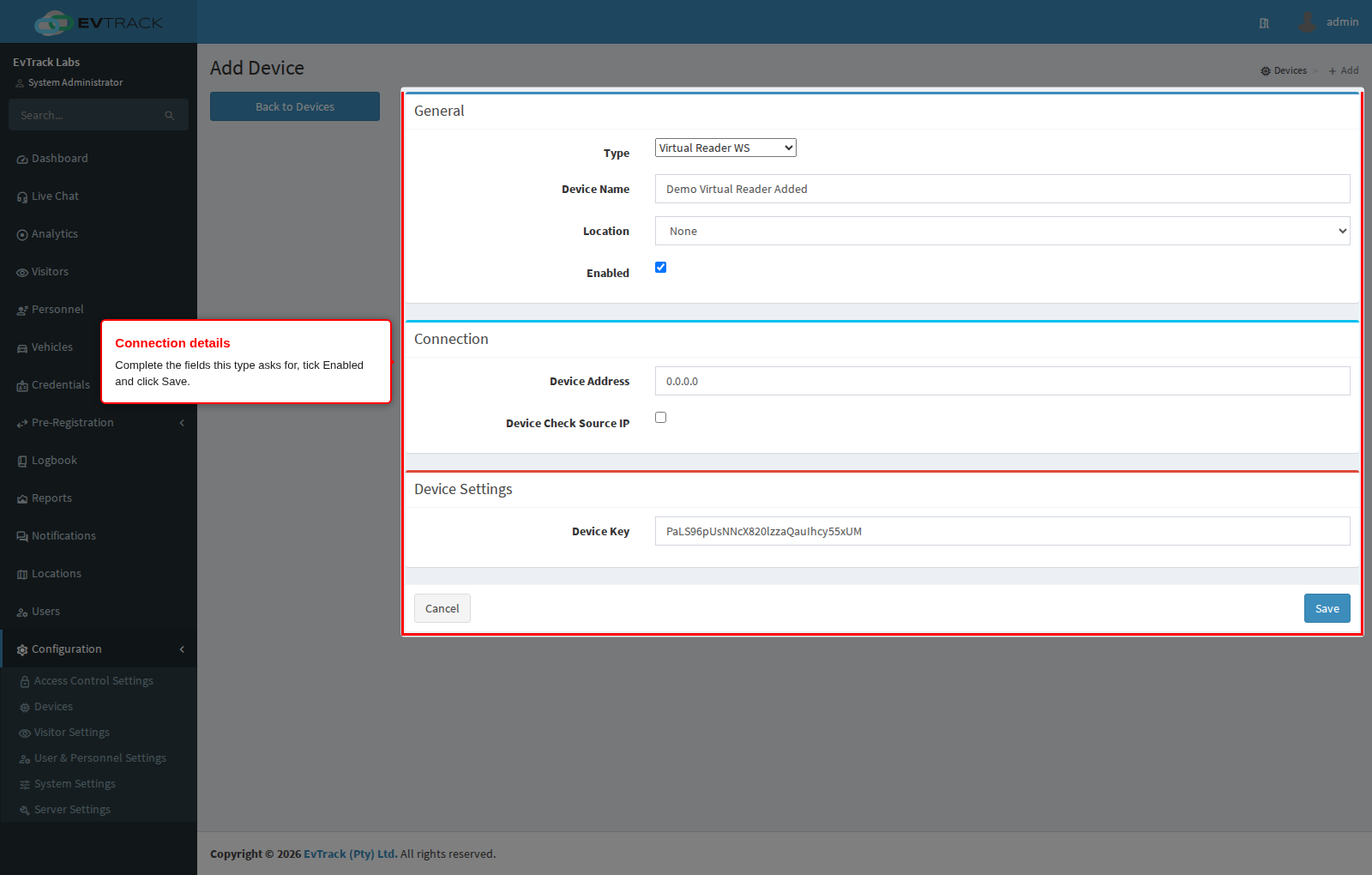
Step 5: Complete the details and save
Every device has a Device Name, an optional Location and an Enabled box. The other fields depend on the type: most network devices ask for an Address, a Port and a username and password; apps ask for a Device Key. Tick Enabled so EvTrack starts talking to the device, then click Save.
The example uses Virtual Reader WS, a type with no hardware behind it, so it needs nothing but a name. For real hardware, the address must be reachable from the EvTrack server and the credentials must match the device’s own setup.
Step 6: The device is added
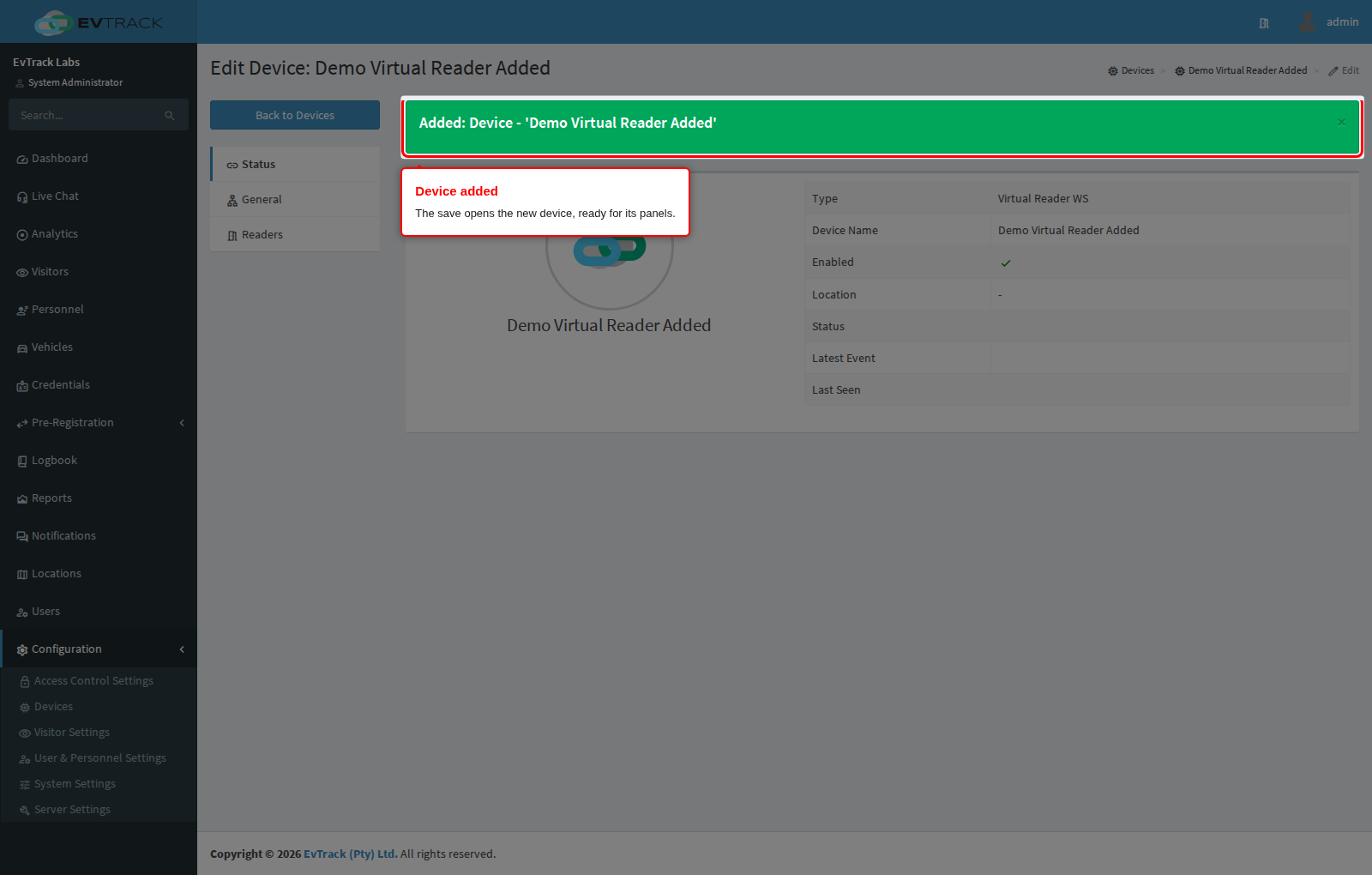
The save opens the new device with the message “Added: Device”, ready for its panels - see Edit a Device.
Step 7: The device in the list
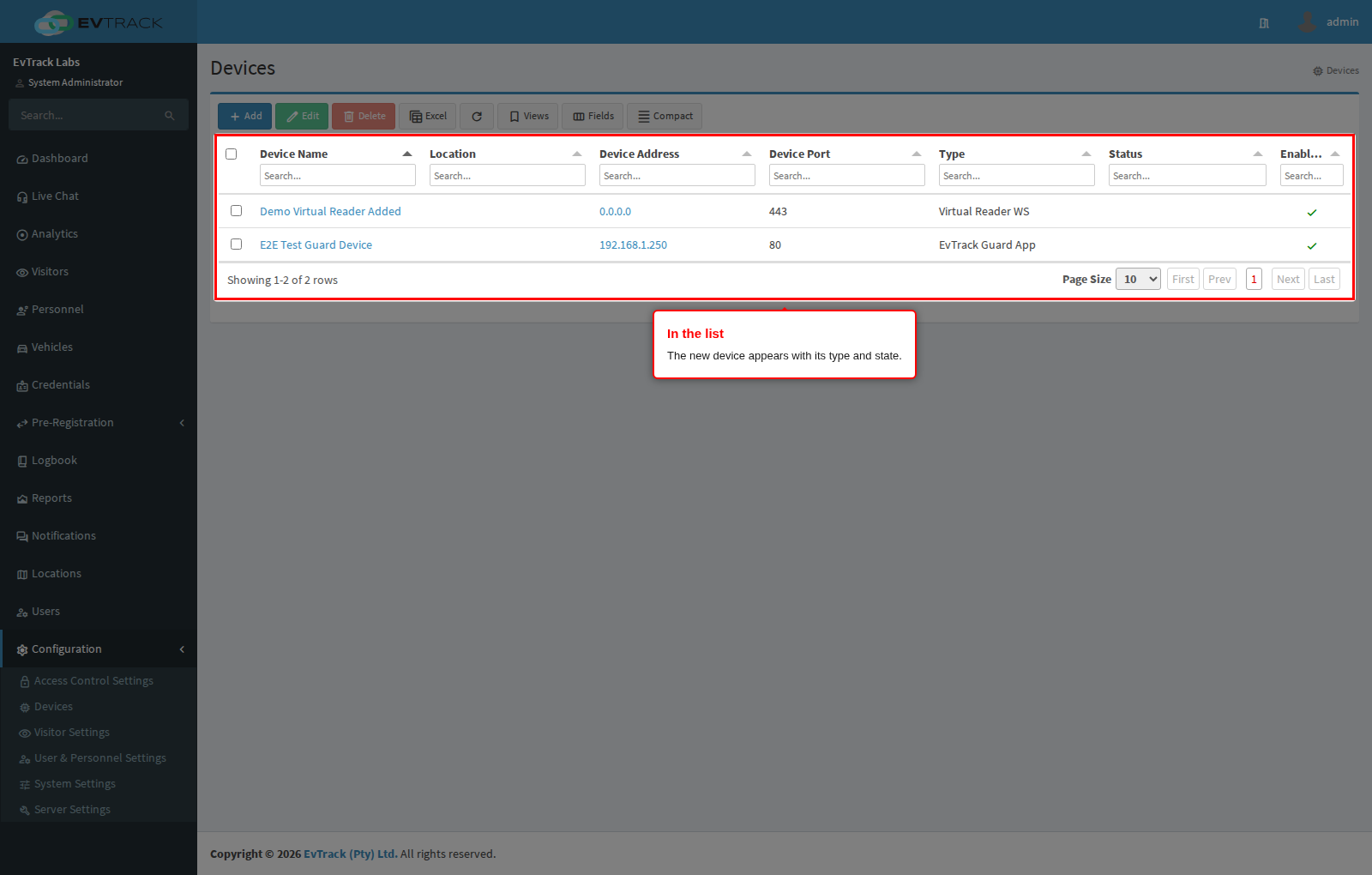
Back on Devices, the new device appears with its type and state. The status column updates on its own as EvTrack connects.
What the form checks
- Device Name must be 5 to 100 characters.
- FrontDesk devices have no Address: the kiosk app connects to EvTrack with its device key.
- A device that is already registered is refused with “Already exists”. Duplicates are found by address and port, reported ID, NetBIOS name or host name, never by name, so two devices may share a name.
- Without a free licence the save is refused: “Please confirm that you have free licenses available.”
- A location that is not in this system is refused: “Selected location is not available in this system.”
- For a network device, EvTrack tries to reach it when you save; a wrong username or password, or an address it cannot reach, is reported on the form.
Next
- Edit a Device: readers, inputs, outputs and the other panels.
- Getting Started device guide: pairing a kiosk or guard app.
- Access Control Points: binding a reader to a door or barrier.