Every visit has a status, and every visitor request has its own, separate status. This page lists both, says what sets each one, and where you see it.
Visit statuses
| Status | Meaning | Set by |
|---|---|---|
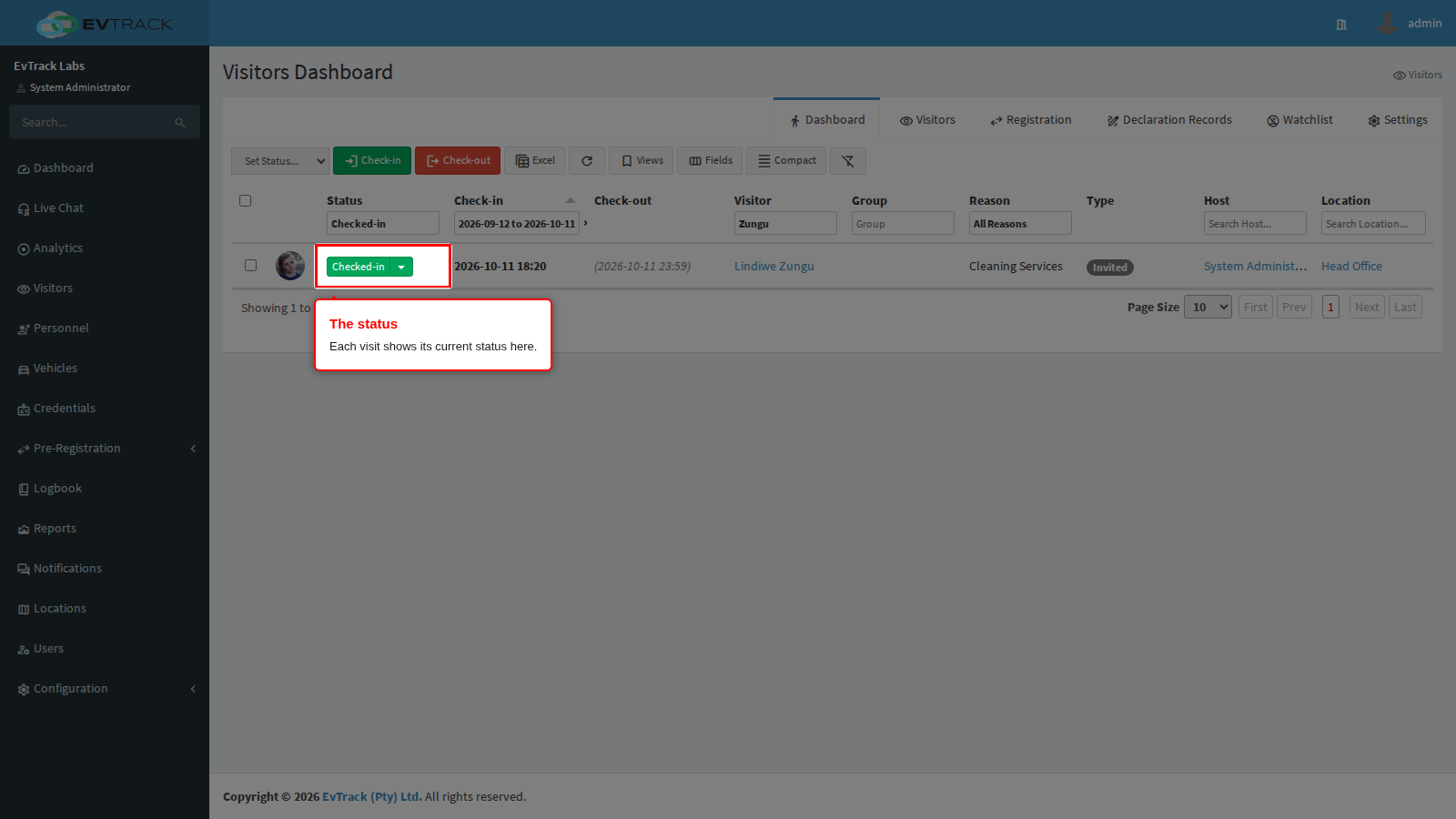
| Expecting | The visit is booked and the visitor has not arrived. The Visitors Dashboard shows it as “Expected” | Issuing the pass |
| In Parking | The visitor’s vehicle has entered the car park | An access control point, or Set as In Parking |
| On-Site | The visitor is on the premises | An access control point, or the visit’s actions |
| Checked-in | The visitor has checked in | Reception, the kiosk, an access control point or the guard app |
| Hosted | The host has met the visitor | An access control point, or the visit’s actions |
| Checked-out | The visitor has left | Reception, an access control point, or the visit’s actions |
| Auto Checked-out | The visit ended with the visitor still shown on site, and the sweep closed it | Auto check-out |
| No Show | The visitor was expected and never checked in | Auto check-out, or Set as No-Show |
| Cancelled | The visit was called off before it happened | Cancel Visit Pass |
| Denied | The host declined a reception check-in that was waiting for approval | The host’s decision |
| Expired | The visit was closed as expired | A connected system; operators cannot set it |
Request statuses
A request from a registration link, an import or the public form is not a visit yet. It shows on the Visitor Registration list with one of these statuses, and becomes a visit only once it is approved.
| Status | Meaning |
|---|---|
| Draft | Saved but not complete, for example an imported row with a problem |
| Waiting For Approval | Waiting for someone to approve or decline it |
| Require Host Approval | Waiting for the host to agree |
| Under Compliance Review | In the optional compliance review |
| Compliance Declined | Turned down in the compliance review |
| Waiting Location Manager Approval | Waiting for one of the location’s managers (where Require Manager Approval is on) |
| Location Manager Declined | Turned down by a location manager |
| Issuing Visit Pass | Approved; the pass is being created |
| Approved, Fully Approved | Done: the visit pass exists |
| Rejected | Declined |
| Expired | A reception check-in that waited for the host and timed out (Host Approval Timeout (Minutes)) |
“Manager Review” is a filter on the list, not a status. A declined request never becomes a visit, so it never shows a visit status.
How a status changes
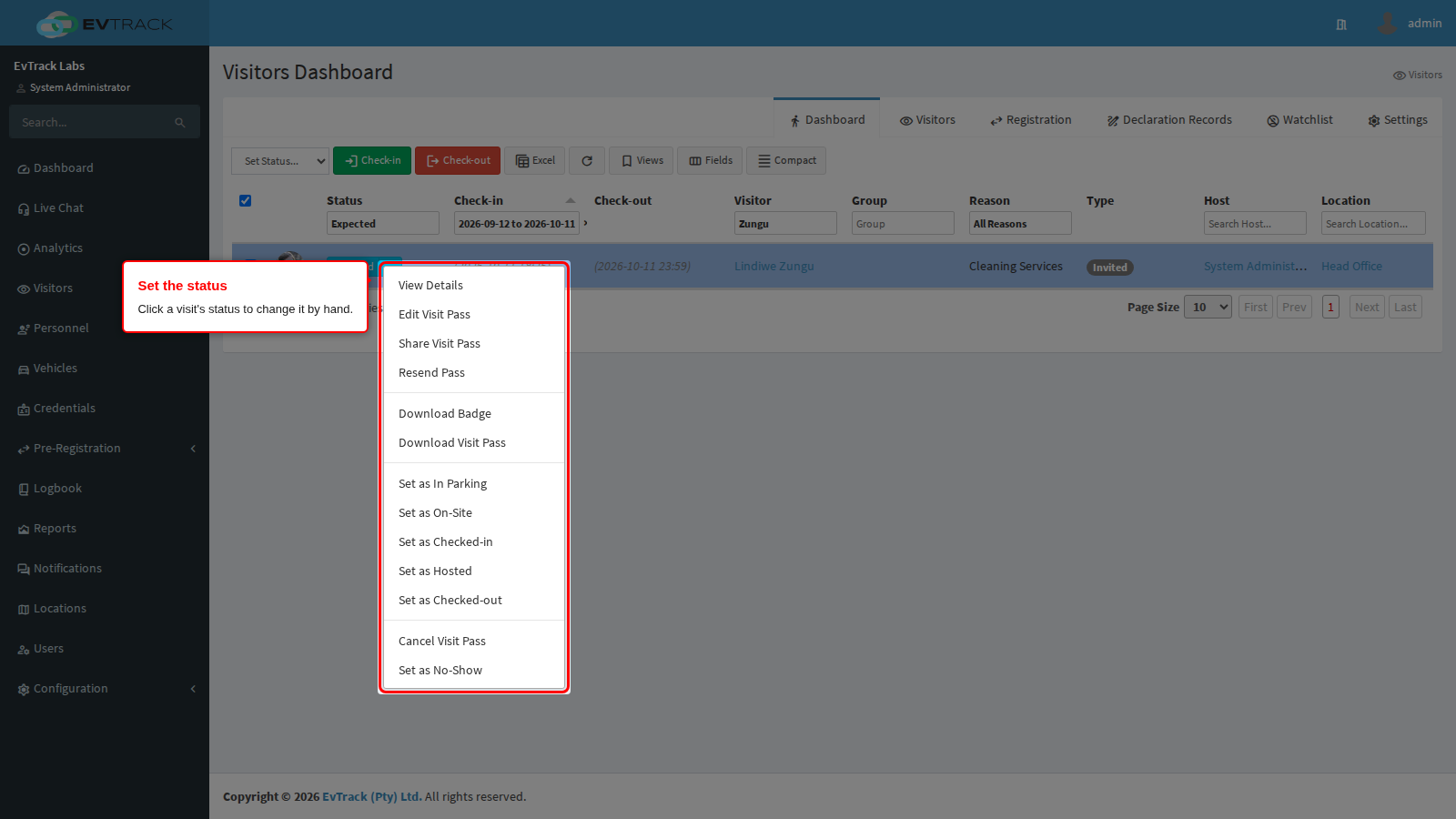
- By hand. Click a visit’s status on the Visitors Dashboard to open its actions, or select several rows and use Set Status…. Any active status (Expecting, In Parking, On-Site, Checked-in, Hosted) can be changed to any other; the visit does not have to pass through them in order. Cancel and No-Show are offered from every active status. A Checked-out, Auto Checked-out or No Show visit can be set back to an active status from its actions; a Cancelled, Denied or Expired visit cannot, except a Cancelled one by Re-Check-in.
- Re-Check-in brings back a visit that is Checked-out or Cancelled, until the visit’s end time.
- At an access control point. Each point has an IN Direction Status Action and an OUT Direction Status Action: Checked-in, On-Site, Checked-out, In Parking, Hosted, or No Status Change. A camera or reader sets whatever its point is set to - see Access Control Points. A point does not change a visit that has already finished, unless Allow re-check-in after check-out (or a Temporary Visitor Permit, or a visit reason that allows multiple entries) lets an entry re-open a Checked-out visit.
- At the kiosk. A kiosk check-in sets Checked-in.
- Automatically. With Enable Auto Check-out/No-Show? on (the default), EvTrack checks every 5 minutes:
- a visit still Expecting after its planned end becomes No Show;
- a visit still on site after its end, plus the Auto Check-out Delay and the Late Check-out Period, becomes Auto Checked-out. No check-out notice is sent for it.
Cancelled or No Show
Use Cancel Visit Pass when you know in advance that the visitor is not coming; it is hidden while a card is assigned to the visit. No Show is for a visitor who simply did not turn up. Both switch off the visit’s credentials, so the QR code and any card stop opening doors.
Where you see a status
- Visitors Dashboard: shows active visits by default (the Status filter’s Expected/Checked-in). Choose Checked-out, Cancelled or Auto Checked-out in the filter, or All Visitors to see every status including No Show - see Visitor Dashboard.
- Visit Pass Details: the visit’s status.
- Visitor Registration list: request statuses.
- Reports: each visit’s status, for the period you choose.
Related
- Check-in and Check-out
- Status-based access: which doors a visitor may use in each status.
- Check-in, Check-out and Cards