Remove devices EvTrack should no longer manage. Deleting is permanent; to take a device offline for a while, clear Enabled on its General panel instead - see Edit a Device.
Before you start: you need the permission Configuration: Devices - Delete. Check which doors and barriers the device’s readers serve.
Step 1: Select the devices
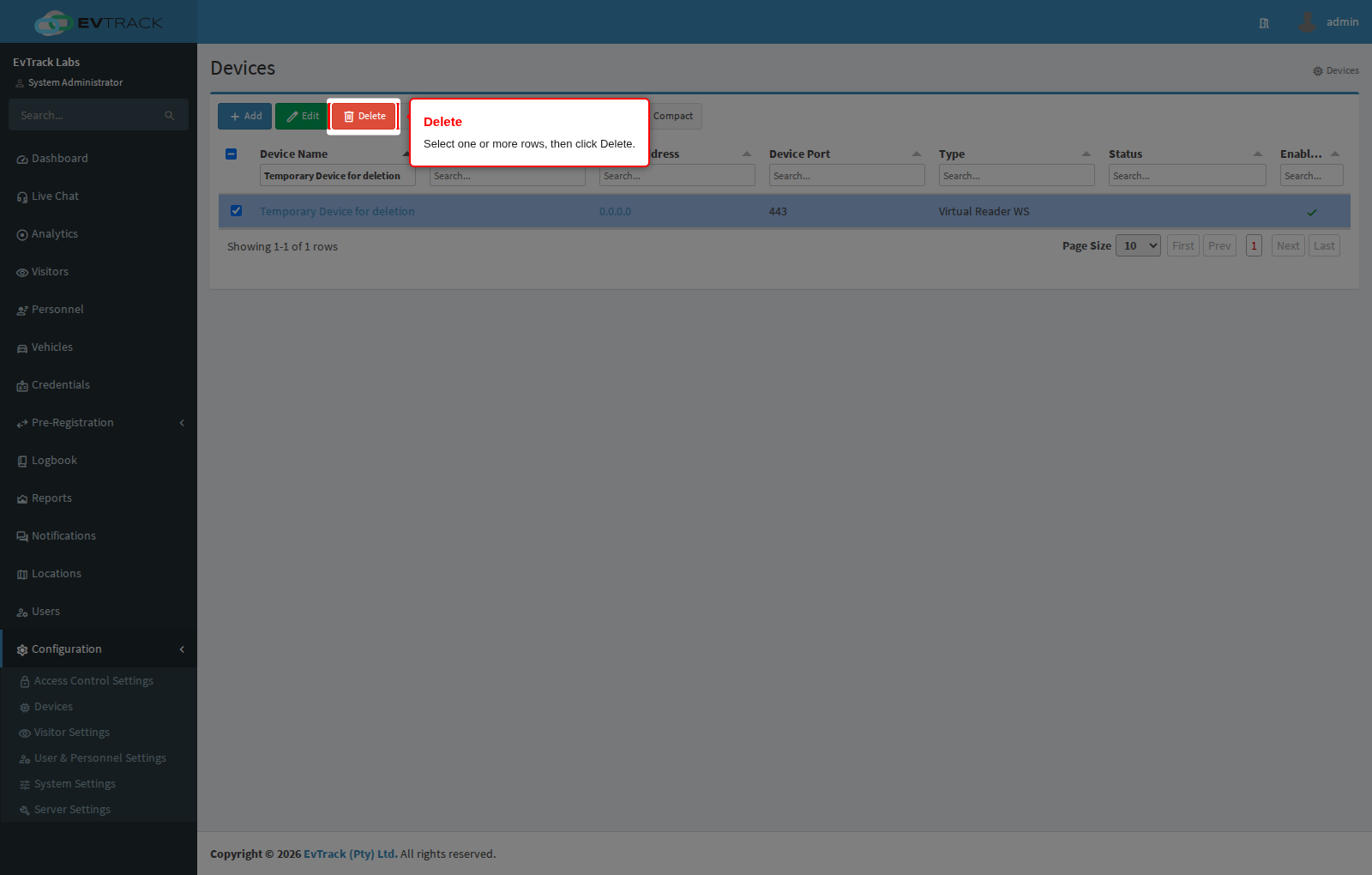
On Configuration > Access Control Settings > Devices, select one or more rows (up to 200 at a time) and click Delete. In the example, a disposable device called “Temporary Device for deletion” is removed.
Step 2: Confirm
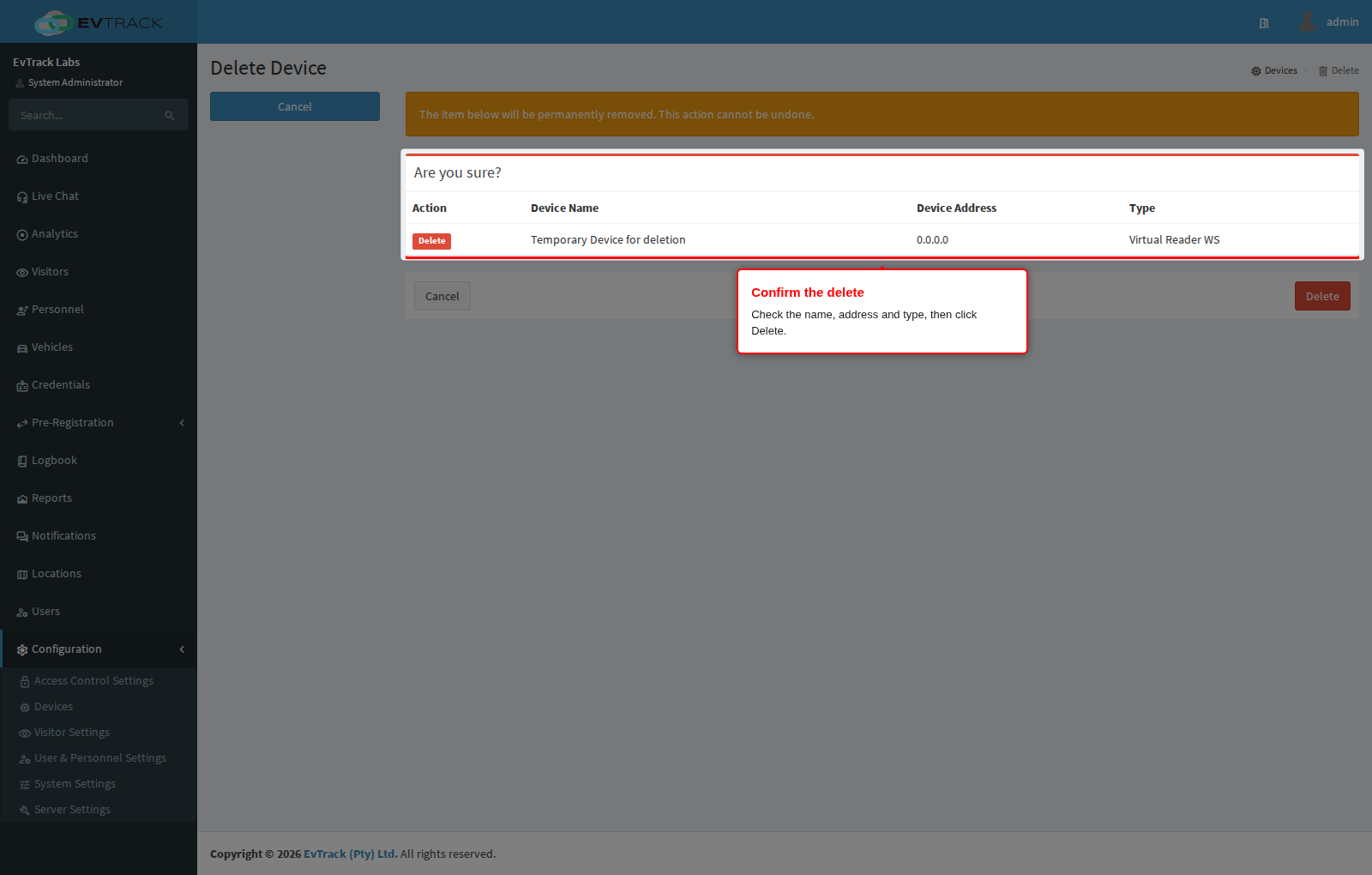
The Delete Device page lists the Device Name, Device Address and Type of each device, under the warning “The item below will be permanently removed. This action cannot be undone.” Check them, then click Delete, or Cancel to keep them.
Step 3: Check the result
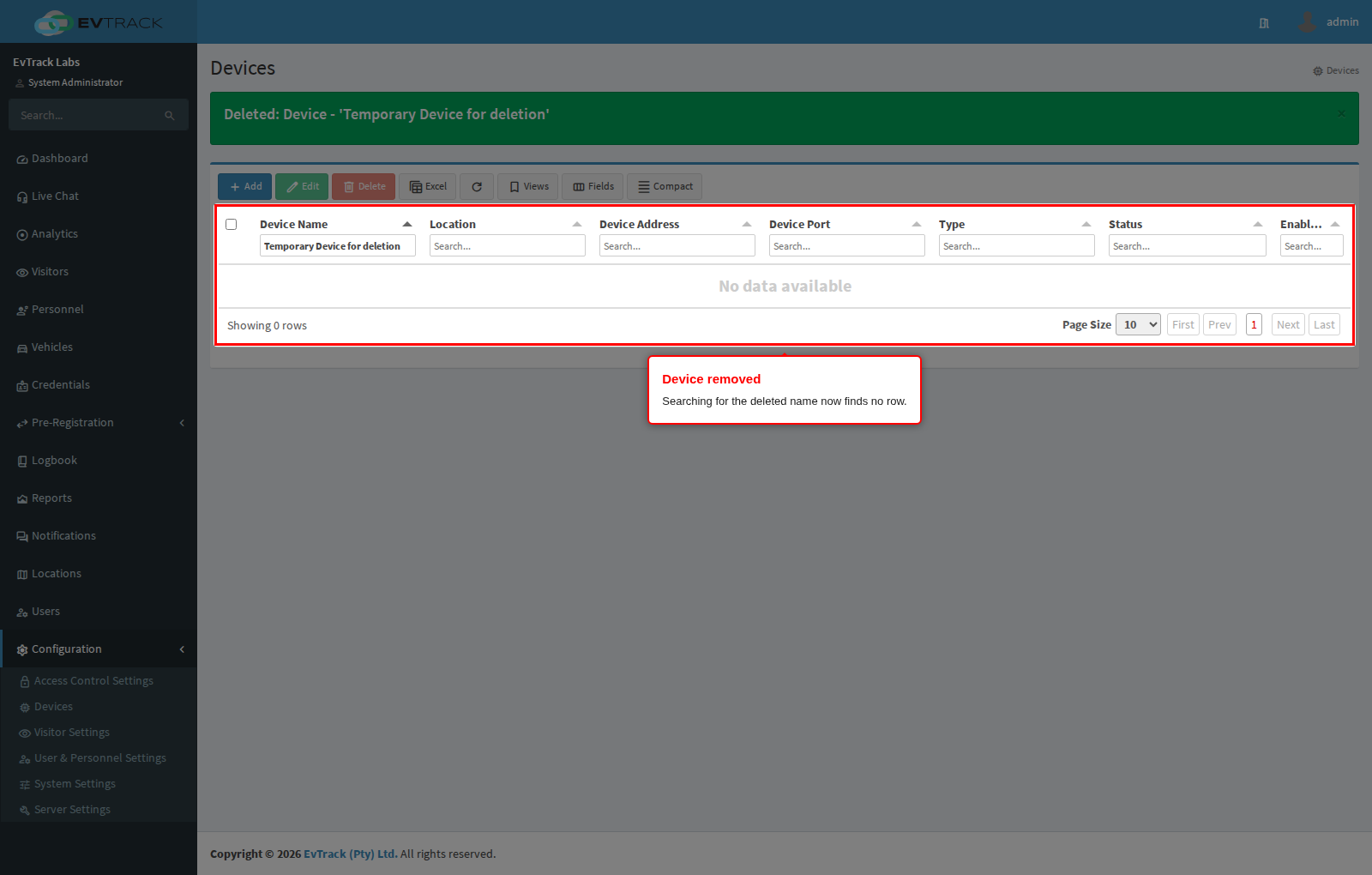
You return to the list with a message, and the device is gone: search for its name and no row is found.
What a delete removes
- The device, and its readers, inputs, outputs and buttons.
- Each reader leaves the access control point it served, so that door or barrier stops admitting anyone through this device until another reader is bound to it - see Access Control Points.
- The hardware itself is untouched: it simply stops being managed. Adding it again starts from scratch - see Add a Device.
- Visitors’ cards and other credentials are not affected.