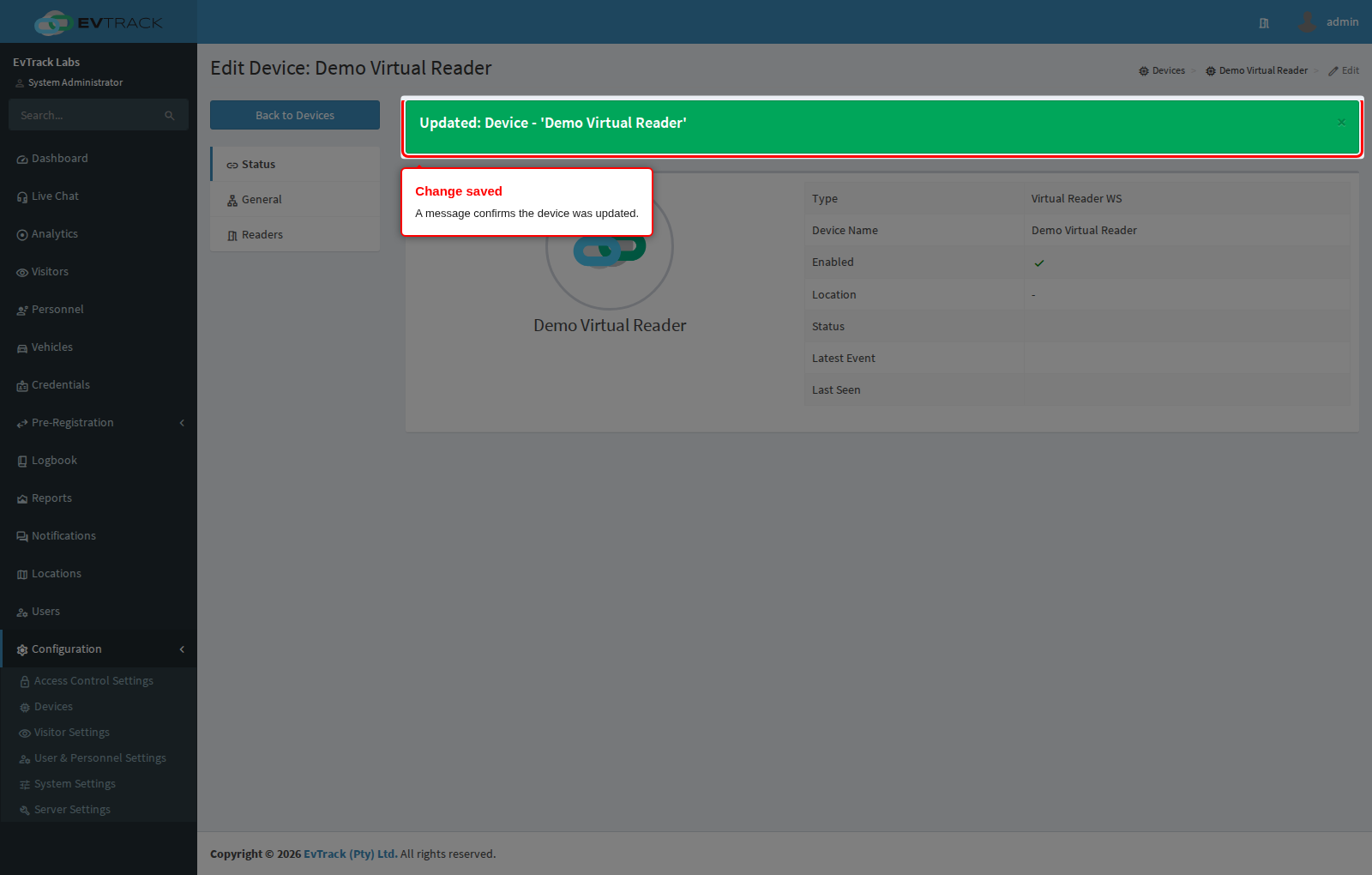
Change a device’s name, location or connection details, take it offline, or work with its readers, inputs and outputs.
Before you start: you need the permissions Configuration: Devices - Edit/View and Configuration: Devices - Save.
Step 1: Select the device
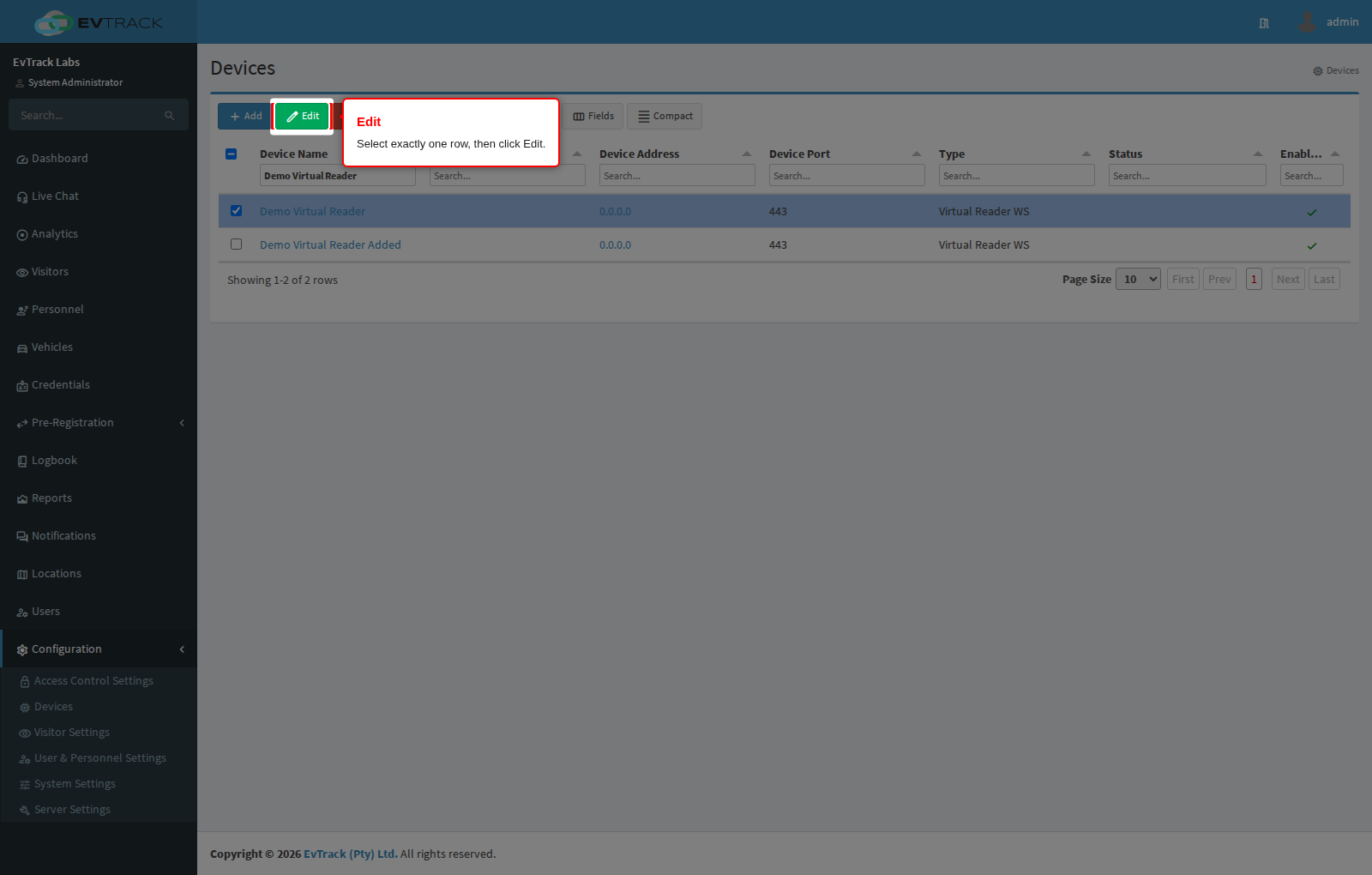
On Configuration > Access Control Settings > Devices, select exactly one row and click Edit. Clicking the device’s name does the same.
Step 2: The device panels
A device opens on a menu of panels. Only the panels its type supports appear:
| Panel | What it holds |
|---|---|
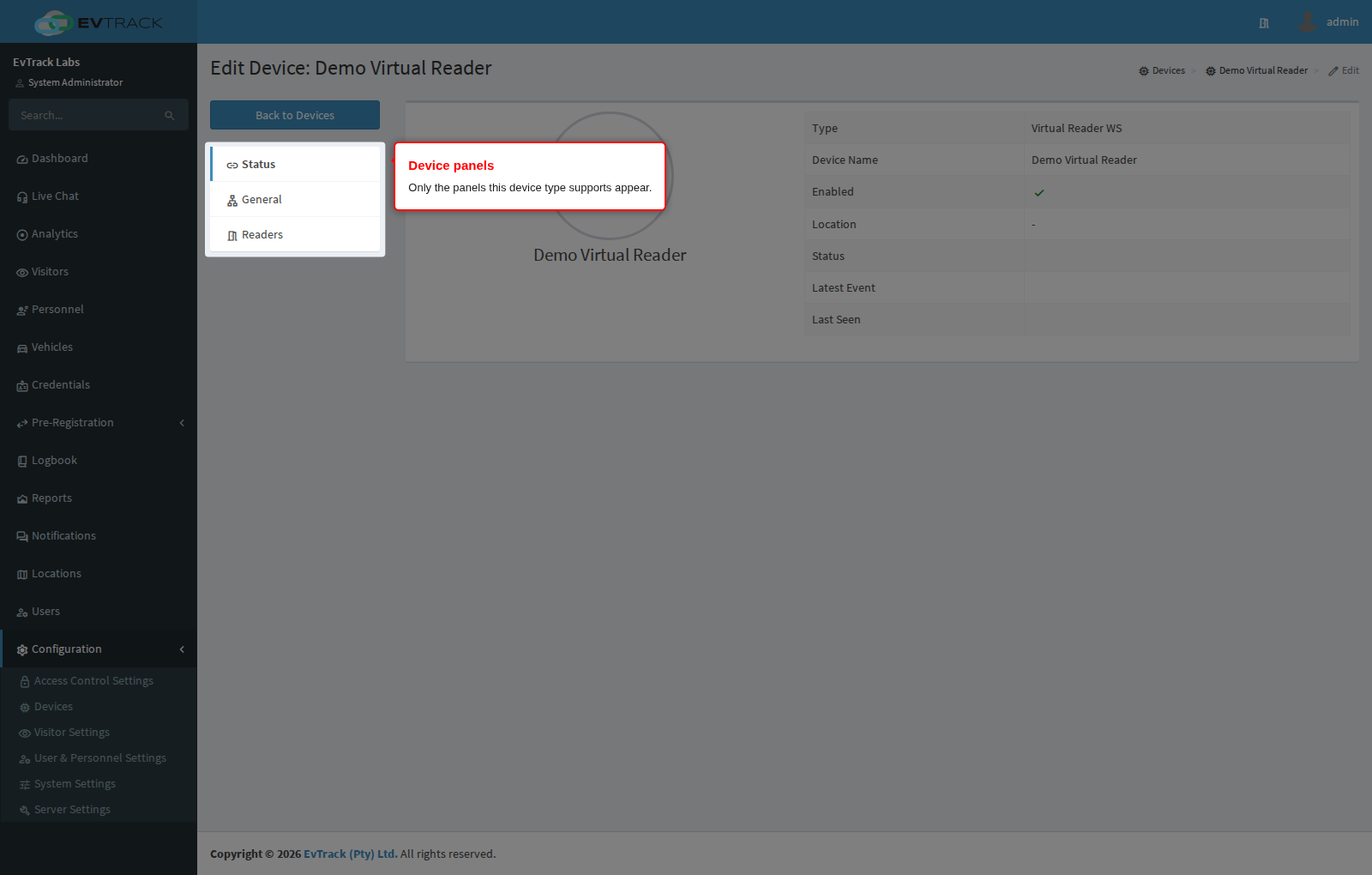
| Status | The connection state, the latest event and when the device was last seen |
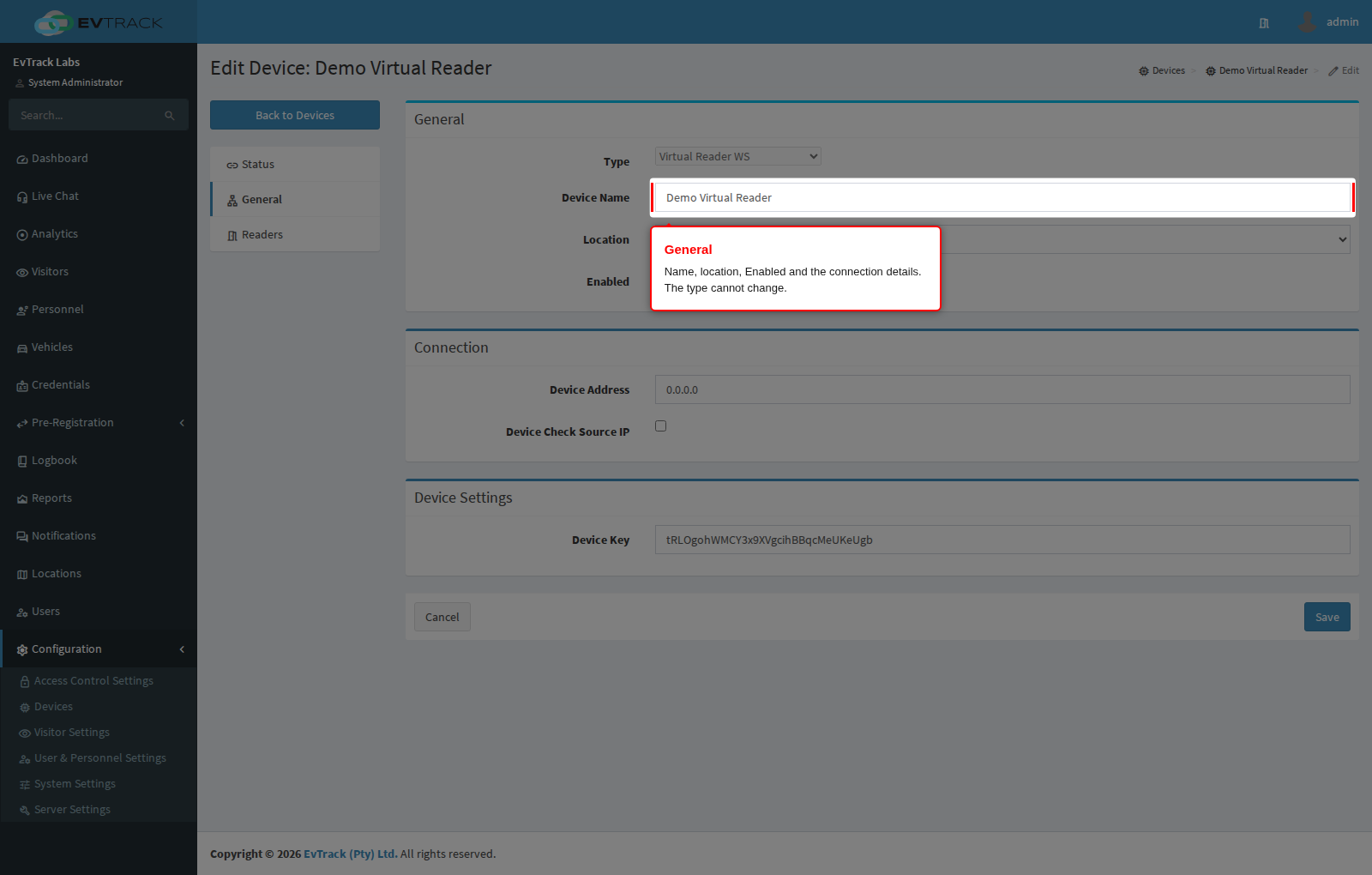
| General | Name, location, Enabled and the connection details |
| Encryption | The keys for encrypted traffic, where the type supports it |
| Readers, Inputs, Outputs, Buttons | What the device exposes. Readers are bound to doors and barriers from the Access Control Points side |
| Elevator | Floor settings for a lift controller |
| Optional, SIP Settings | Kiosk options |
| Advanced | Type-specific settings |
| Downloads | The app to install, for FrontDesk and Guard devices - see Get the Device Key |
Step 3: Check the status
Status opens first. It shows whether EvTrack can reach the device, its latest event and when it was last seen. Where the type supports it, Rescan Device reads the device again and updates what EvTrack holds about it.
Step 4: Change the device
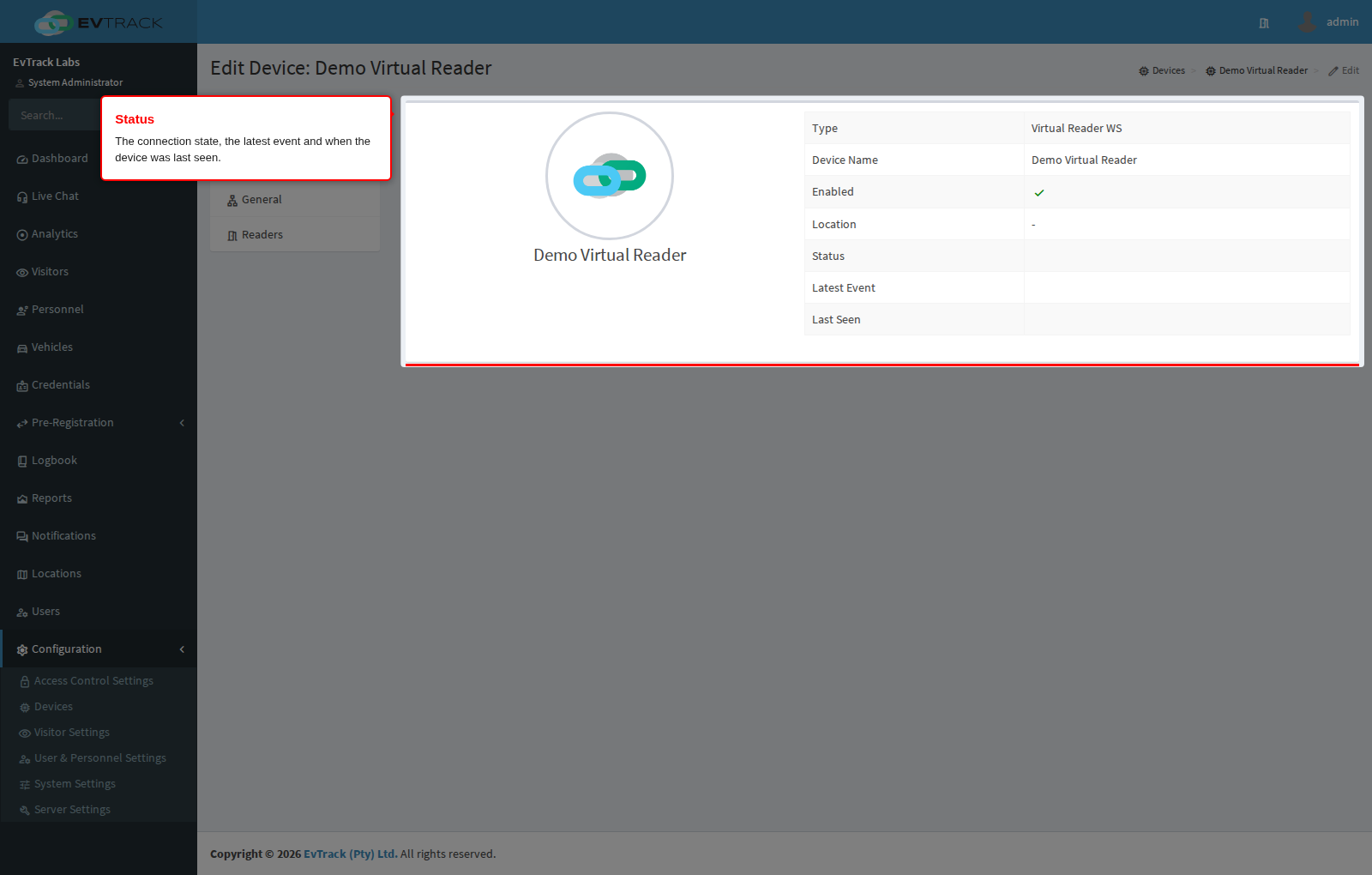
Open General to change the name, the location, or the connection details after the hardware is given a new address or password. The Type is shown but cannot be changed.
If you change the address, enter the device password again: EvTrack refuses the save with “Re-enter the device password because the network address changed.”
To take a device offline without deleting it, clear Enabled.
Step 5: Save
Click Save. The message “Updated: Device” confirms it. Connection changes take effect on the next connection, so allow a moment before judging the status.